The company settings window holds the settings that apply to your whole company: the permission rules for each role, the list of product types, and your company profile. Open it with the company card in the top bar. See Manage members and departments for the tabs.
Who can change what#
| Without Pro | On the Pro plan | |
|---|---|---|
| Company name, description, tags, logo and badge | Every member | Admins |
| Product types list | Every member | Admins |
| Roles & permissions | Not available | Admins |
| Sign-in security | Not available | Admins |
| Billing address and billing currency | Every member | Admins |
Everyone else sees the same screens read-only. You can only change a workspace you are working in: to change another company or department, switch to it first.
Roles & permissions#
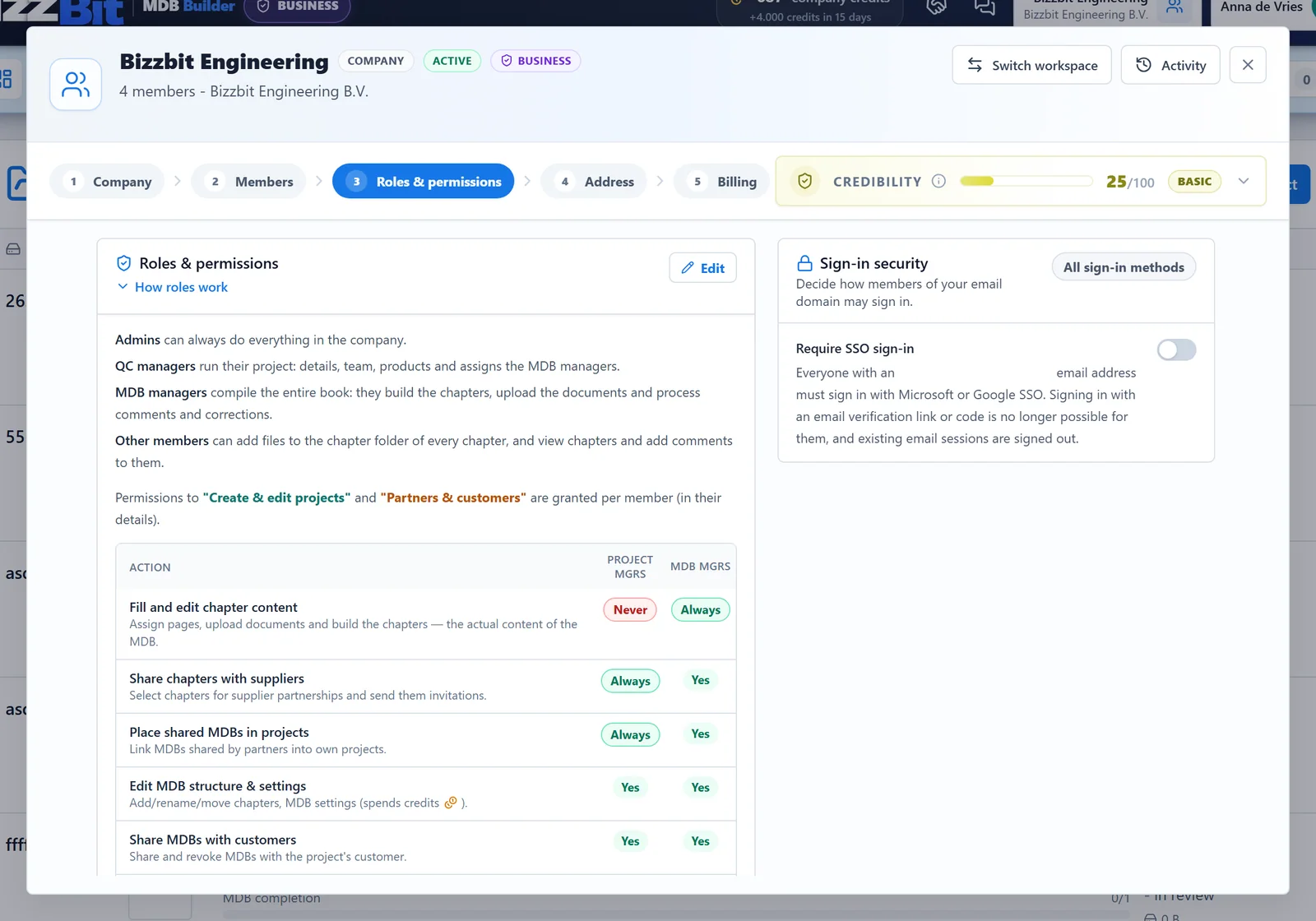
MDB Builder has fixed roles. Admins decide, for a handful of actions, what the two project roles may do.
- Admins can always do everything in the company.
- QC managers run their project: details, team, products, and they assign the MDB managers.
- MDB managers compile the book: they build the chapters, upload the documents and process comments and corrections.
- Other members can add files to the chapter folder of every chapter, view chapters and add comments.
Roles apply per project. They take effect once Project roles is switched on for the project. See MDB managers and checkers.
The permission table#
Open the Roles & permissions tab. The table has one row per action and two columns: one for QC managers (headed Project mgrs) and one for MDB managers (MDB mgrs). A cell shows:
- Always or Never: fixed by the platform, you can't change it.
- Yes or No: the current setting, which an admin can change.
| Action | QC managers | MDB managers | Default |
|---|---|---|---|
| Fill and edit chapter content | Never | Always | — |
| Share chapters with suppliers | Always | Setting | Yes |
| Place shared MDBs in projects | Always | Setting | Yes |
| Edit MDB structure & settings | Setting | Setting | Yes |
| Share MDBs with customers | Setting | Setting | Yes |
| Release revisions to the customer | Setting | Setting | Yes |
| Export MDBs | Setting | Setting | Yes |
| Remove other people's signatures | Setting | Setting | No |
To change a setting:
- Click Edit in the header of the card. The Yes/No labels turn into switches.
- Switch the actions on or off for each role.
- Click Save.
If you switch tabs or close the window before saving, MDB Builder asks whether you want to discard the changes.
Permissions per member#
Two permissions are granted to individual members instead of to a role:
- Create & edit projects: may start new projects and edit the details of every project in the company.
- Partners & customers: may manage partnerships and customers for the company.
Open the member on the Members tab, switch the permission on under Permissions and click Save. Granted permissions show as coloured labels next to the member in the list. Admins always have both.
Product types#
Every type that someone saves on a product is added to the company's product types list and suggested in the Type field of new products. On the Company tab, click Manage product types (or View product types if you can't change them).
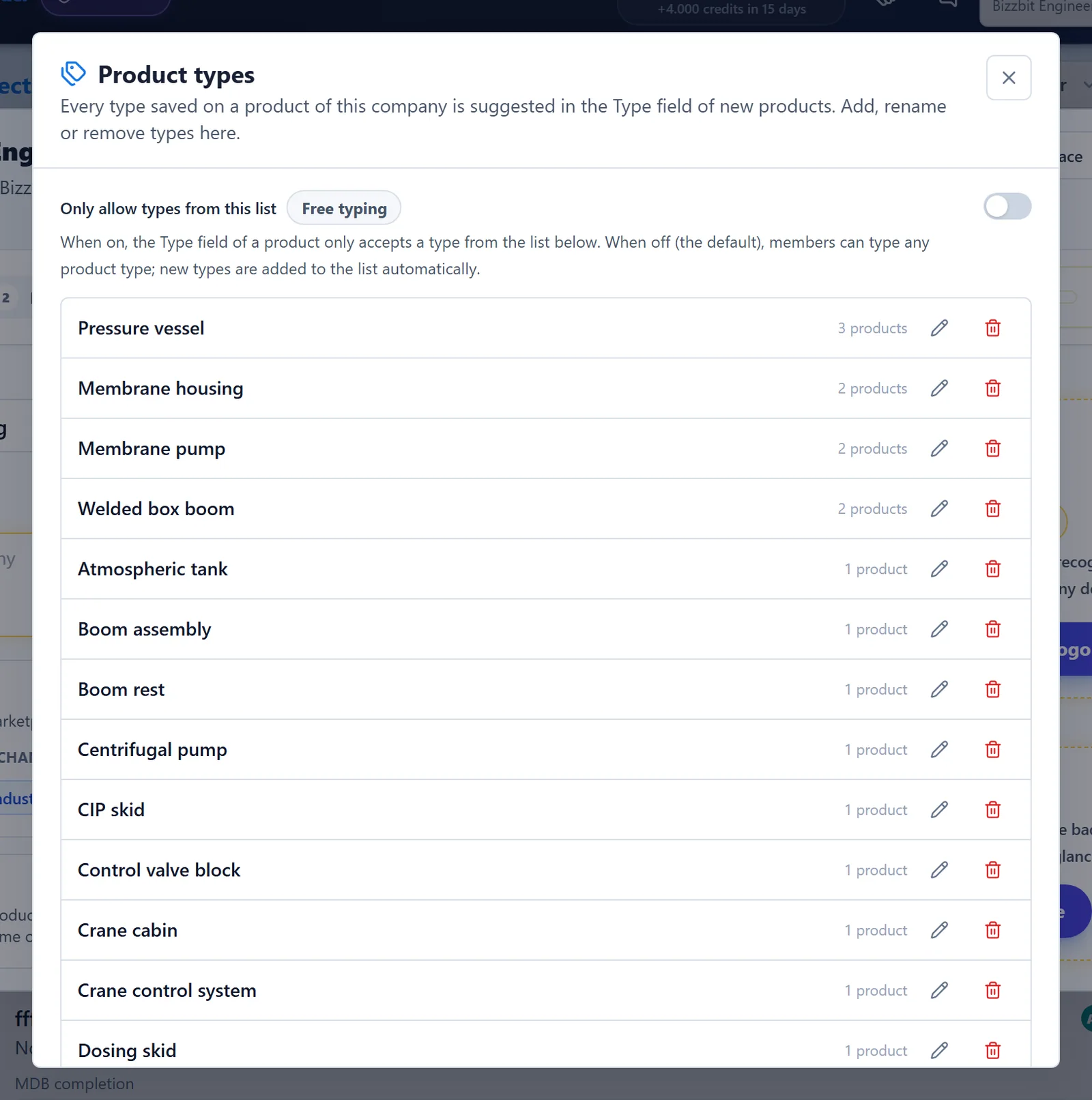
In this window you can:
- Add a type: type the name and click Add type.
- Rename a type with the pencil, or remove it with the bin.
- Switch on Only allow types from this list. The Type field then only accepts a type from the list. When it is off (the default), members can type any type, and new types are added to the list automatically.
Click Save changes to apply, or Discard to undo your edits.
Company profile#
The profile tells partners and customers who you are. It is spread over two tabs.
Company tab
- Company name: see renaming the company.
- Company description and Company tags: used when other companies look you up in the marketplace. Click Edit tags to pick tags.
- Your company logo: click Upload your logo. The logo is stored with the company details.
- Company badge: a small square image that shows partners at a glance which company is behind an MDB or chapter. Click Upload your badge, then upload an image or use Create badge to make one from your initials, and click Save badge.
Address tab
- Find your company (or Search again) looks up your company with Google and fills in the name and address. To type the details yourself, click Edit the company details manually (name, address, website, logo).
- List this company in the marketplace: when this is on, other companies can find you by name and tags to send a partnership invite. Only your company profile is shown. Click Save visibility after changing it.
The credibility rating next to the tabs shows how complete your profile is. Open it to see the checklist. If your email domain doesn't match your company, the checklist offers Should this match? Request a manual review to ask BizzBit to check it.
Activity (audit trail)#
On the Pro plan, admins see an Activity button at the top of the company settings. It lists recent events in the company, such as the Pro upgrade, role changes, ownership transfers and plan changes, with who did it and when. Use the filter to show Pro upgrades, Role changes or Ownership transfers only. Only admins can see this audit trail.
Sign-in security#
The Sign-in security card on the Roles & permissions tab lets admins require single sign-on for everyone on the company's email domain. See Single sign-on.