Large equipment is built from sub-assemblies, and each sub-assembly often needs its own data book. A deck crane has a pedestal, a boom and a hydraulic system; the hydraulic system has a power unit; the power unit has an accumulator. In MDB Builder you model this as a product tree: you embed products in other products. Every embedded product gets its own MDB, with its own chapters, checks and shares, and appears as an EMB chapter in the MDB of its parent.
1. Look at the product tree#
Open a project to see its products. Embedded products hang under their parent, connected by coloured lines. Use Collapse all and Expand all to fold the tree, and click a product to open its MDB.
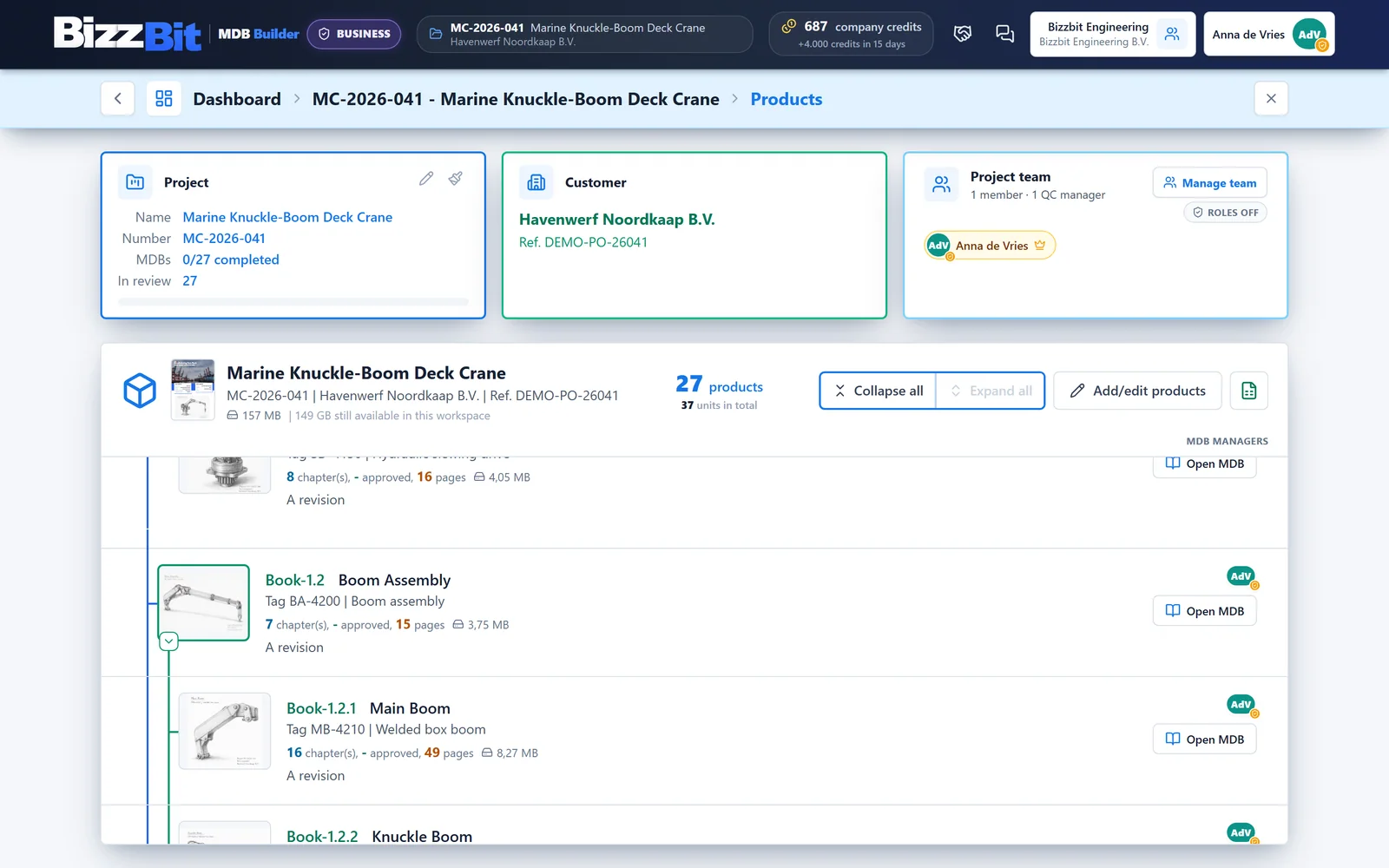
The green number in front of every product is its book number: its place in the customer's set of binders.
| Place in the tree | Book number |
|---|---|
| First main product | Book-1 |
| Second product embedded in it | Book-1.2 |
| First product embedded in that one | Book-1.2.1 |
| Unit 3 of a multi-unit product | Book-1.2#3 |
Book numbers are never typed in. They follow from the order of the tree and change automatically when you move a product. See Book numbers and document numbers for how they appear on the sheets.
2. Add an embedded product#
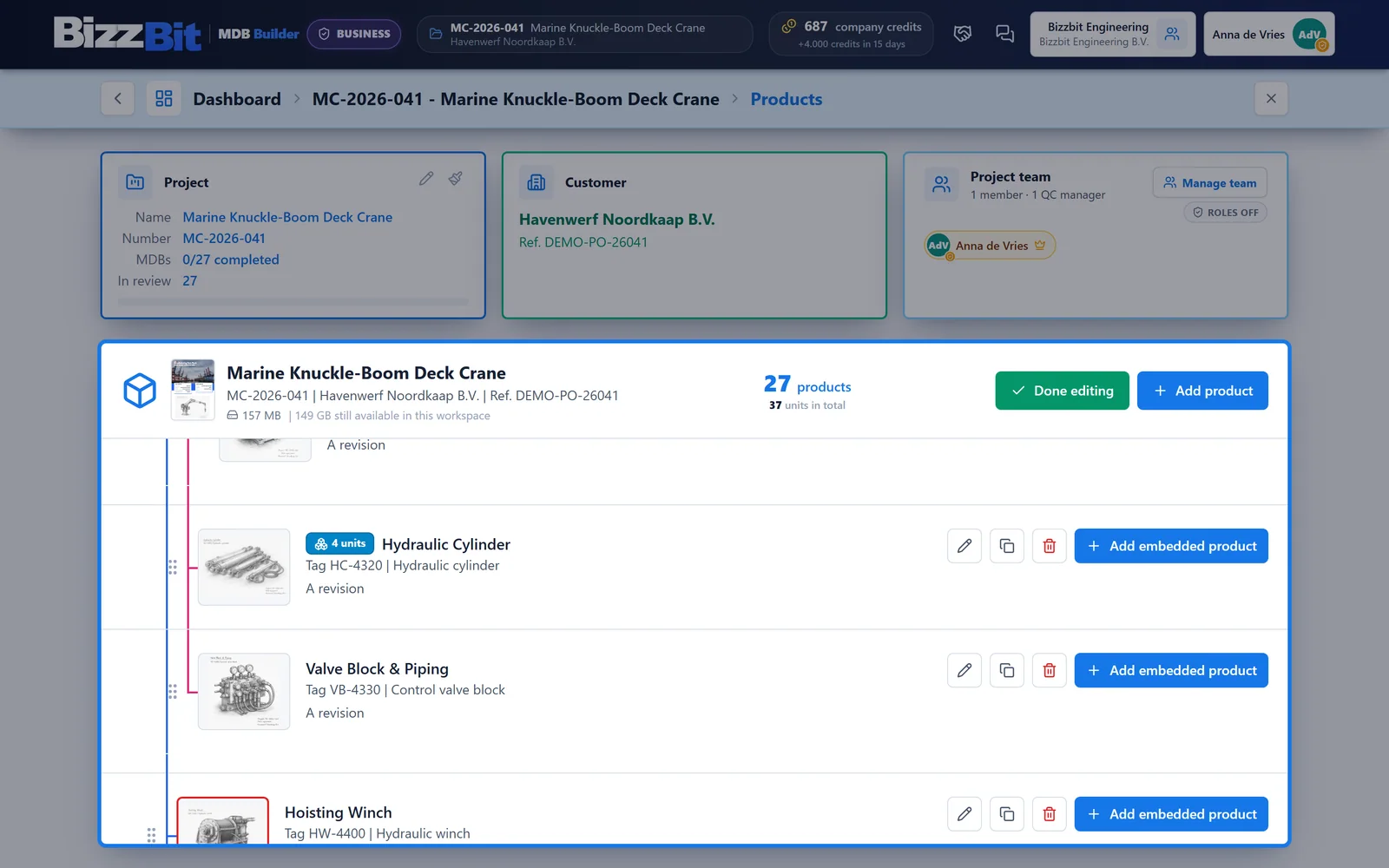
- Open the project and click Add/edit products. Every product row now shows its actions.
- Click Add embedded product on the row of the parent product.
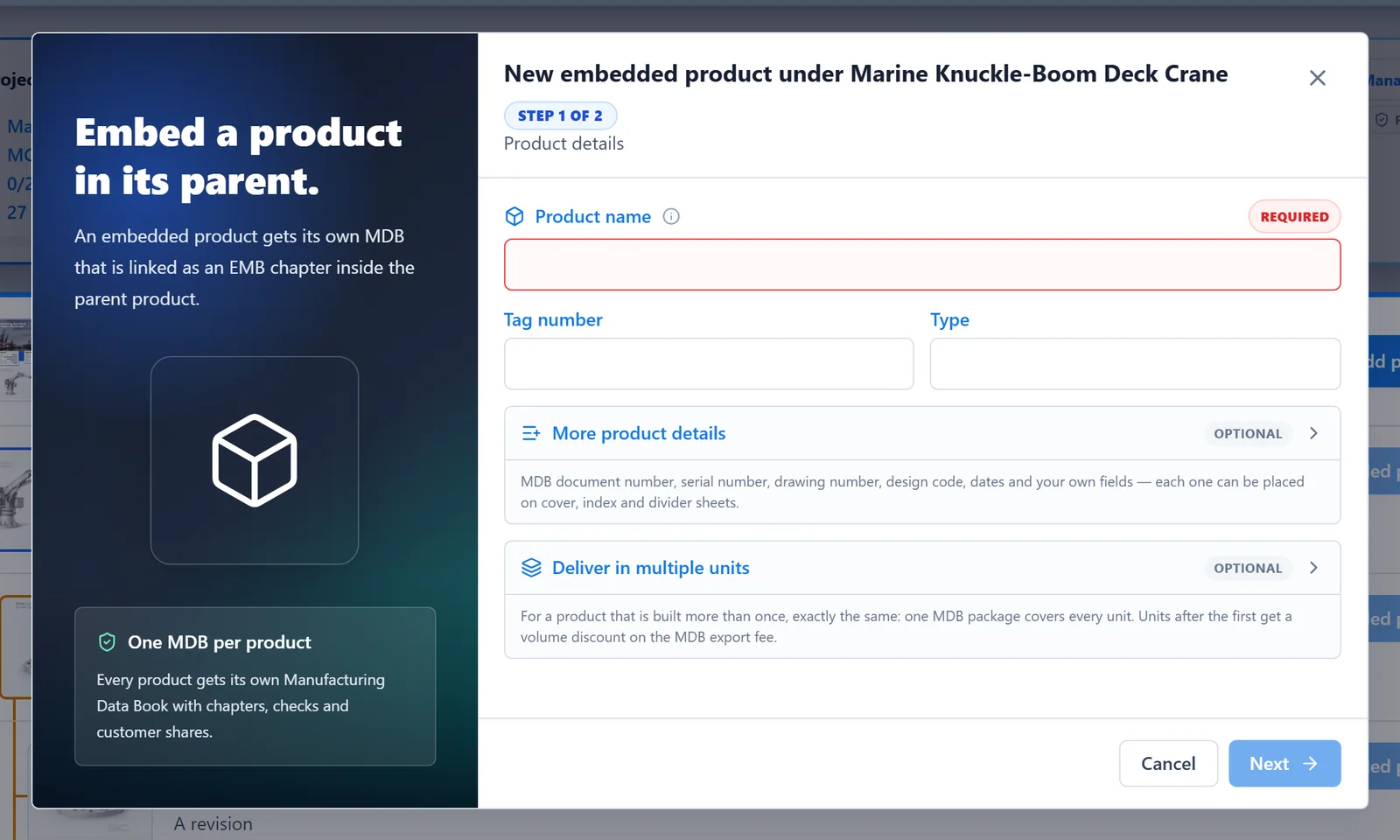
- The form New embedded product under … opens. It works like the normal product form: a Product name, and optionally a Tag number, Type, More product details and Deliver in multiple units. Click Next for the product sketch.
- Click Create product (or Create product without sketch).
MDB Builder creates the product, adds an EMB chapter for it to the parent's MDB, and opens the new MDB so you can set up its chapter structure.
3. Rearrange the tree#
In edit mode (Add/edit products), drag a product by its grip on the left:
- Onto another product: embeds it in that product.
- Onto the bar above or below a product: moves it to that position.
- Onto Drop here to make main product at the top: takes it out of its parent and makes it a main product again.
While you drag, the list already shows the result. When you drop, the EMB chapters in the MDBs involved and the book numbers are updated. Click Done editing when you are finished.
4. EMB chapters in the parent MDB#
In the parent's MDB, every embedded product is a chapter with a blue dashed border and an Embedded MDB label. EMB chapters always come after the regular chapters.
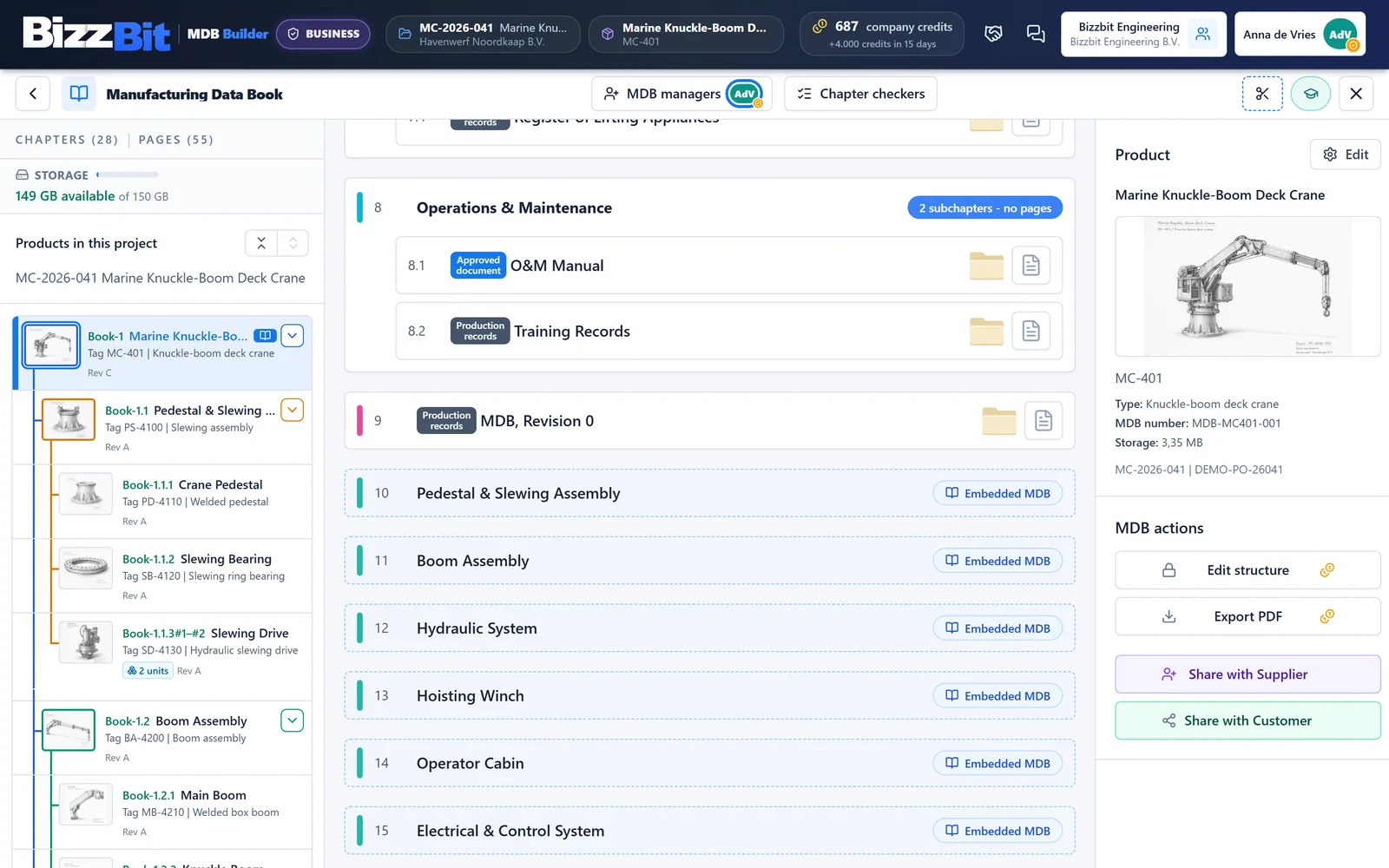
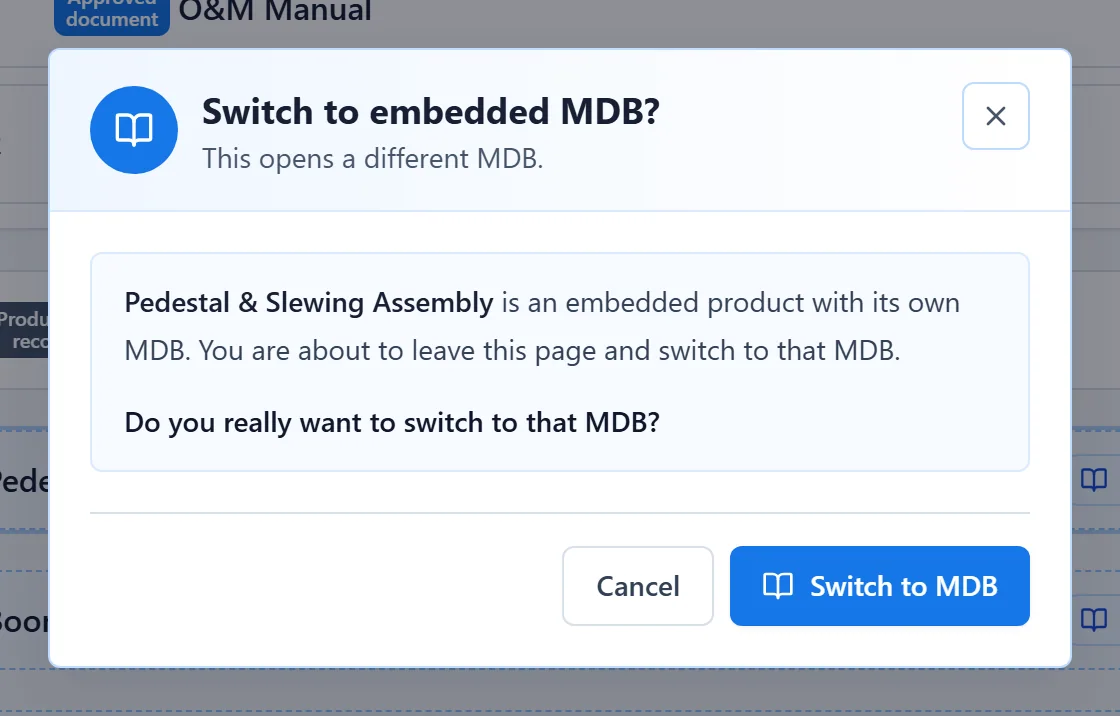
An EMB chapter holds no documents of its own: its content is the embedded product's MDB. Click the chapter to go there. Because this leaves the MDB you are in, MDB Builder asks first.
You can also move between the MDBs of a project with the list Products in this project on the left of the MDB.
In the table of contents of the parent MDB, an embedded product is listed with an EMBEDDED MDB tag and without a page number. The embedded product's data book is a book of its own, with its own book number and its own export.
5. Place a partner's MDB in your tree#
A customer or supplier can share an MDB with your company. You can place such a shared MDB in one of your projects, for example the MDB of a bought-in gearbox under your drive unit. On the projects page, open Shared with you with View and click Place in project next to the shared MDB. Choose the project (or + New project...) and, optionally, the parent product to embed it in.
The shared MDB then appears in your tree with a purple Shared MDB label, and in the parent's table of contents with a SHARED MDB tag. It is a link, not a copy: the content stays with your partner. Unlink removes it from your project again; the partner's MDB and the share are not touched. See Partners, customers and suppliers.