You build an MDB for a customer, and you often need documents from suppliers. MDB Builder keeps these two relations apart: a customer can be just a name on your covers, while all sharing between companies runs through a partnership.
| What it is | What it enables | |
|---|---|---|
| Customer (name only) | A name you enter for a project | The name on covers and exports. Building and exporting the MDB. |
| Partnership | A lasting connection between your company and another company on MDB Builder | Sharing MDBs with a customer and chapters with a supplier |
| Connected customer | A customer that is linked to a partnership | Everything above, plus sharing and the customer review |
Customers#
A customer is the company you build MDBs for. Its name appears on covers, exports and shared views. You pick the customer when you create a project, or later with Assign customer on the project.
A name is enough to get started. You don't have to invite anyone to build or export an MDB for that customer.
To see all your customers, click the Partnerships icon (the handshake) in the top bar and then Customers. Each customer carries one of three labels:
- Name only: just a name. You can build and export, but not share.
- Invited: you sent them an invitation to MDB Builder that has not been accepted yet.
- Connected: the customer is linked to a partnership with one of their companies.
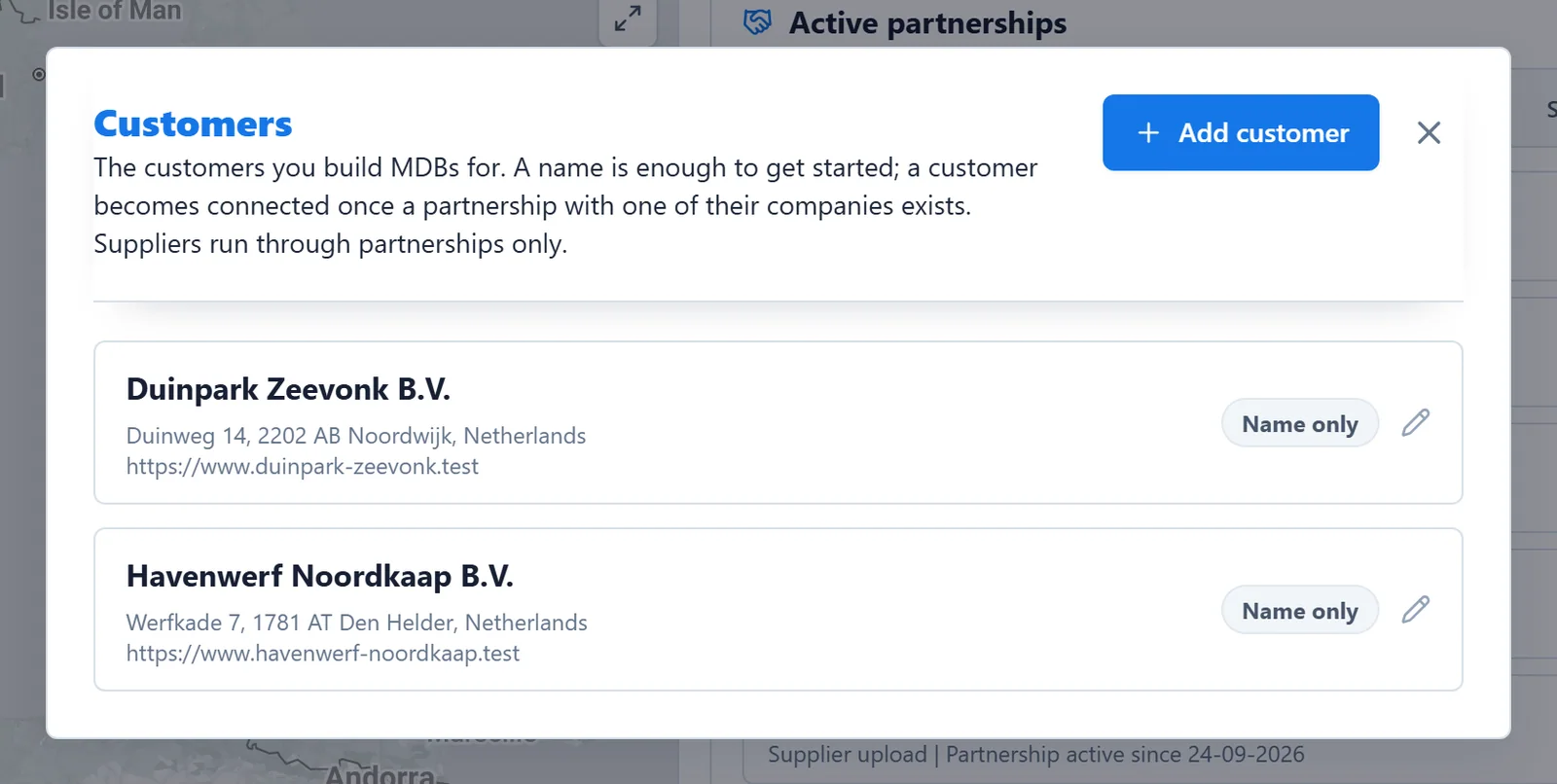
Use Add customer to add one without creating a project.
Connect a name-only customer#
Click a customer to open its overview. A name-only customer offers two ways forward:
- Is this one of your partners? Select the partner company and click Connect. The customer then takes the partner's official name, and every project of this customer can be shared. Nothing is lost.
- Not on MDB Builder yet? Enter their email address and click Send invite. They receive a partnership invitation with your company as their supplier.
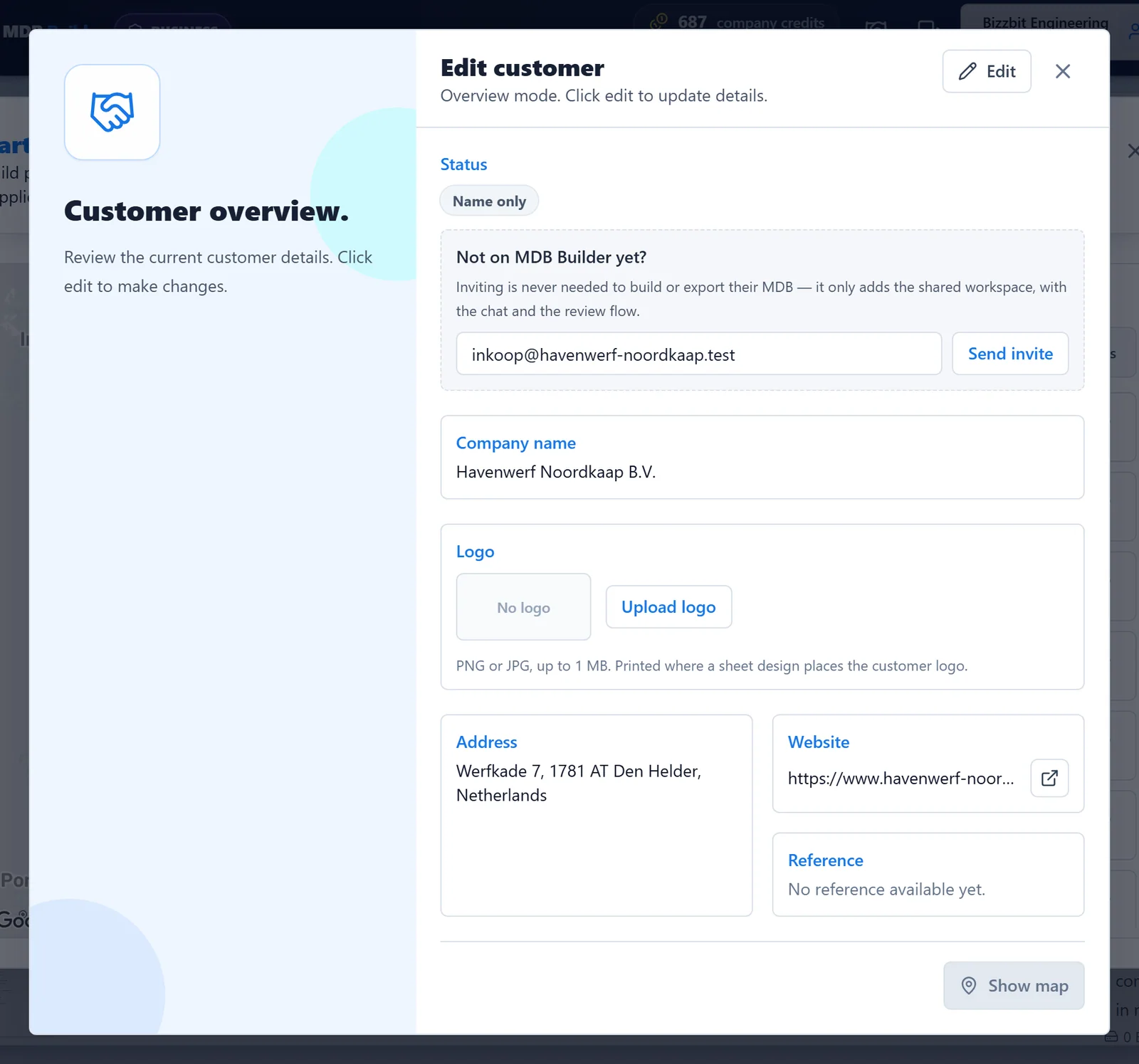
A name-only customer can have its own logo: upload it in the same overview. A connected customer shows the logo of its own company on your documents.
Partnerships#
A partnership connects two companies. Once it exists, you decide per MDB what you share: a whole MDB with a customer, or a selection of chapters with a supplier.
Partnerships are always between two companies. You can't invite a partner or accept an invitation from your private workspace. Create or join a company first; see Create your first project.
Partner roles#
Every partnership says what the other company is to you:
- Supplier: they deliver to you. You share chapters with them, and they upload documents into those chapters.
- Customer: they buy from you. You share MDBs with them for review.
A company can be both. The role always describes the other company, not yours.
Invite a partner company#
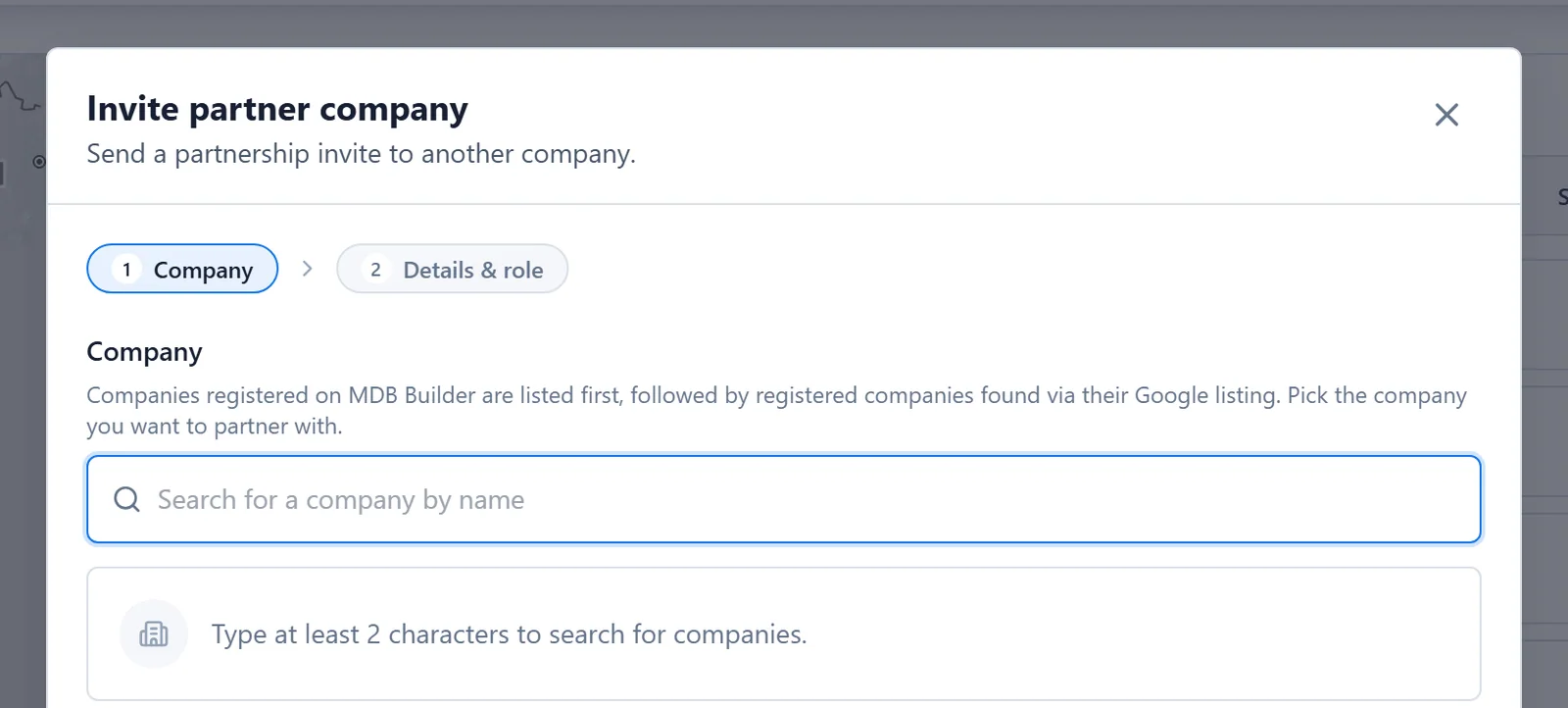
- Click the Partnerships icon in the top bar, then Invite partner company.
- Type at least two characters of the company name. Companies on MDB Builder are listed first, under On MDB Builder, followed by registered companies found through their Google listing. Click the company to continue.
- Company not listed? Choose Invite by email and enter the address of a contact there. Invitations only go to business email addresses: your partner could not sign in with a personal address.
- On the Details & role step, pick the Partner role: Supplier, Customer, or both.
- Click Send partnership invite.
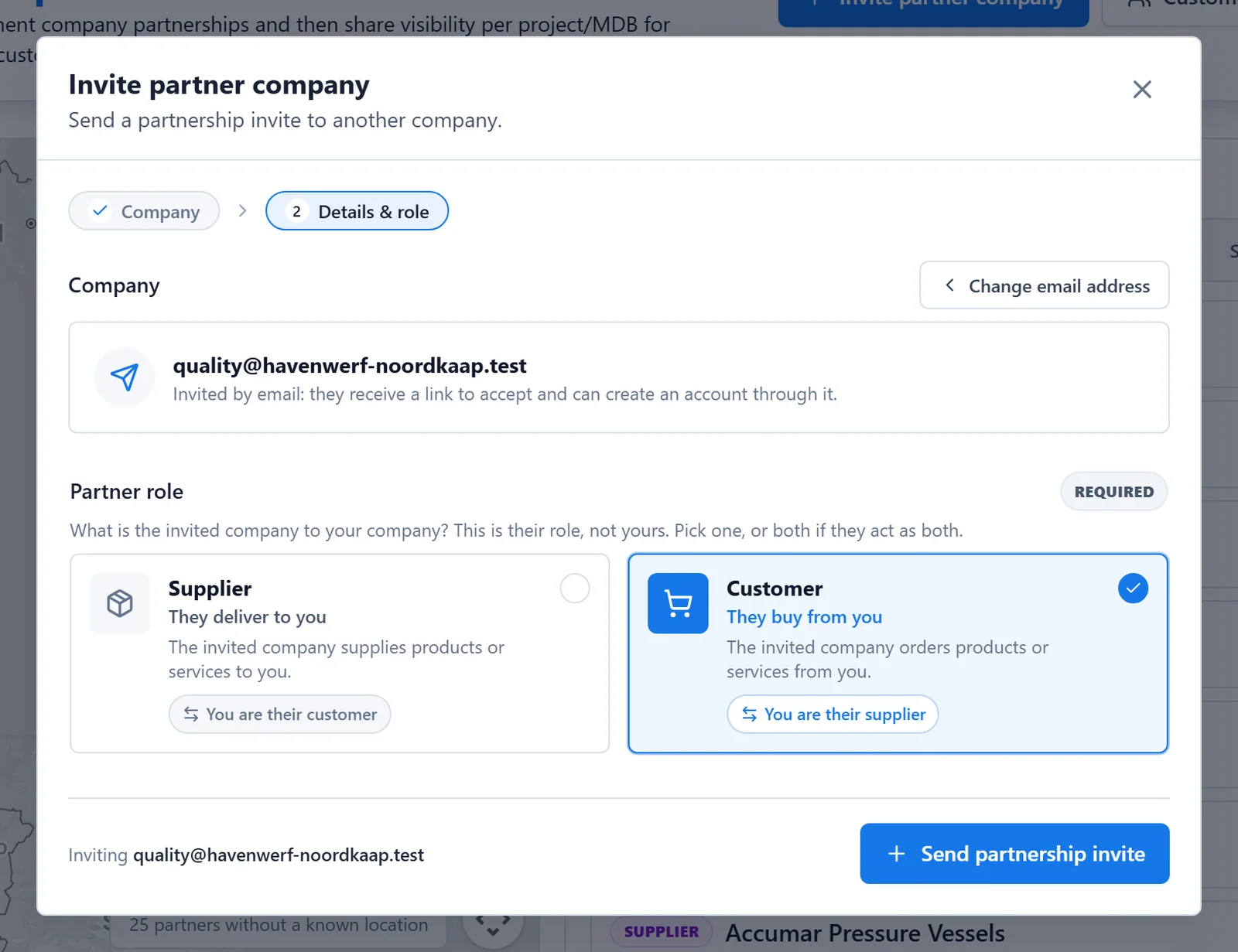
An invitation by email contains a link. New users can create their account through the same link.
Pending invitations you sent are listed under Sent invites, where you can Cancel invite.
Accept an invitation#
Incoming invitations appear under Incoming invites in the Partnerships window. The handshake icon in the top bar shows how many are waiting.
Click Accept. A confirmation window shows the role of the other company. Tick the statement that you trust this company and that shared information stays confidential between both companies, then click Confirm & accept. MDB Builder records who confirmed and when.
Don't know the company? Click Decline, or use the flag icon to report it to the BizzBit team.
Manage your partnerships#
Active partnerships lists every partner with its role and a map of their locations. Search by name, or filter on Customers or Suppliers.
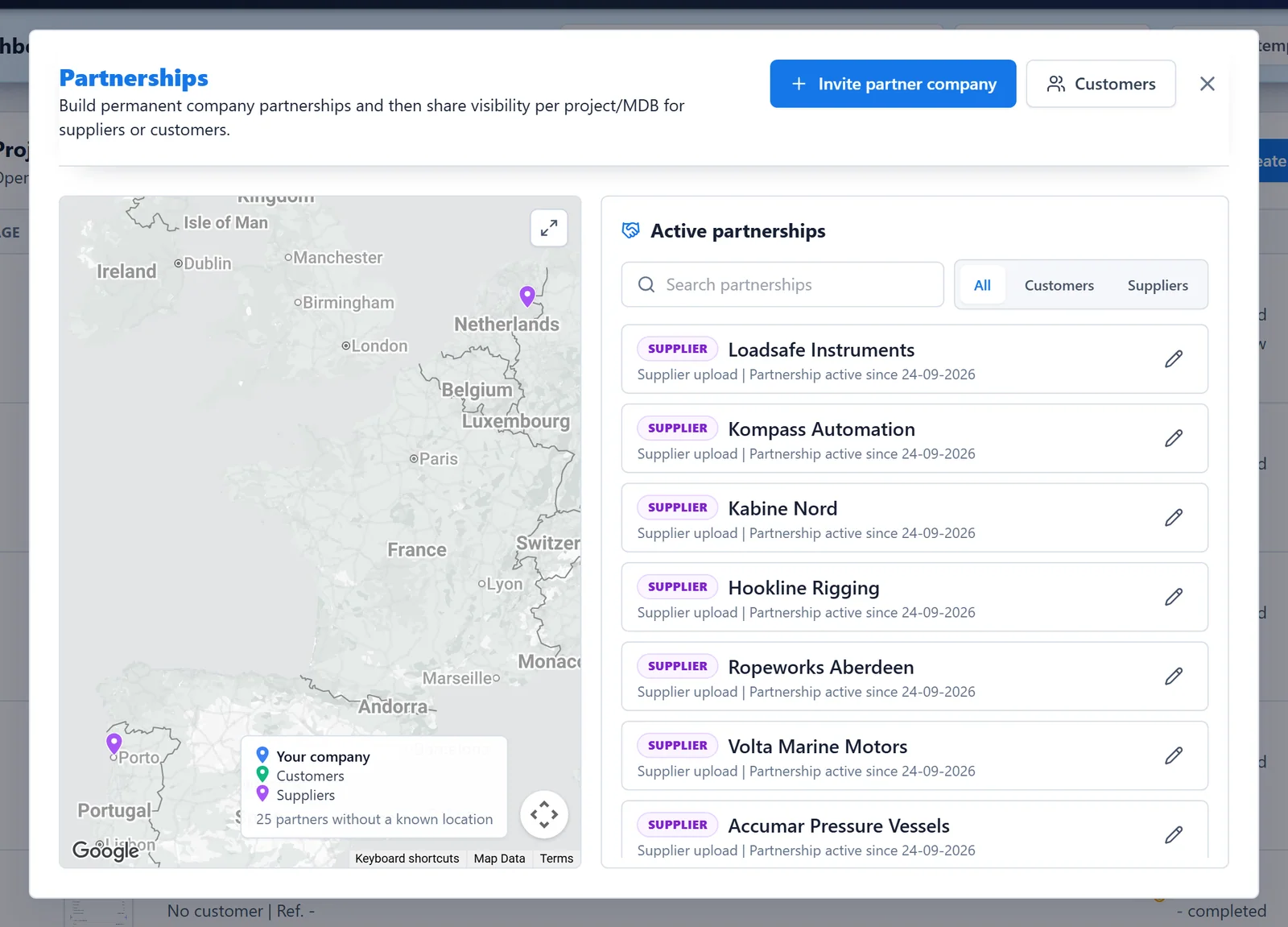
Click the pencil icon of a partner to open Edit partnership:
- Change the role, then click Save changes. A partnership always needs at least one role.
- Revoke partnership ends it: sharing stops and the partnership disappears for both companies.
- Report sends a confidential report to the BizzBit team.
Being found: the marketplace#
Other companies find yours by name only when it is listed in the marketplace. The switch List this company in the marketplace is in your company details, on the Address tab. Only your company profile is shown to others.