Every time you release a chapter to your customer, MDB Builder freezes its content as a revision. Your customer always looks at a released revision, never at the work you are doing in the meantime. This page explains how revisions are numbered and where you see them.
What a revision is#
A revision is a frozen snapshot of one chapter: the documents exactly as they were when you released them. Later changes to the chapter never touch it. Revisions are per chapter, not per MDB, so chapter 3 can be at rev 2 while chapter 4 is still at rev 0.
Production records chapters count their releases: Rev 0, Rev 1, Rev 2 and so on. Approved document chapters show the revision of the document itself instead; see Approved documents below.
Revision 0 and the first share#
The first release of a chapter is rev 0. How it comes about depends on how you share the MDB with your customer:
| Share option | What happens |
|---|---|
| Share full MDB (default) | Every chapter is released as rev 0 at once. |
| Collaboration mode — release chapters one by one | The customer sees the MDB structure right away. You release each chapter as rev 0 yourself, from the chapter details. |
In collaboration mode, your customer sees a Not yet released marker on chapters you have not released yet, and cannot open them. Share full MDB (release everything) releases the rest in one go and ends collaboration mode. See Share an MDB with your customer.
Drafts#
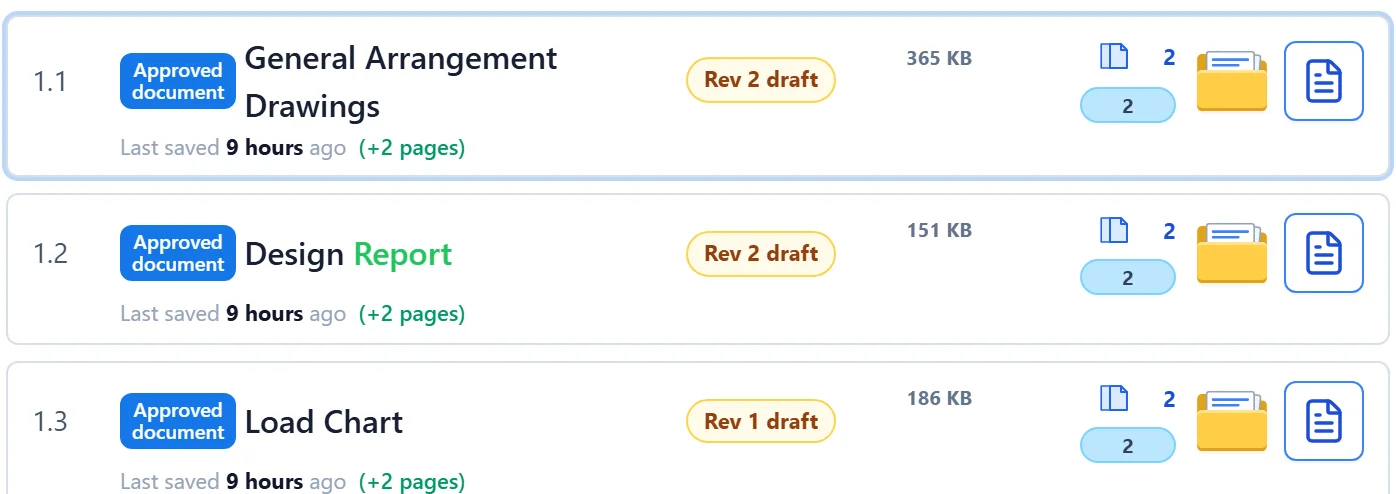
As soon as you change a released chapter, for example by adding pages or replacing a document, the chapter gets a draft: the next revision number, not released yet.
- The chapter row shows an amber pill such as Rev 2 draft.
- The chapter details say that the customer keeps seeing the released revision until you release the draft.
- All further changes go into the same draft. Changing the chapter title or other details does not start a draft.
Your customer never sees a draft or even knows it exists. If they had accepted the chapter, that acceptance lapses as soon as the chapter changes: the row shows Acceptance lapsed, and the customer reviews the next revision again.
Releasing a new revision#
Release a draft the same way as the first revision: Release Rev 2 to customer in the Chapter revisions block of the chapter details, or several chapters at once with Release all in the top bar. Chapters with checkers need a fresh Agreed to submit first. The steps are in Complete, check and release a chapter.

When you release, you can tick Issue as preliminary. The revision is then marked as issued for information or review instead of final.
Revision history#
The Chapter revisions block in the chapter details lists every released revision, newest first. Per revision you see:
| Item | Meaning |
|---|---|
| Current for customer | The revision your customer sees now. |
| Preliminary | Issued for information or review, not as final. |
| Incomplete | Released as progress: the chapter was not marked complete at the time. |
| Released date and name | When the revision went out, and who released it. |
| Customer status | The customer's verdict on that revision, such as Accepted or Rejected. |
| View | Opens the frozen chapter PDF of that revision. With customer feedback, it opens the revision with their comments. |
| Feedback | Opens the annotated feedback of a customer, with the number of comments. |
Older revisions stay viewable for you and for your customer, together with the feedback given on them. The customer can only check and comment on the latest revision.
Approved documents#
An Approved document chapter holds one approved PDF, such as a drawing or a procedure. When you upload it, you type its Document revision as per your own document control, for example A, 02 or R3. That typed revision is the one revision the chapter shows everywhere: on the row, in the release button, in the history and on the divider sheet.
A new revision of the document replaces the whole document. Release it like any other chapter. See Add documents to chapters for uploading approved documents.
On the divider sheet#
In the exported MDB, the divider sheet in front of each chapter carries its revision:
- The revision label, such as Rev. 2. A chapter that was never released shows none.
- Completeness: Complete or Incomplete, as it was when the revision was released. Every divider sheet has this line.
- Optionally a Transmittal history table with every released revision: date, preliminary or final, completeness, customer status, pages, documents, released by and issued to. You add it to the divider design in the sheet designer.
Your customer's export always contains the released revisions. Your own export contains the live chapter content, so a chapter with an open draft shows the draft's revision number. See Export the final PDF.