A company is where you and your colleagues work on the same projects. This guide shows how to invite colleagues, what they receive, and how colleagues who are already on MDB Builder can ask to join.
1. Open the Members tab#
- Make sure the company is your active workspace. Its name shows on the company card in the header.
- Click the company card.
- Open the Members tab.
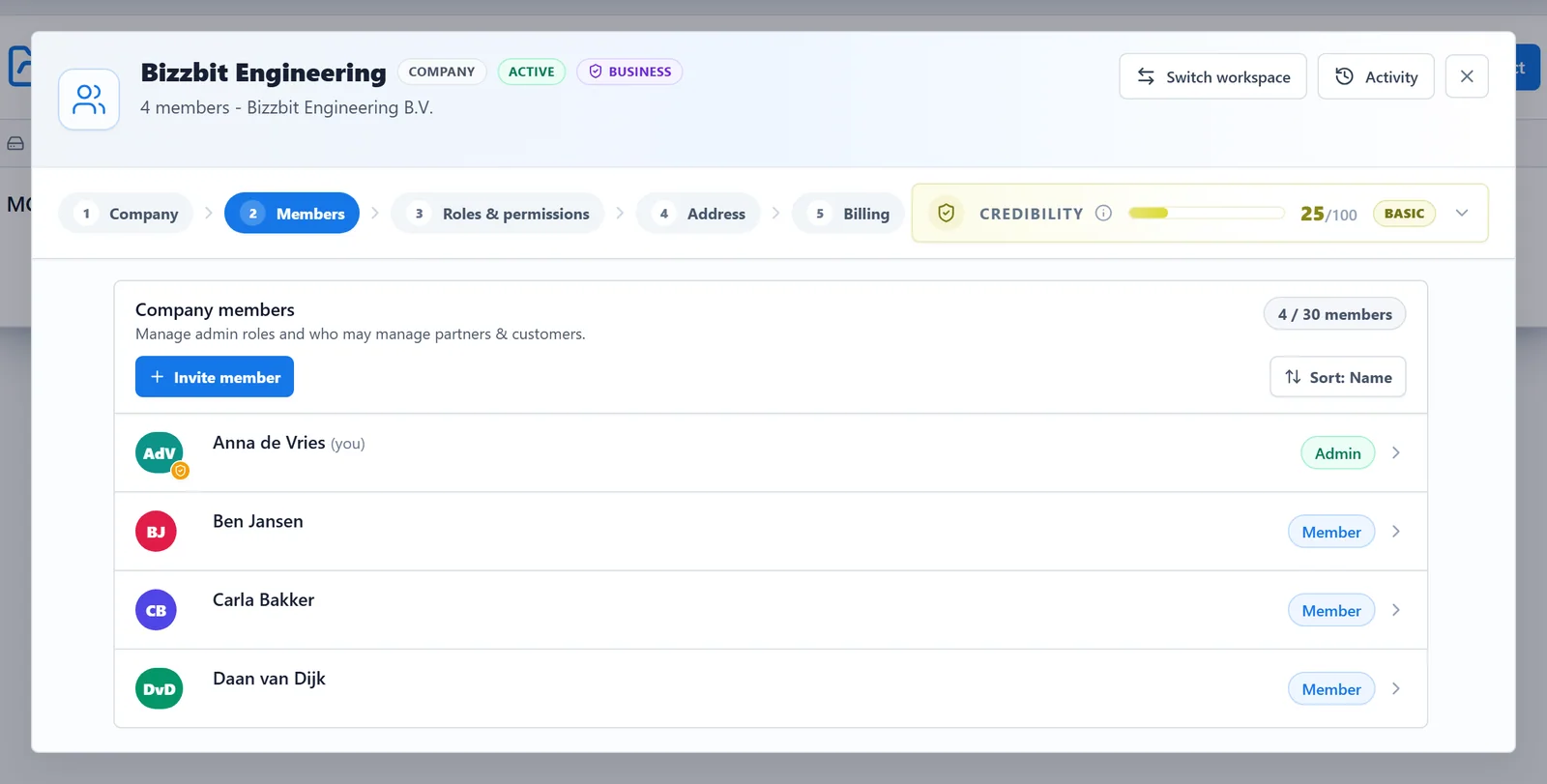
The tab lists every member with their email address and role. The counter at the top shows how many members the company has, compared to the member limit of its plan.
2. Send the invitation#
- Click Invite member.
- Type the colleague's email address. You only type the part before the @: the company's email domain is filled in for you.
- Click Send invite.
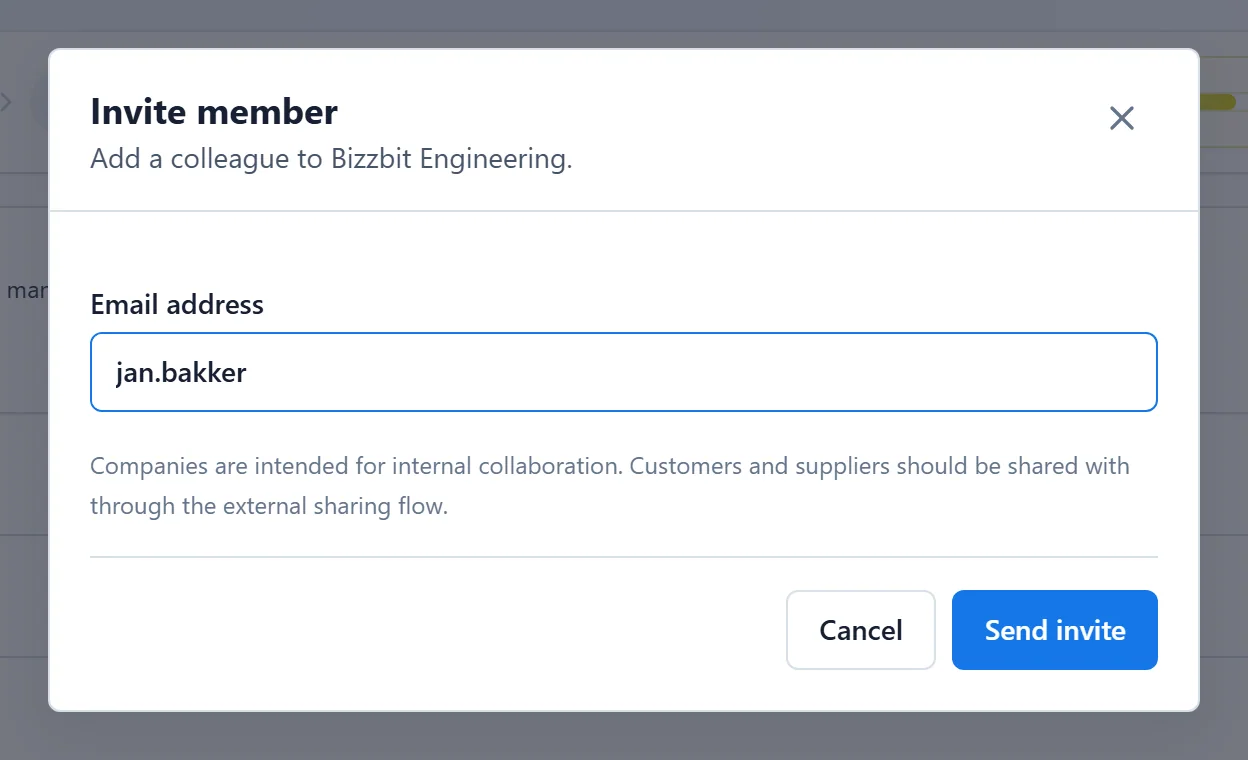
Your colleague receives an email and the invitation appears under Pending invites on the Members tab.
Who can invite#
| Company | Who can invite members |
|---|---|
| Without a Pro subscription | Every member |
| With a Pro subscription | Admins only |
3. What your colleague receives#
The invitation email has two buttons: Accept invitation (or Create account & accept when the colleague has no account yet) and Decline.
- The invitation is tied to the address it was sent to. Your colleague signs in with exactly that email address. With a new account, the invitation is completed right after the first sign-in.
- Colleagues who missed the email see the invitation on their dashboard after signing in, under You have been invited, with Accept and Decline.
- Colleagues who already work in another company are asked Switch to invited company? They can choose Switch now or Stay on current department.
When a colleague joins, the shares and partnerships from their private workspace move along into the company.
4. Follow up on pending invitations#
Open invitations stay listed under Pending invites on the Members tab until they are accepted or declined.
- An invitation expires after a while and then shows Expired. Invite the same address again to send a new link.
- To withdraw an invitation, click Remove invitation (the bin icon) next to it.
5. Let colleagues ask to join#
Colleagues who sign up with your company's email domain but are not in a company yet see a yellow banner under the header. It lists the companies on their email domain, each with a Request to join button.

A join request shows up in the company:
- as a banner on the dashboard, Someone wants to join your team;
- as a red number on the company card in the header and on the Members tab.
Click Accept to add the colleague right away, or Decline. In a company without Pro, every member can answer join requests. In a Pro company, only admins can.
The same email domain rule#
All members of a company use the same email domain. The domain is set when the company is created, and the Invite member window only accepts addresses on it. An address on another domain shows the message All members must use the same email domain.
Companies are meant for internal collaboration. Customers and suppliers don't become members: you work with them through partnerships. See Partners, customers and suppliers.
Member limits#
A company without a Pro subscription has a fixed member limit. When it is reached, Invite member is disabled until you upgrade.
A Pro company can keep inviting past the member limit of its tier. New members then join as Inactive: they keep their account but have no access to the workspace until an admin activates them, for example when a seat frees up or the plan is upgraded. Inactive members don't count towards the limit.