Once the chapter structure is saved, the chapters are ready for documents. This guide shows the ways to get PDFs into a chapter, how the chapter folder works, and how to arrange the pages in the PDF tool.
1. Before you start#
- Save the structure first. Uploads become available after the first save. See Edit the chapter structure.
- PDF only. Chapters take PDF files.
- Where documents go. Drop documents on a subchapter, or on a main chapter without subchapters.
- Who does what. The MDB managers of an MDB place files straight into its chapters and edit the pages. Other members add files to the chapter folder, where an MDB manager places them later. See MDB managers and checkers.
Every chapter has two places for files:
| Chapter folder | Chapter | |
|---|---|---|
| What it is | The buffer folder of the chapter | The document that goes into the MDB |
| Who adds files | Colleagues, and invited suppliers | MDB managers |
| What happens next | An MDB manager places the pages in the chapter | Ready for the checks and release |
2. Drop a PDF on a chapter#
Drag one or more PDFs from your computer onto a chapter row in the chapter list. The Add PDF to chapter window asks where they should go:
- Add to chapter folder: the files wait in the chapter folder until the pages are placed.
- Add to chapter: the pages go straight into the chapter. The file is also stored in the chapter folder.
Under Add to chapter, choose At the end to put the new pages behind the pages already there, or At the start to put them in front, for example for a cover sheet. Every upload starts with At the end selected. The pages already in the chapter keep their check status and comments.
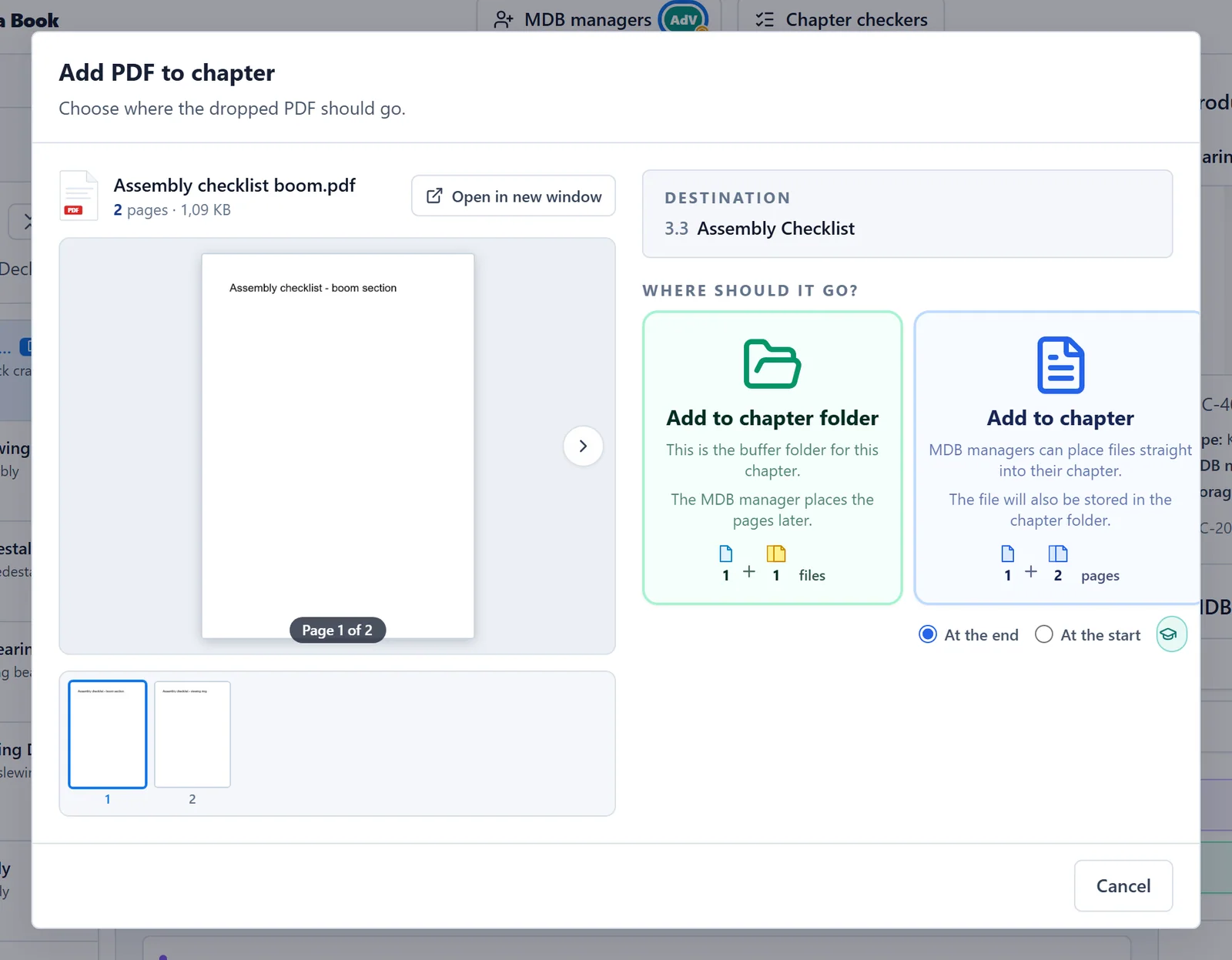
When you are not an MDB manager of this MDB, a drop goes straight to the chapter folder.
You can also open a chapter by clicking its row. The chapter details show an Open Chapter folder tile and an Open Document tile. Drop PDFs on the folder tile to add them to the chapter folder, or, as an MDB manager, on the document tile to add them to the chapter.
On a product with units, the pages are filed under the unit you are working on, unless the chapter is common to all units. See Products with multiple units.
3. Upload an approved document#
An Approved document chapter holds one PDF that was approved by your own document control, such as a drawing or a procedure. MDB Builder stores it exactly as issued: it can't be merged or split, its pages can't be reordered, and no comments or checks can be added to its pages.
Drop one PDF on the chapter. The Upload approved document window takes two steps:
- Enter the Document revision as per your document control, for example A, 02 or R3, and click Next.
- Choose Add to chapter folder or Add to chapter. When the chapter already holds a document, the second tile reads Replace chapter document.
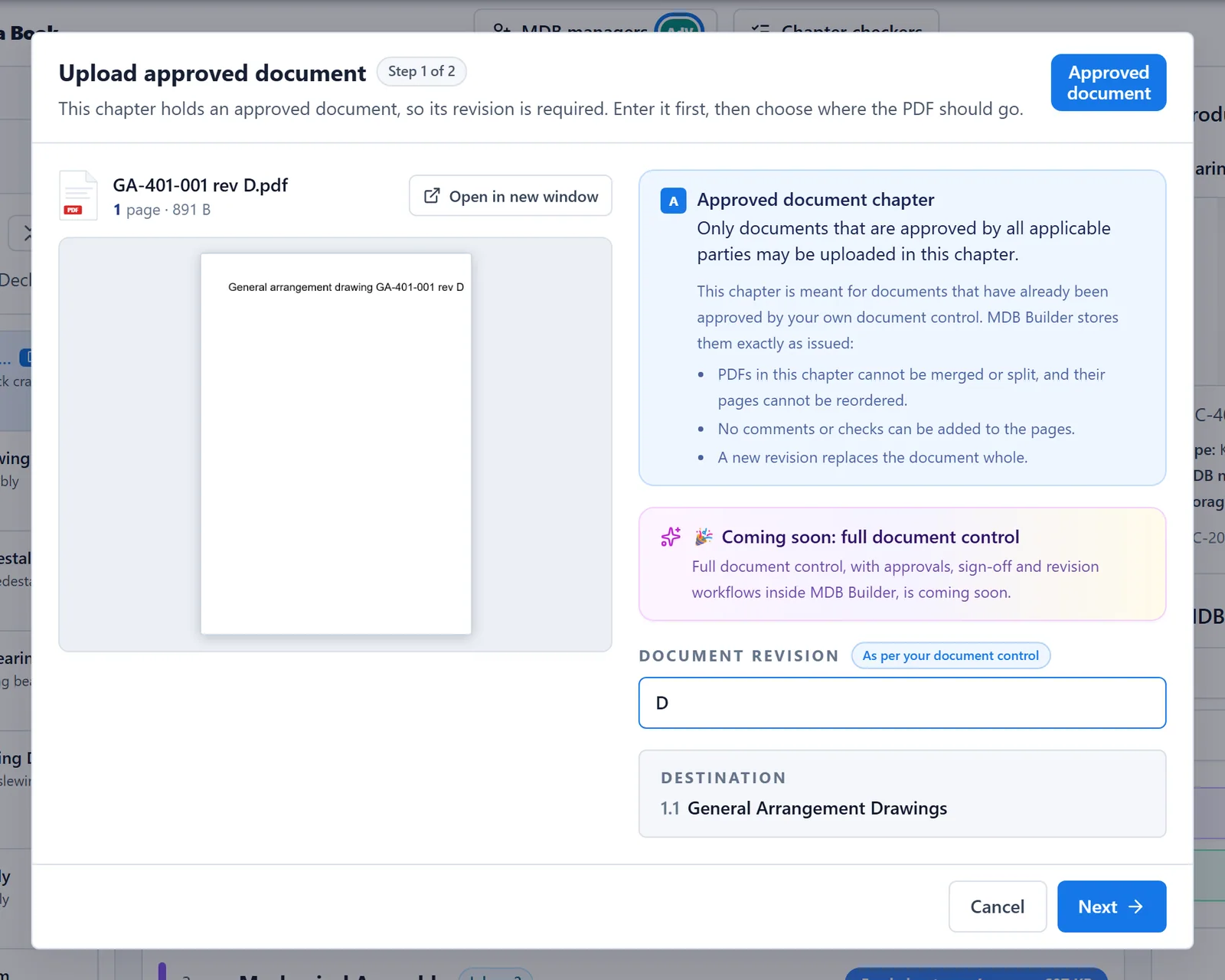
A new revision replaces the whole document. To replace or remove it later, an MDB manager opens the chapter and clicks Edit in the viewer. The Edit approved document window offers Upload a new file, Use a file from the chapter folder, and Remove document. After a removal, the file goes back to the chapter folder.
4. Work with the chapter folder#
Open the chapter folder with the folder icon on a chapter row, or with the Open Chapter folder tile in the chapter details.
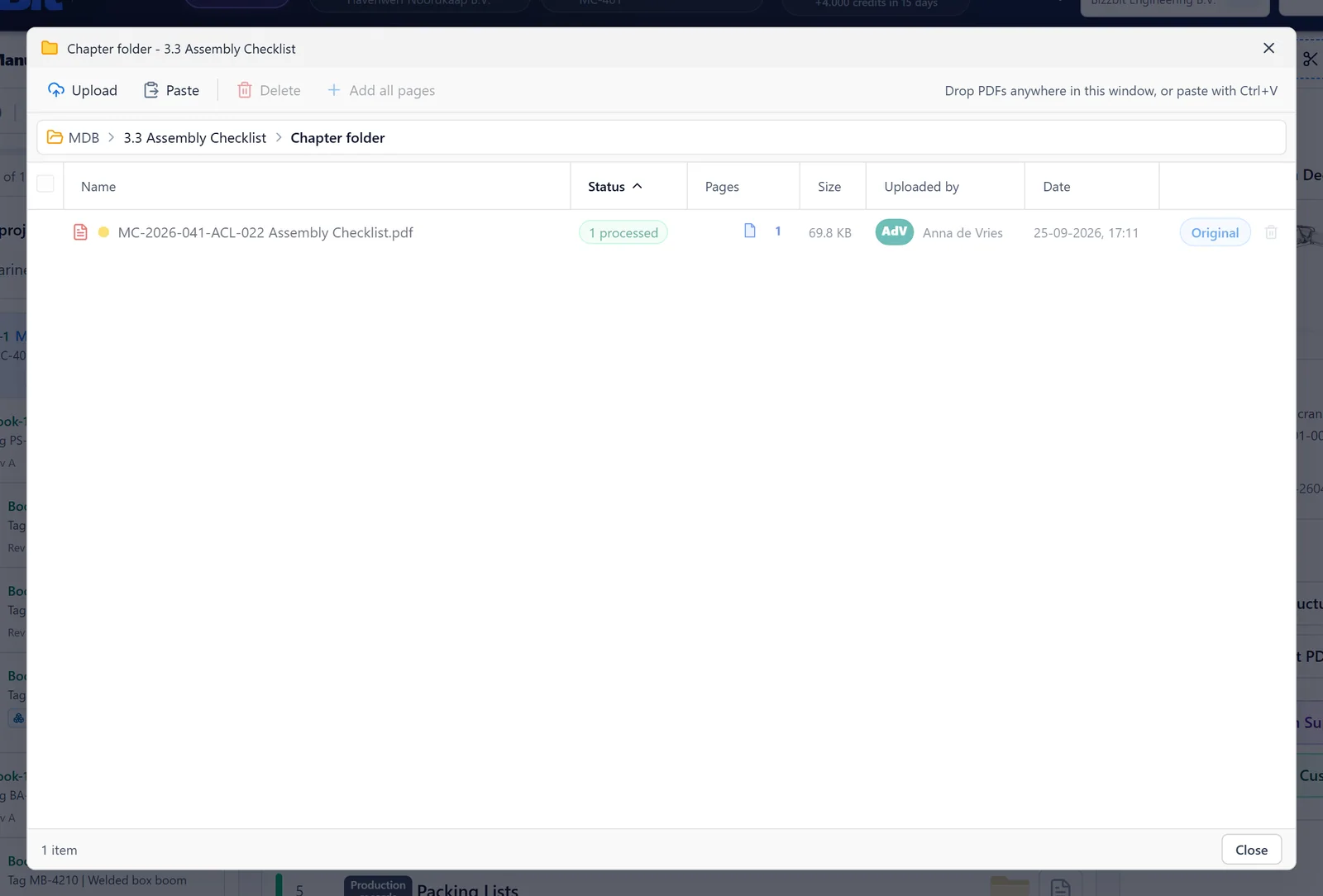
- Add files: click Upload to select several PDFs at once, drop PDFs anywhere in the window, or copy a PDF and paste it with Paste or Ctrl+V.
- Place pages (MDB managers): select files and click Add all pages to add all their pages to the chapter, after the pages already there, in list order.
- Delete files: select them and click Delete. Files whose pages are in the chapter, or that someone else uploaded, can't be deleted.
- Open a file: click its name to view it.
The chapter row shows how many pages are still waiting in the folder, with a yellow count. Nothing gets lost: every page is either placed, or marked as not to use (see step 7).
Suppliers you invite deliver their documents into the chapter folder as well. See Collect documents from suppliers.
5. Split one PDF over the chapters#
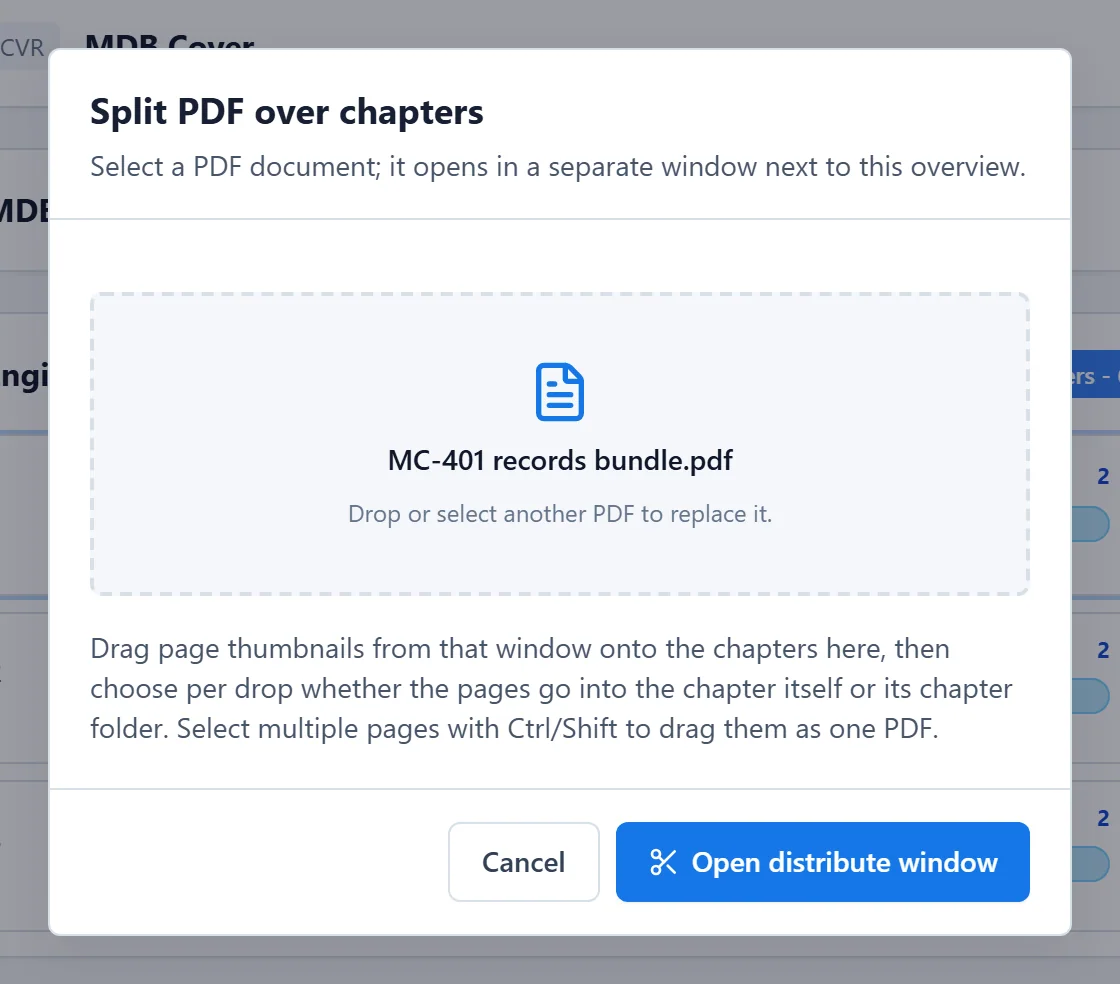
Got one big PDF with certificates and reports for many chapters? Use Split PDF over chapters in the top bar of the chapter list.
- Drop the PDF on the button, or click it and select the PDF.
- Click Open distribute window. The PDF opens in a separate window next to the chapter list.
- Drag page thumbnails from that window onto the chapter rows. Select several pages with Ctrl or Shift to drag them as one PDF.
- For every drop, choose whether the pages go into the chapter itself or its chapter folder.
Pages that have landed disappear from the distribute window, so what is left there is the work still to do.
6. Arrange the pages in the PDF tool#
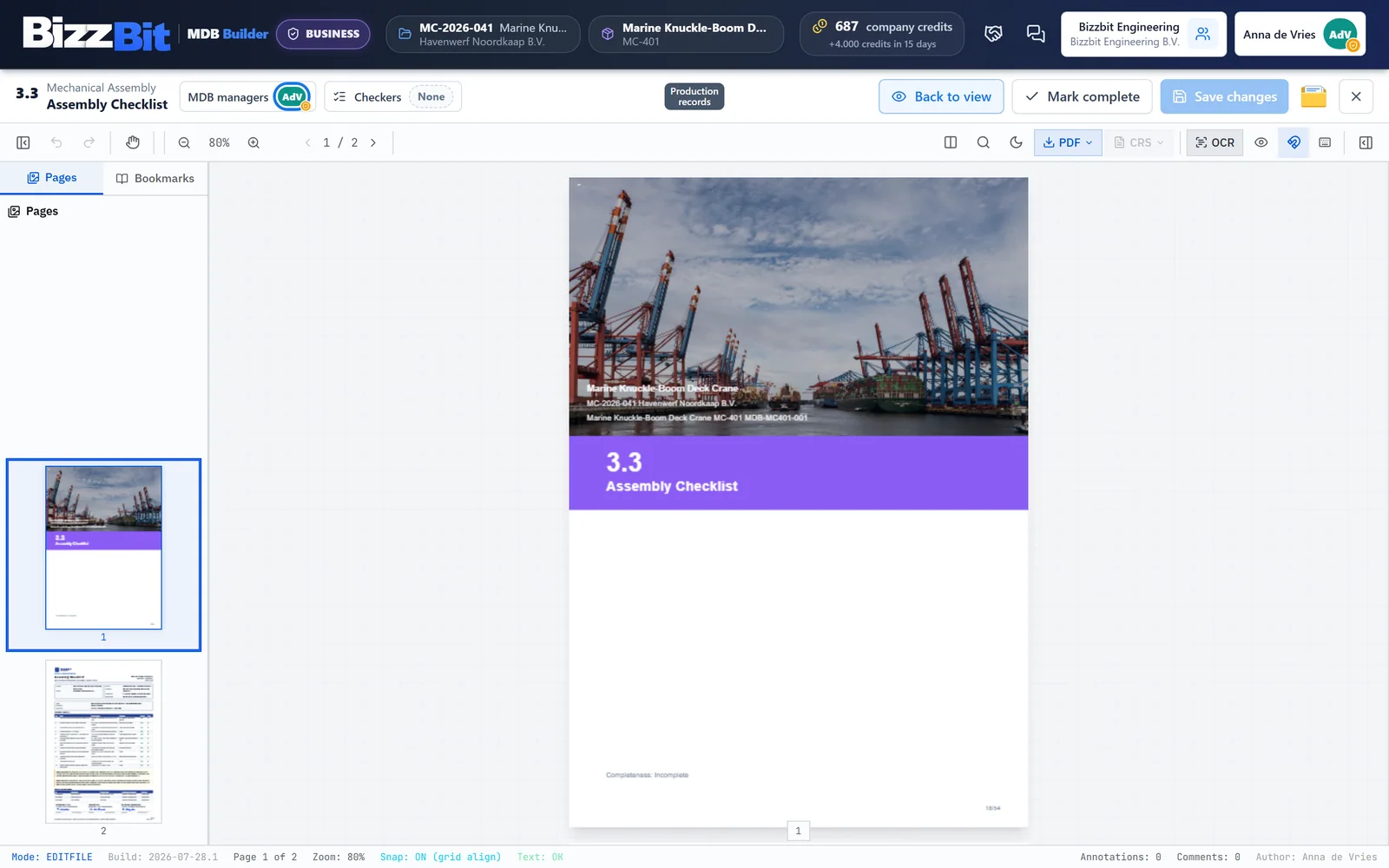
MDB managers arrange the pages of a production records chapter in the PDF tool.
- Click the view button on the chapter row to open the chapter, then click Edit.
- Click the folder icon in the top bar to open the chapter folder next to the editor.
- Add pages:
- Select files and click Add selected, or click Add all pages on one file. Choose where they go: After divider sheet, At the end or After a specific page, and click Insert pages.
- Or click a file's name. It opens in its own window, from which you drag single pages into the chapter.
- Reorder or remove pages in the editor. Page 1 is always the chapter's divider sheet.
- Click Save changes, then Back to view.
When dragged pages were already in the chapter, MDB Builder warns you about the duplicates, so you can remove them before saving. Pages that are already in the chapter appear greyed out in the chapter folder file.
7. Mark pages you won't use#
Some pages in a delivered file don't belong in the MDB, such as a delivery note in a bundle of certificates. Mark them as not to use, so they no longer count as pages to place:
- In edit mode, open the file from the chapter folder in its own window.
- Mark the page as not to use.
- Enter the Reason (required) and click Mark as not to use.
The page stays visible in its file, but is excluded from the pages left and can't be dragged into the chapter. To undo it, open the same page again and click Remove mark. Only MDB managers can mark pages.
What's next#
- Complete, check and release: the road from a filled chapter to the customer.
- Revisions: chapter revisions and the document revisions of approved documents.
- Upload problems: protected PDFs, very large files and missing pages.