MDB Builder keeps permissions simple until your team needs more. In a private workspace or a company without Pro, everyone can do everything. With a Pro subscription, admins decide who runs projects and who fills the MDBs.
Three levels#
| Level | Roles | Where you set it |
|---|---|---|
| Company | Admin, Member | Company settings, Members tab (Pro only) |
| Project | QC manager, MDB manager | The project and its MDBs (Pro, with Project roles on) |
| Chapter | Chapter checker | Per chapter, from the project team |
Private workspace#
Your private workspace is yours alone. You can do everything in it, and nobody else can see or change your projects. A private workspace has no members, roles or permission settings.
Company roles#
Companies without Pro#
In a company without a Pro subscription, all members have equal rights. Every member can create projects, invite colleagues, answer join requests, change the company details and buy credits. There are no admins.
Pro companies#
A Pro subscription adds two company roles:
- Admins can always do everything in the company: members, billing, the subscription, the settings and every feature. The number of admins depends on the Pro tier. The first admins are chosen when the company upgrades to Pro.
- Members work on projects. What they may do follows from their project roles and the settings below.
Only admins can:
- invite members, activate or deactivate them and answer join requests;
- appoint other admins, with Make admin or Revoke admin rights in a member's details;
- delete projects and appoint the QC managers of a project;
- change the company details, the marketplace profile and the MDB defaults;
- buy credits and see the credit balance;
- see the audit trail under Activity in the company settings.
Admins can also give individual members two extra permissions:
| Permission | What the member may do |
|---|---|
| Create & edit projects | Start new projects and edit the details of every project in the company. |
| Partners & customers | Manage partnerships and customers for the company. |
To grant one, open the company card, go to Members, click the member and switch the permission on under Permissions. Click Save.
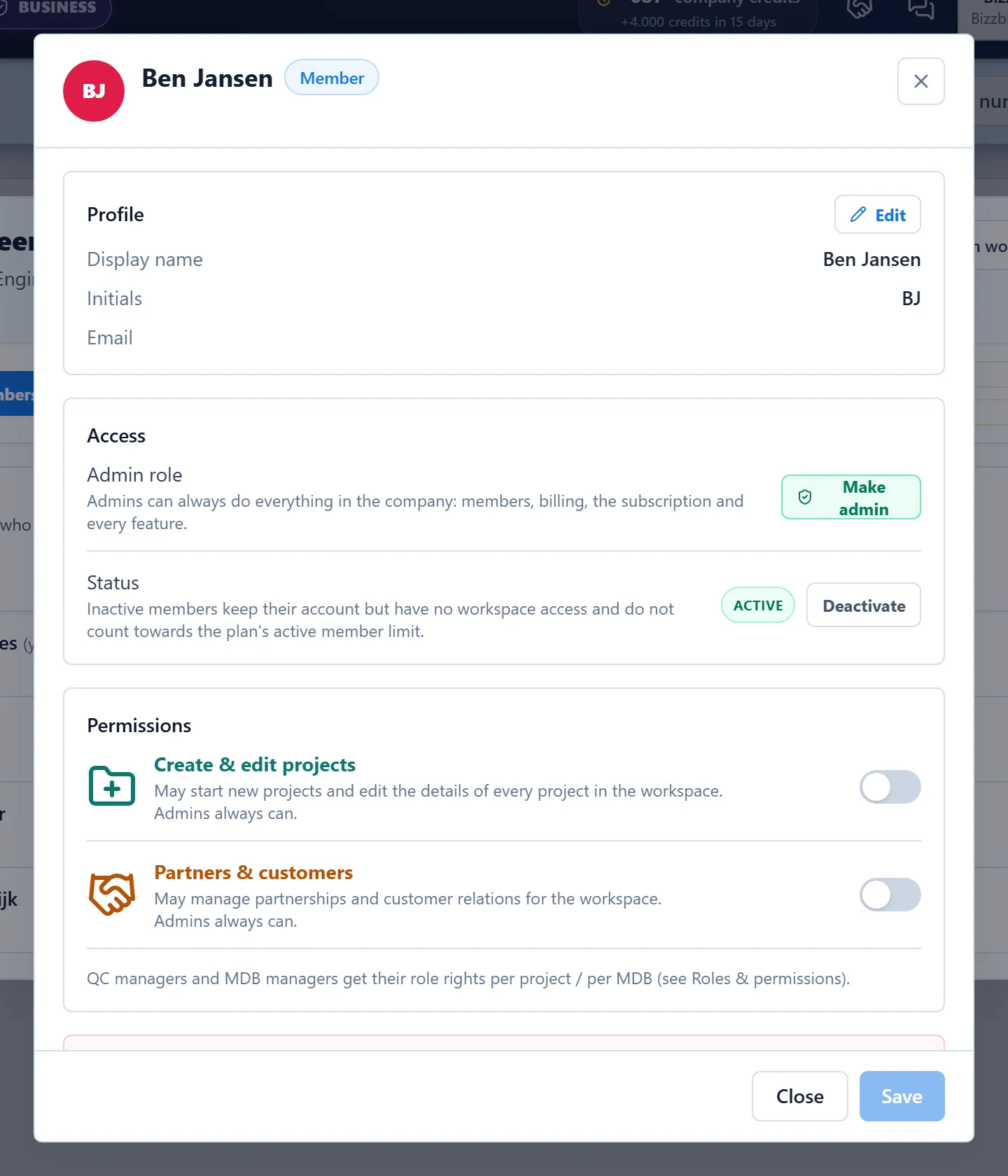
A member's status is Active or Inactive. Inactive members keep their account but have no access to the company and don't count towards the member limit. Admins are always active.
Project roles#
In a Pro company, each project has a Project roles switch, in the window where you create or edit the project. It is off by default.
With project roles off, every member of the company counts as QC manager and as MDB manager of the project, so everyone can work on it. The admin-only actions stay with the admins.
With project roles on, the work is divided:
- QC managers run their project: its details, team and products. They assign the MDB managers and the chapter checkers.
- MDB managers compile the MDBs they are assigned to: they build the chapters, upload the documents and process comments and corrections.
- Other members can add files to the chapter folder of every chapter, view chapters and add comments. Everyone can sign documents.
A project with a large team always uses project roles, and the number of QC managers per project and MDB managers per MDB is limited. The switch shows the limits.
See MDB managers and checkers for how to assign them.
What admins decide for QC managers and MDB managers#
For a handful of actions, admins choose whether QC managers and MDB managers may do them. You find these settings in the company settings on the Roles & permissions tab. Click Edit, change the switches and click Save. Everyone else sees the same table, read-only.
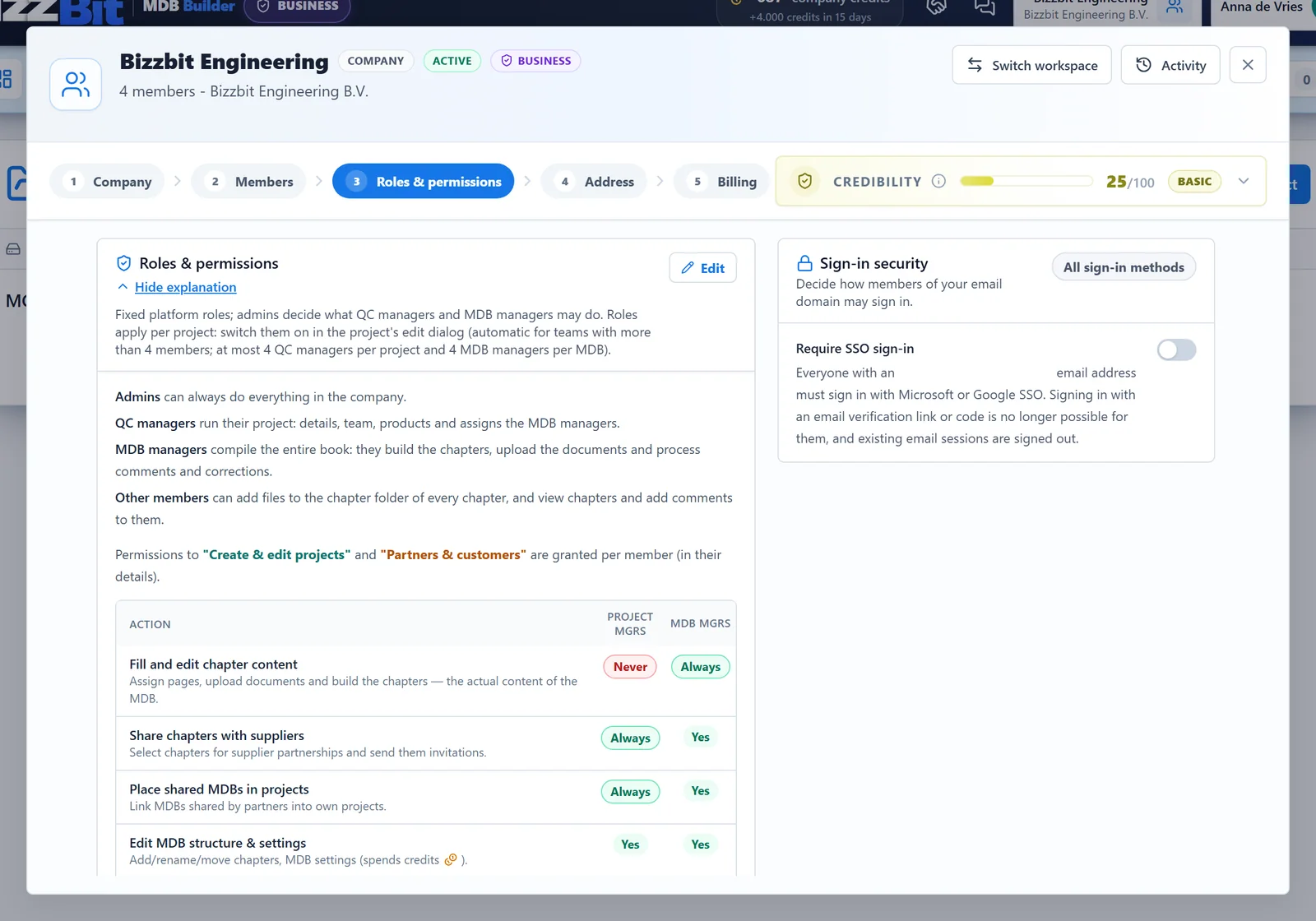
| Action | QC managers | MDB managers |
|---|---|---|
| Fill and edit chapter content | Never | Always |
| Share chapters with suppliers | Always | Setting (on by default) |
| Place shared MDBs in projects | Always | Setting (on by default) |
| Edit MDB structure & settings | Setting (on by default) | Setting (on by default) |
| Share MDBs with customers | Setting (on by default) | Setting (on by default) |
| Release revisions to the customer | Setting (on by default) | Setting (on by default) |
| Manage external share links | Setting (on by default) | Setting (on by default) |
| Export MDBs | Setting (on by default) | Setting (on by default) |
| Remove other people's signatures | Setting (off by default) | Setting (off by default) |
Admins can always do all of these. Everyone can remove their own signature.
Chapter checkers#
Before a chapter is released to the customer, colleagues can check it internally. QC managers and admins appoint the chapter checkers per chapter, from the project team.
- A chapter with checkers can only be released when every checker has agreed.
- When the chapter content changes after a check, that check no longer counts and must be given again.
- Team members who are not appointed may still check a chapter. Their verdict is for information and never blocks a release.
See Complete, check and release.
Customers and suppliers#
Customers and suppliers are not members of your company. They are partner companies with their own workspace. See Partners, customers and suppliers.
| Partner | What they can do |
|---|---|
| Customer | Receives the MDBs you share. Sees the revisions you release, and reviews them: accept, accept with comments or reject, with comments on the pages. |
| Supplier | Delivers documents into the chapters you share with them. Their files land in the chapter folder. |
In the customer's own company, every member may review a shared MDB.