A delivered data book set often runs to many binders. Three kinds of numbers help your customer find their way in it:
| Number | Example | Where it comes from |
|---|---|---|
| Book number | Book-1.2#3 | Worked out by MDB Builder from the product tree. |
| MDB document number | MDB-MC401-001 | Typed by you per product. |
| Chapter code | QC | Typed by you per chapter, when chapter codes are on. |
Book numbers#
Every product of a project is one book in your customer's set of binders. Its book number follows from its place in the product tree:
| Place in the tree | Book number |
|---|---|
| First main product | Book-1 |
| Second product embedded in it | Book-1.2 |
| A product embedded in that one | Book-1.2.1 |
| Unit 3 of product Book-1.2 | Book-1.2#3 |
Main products count 1, 2, 3 in the order of the project's product list. Embedded products count under the product whose MDB they are embedded in. A product with multiple units is a set of books, one per unit. The number after # is the unit's position (1 for the first unit, 2 for the second), not its unit number.
You never type a book number. When you move a product in the product list, the numbers follow by themselves. Linked shared MDBs count along like your own products.
Where you see it#
- In the project's product list, in green in front of the product name.
- In the product tree on the left of an open MDB. A product with multiple units shows the range, for example Book-1.2#1–#12.
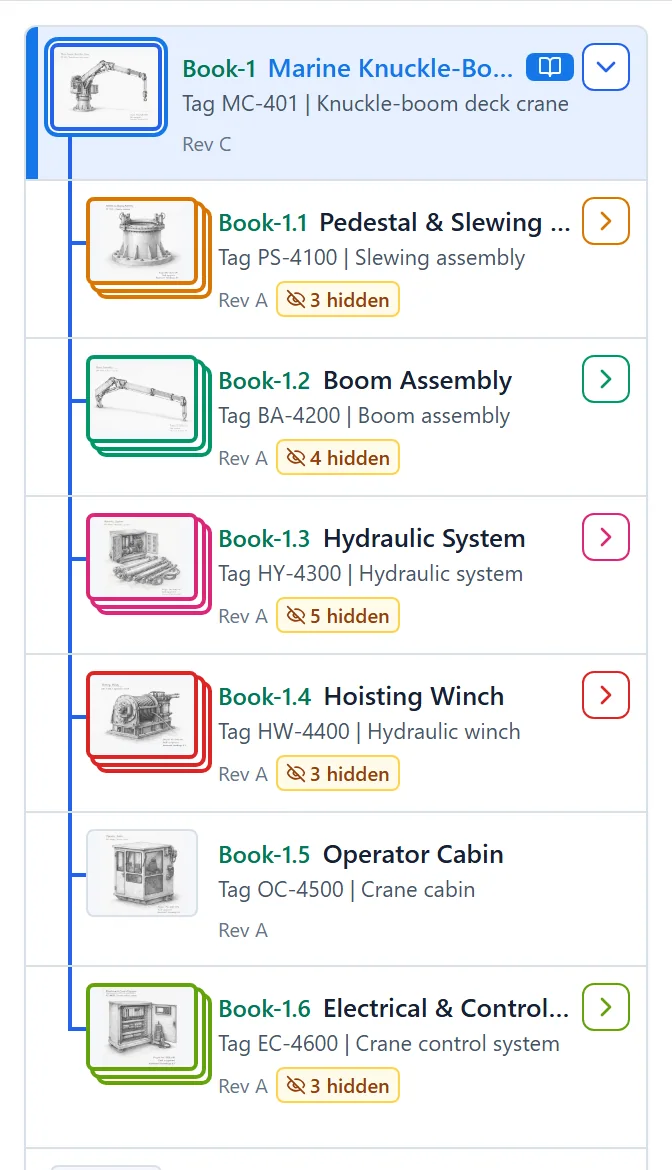
- In the export, on the cover, index, divider sheets and binder spine. Every preset theme carries the book number on each of these sheets. In your own designs, switch it on or off with Book number under Standard elements in the sheet designer, or use the Book number field on an information card.
An export for one unit shows that unit's own book number. See Export the final PDF.
MDB document number#
The MDB document number is your customer's or your own document number for the product's data book. It is optional and set per product:
- Open the product with Edit product, or fill it in when you create the product.
- Open More product details and add MDB Document number. It sits under the identification fields.
- Save the product.
MDB document numbers must be unique within the project. The form warns you when another product already uses the number.
Where you see it#
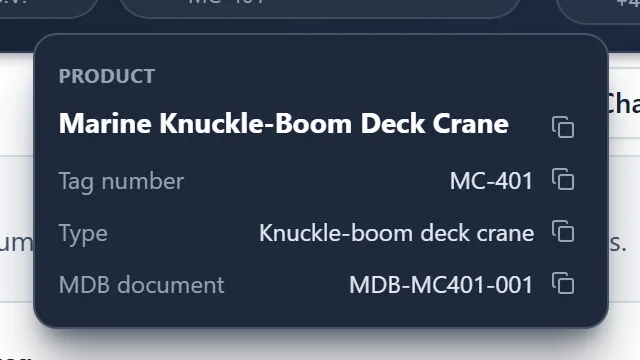
- Hover over the product name in the top bar of an open MDB. The card shows the tag number, type and MDB document, with a button to copy each value.
- In the export, wherever the MDB style places it. The Product information card on a sheet has an MDB document number row, and every text element can use the MDB doc number field. How to place fields on the cover and other sheets is in Style the cover and index.
Chapter codes#
Chapter codes are short document codes per chapter, for example the code your customer uses for that part of the data book. They are optional and switched on per MDB:
- Click Edit structure.
- Under Settings on the right, turn on Chapter codes.
- Type a code of up to five characters in the Code field of each chapter. Codes are saved in capitals.
- Click Save changes.
Next to the codes, Main chapter numbering in the same Settings block chooses between 1, 2, 3 … and A, B, C … for the main chapters. Subchapters follow as 1.1 or A.1.
Where you see them#
- In the chapter list, as a small code badge on each chapter.
- In the export index, in a column between the chapter number and the title. Turn it on with Chapter codes on the chapter list of the index design. An MDB without codes shows no extra column.
- On the divider sheets, with the Chapter code field in the divider design.
Turning chapter codes off does not delete the codes you typed. A structure you save as a template while chapter codes are on keeps its codes. See Edit the chapter structure.