MDB Builder has no passwords of its own. You sign in with the account your company already manages, or with a verification by email. On the Pro plan, an admin can go one step further and require single sign-on (SSO) for everyone on the company's email domain.
The sign-in options#
| Option | Who can use it | Counts as SSO |
|---|---|---|
| Continue with Microsoft | Work or school accounts (Microsoft Entra ID) | Yes |
| Continue with Google | Google Workspace accounts only | Yes |
| Continue with e-mail | Any business email address | No |
From Microsoft or Google, MDB Builder only receives your name and email address. It gets no access to your mail, files or calendar.
Only business accounts are accepted. Personal addresses such as Gmail, Outlook.com, Hotmail or Yahoo are refused with every option. A Google account also has to be a Google Workspace account: a private Google account is refused, even when it uses your company's email address.
When your IT department blocks the app#
Some organisations only allow external apps after an IT admin has approved them. In that case Microsoft shows an approval screen, or MDB Builder shows Your organization blocked Microsoft sign-in for this app. You then have two ways forward:
- Sign in with Continue with e-mail instead.
- Ask your IT department to allow SSO access for MDB Builder, and try again.
Require SSO for your company#
With Require SSO sign-in switched on, everyone with an email address on your company's domain must sign in with Microsoft or Google. Signing in with an email verification link or code no longer works for them, and existing email sessions are signed out.
Before you switch it on#
Check with your IT department that MDB Builder is approved for Microsoft or Google SSO, and that colleagues can actually sign in that way. Otherwise the members of your domain are locked out until an admin turns the setting off again.
Switch it on#
- Click the company card in the top bar to open the company settings.
- Open the Roles & permissions tab. The Sign-in security card is on the right. Its label shows All sign-in methods while the setting is off.
- Click the Require SSO sign-in switch. A warning, Check before you enable this, appears.
- Click Require SSO to confirm, or Cancel to leave it off.
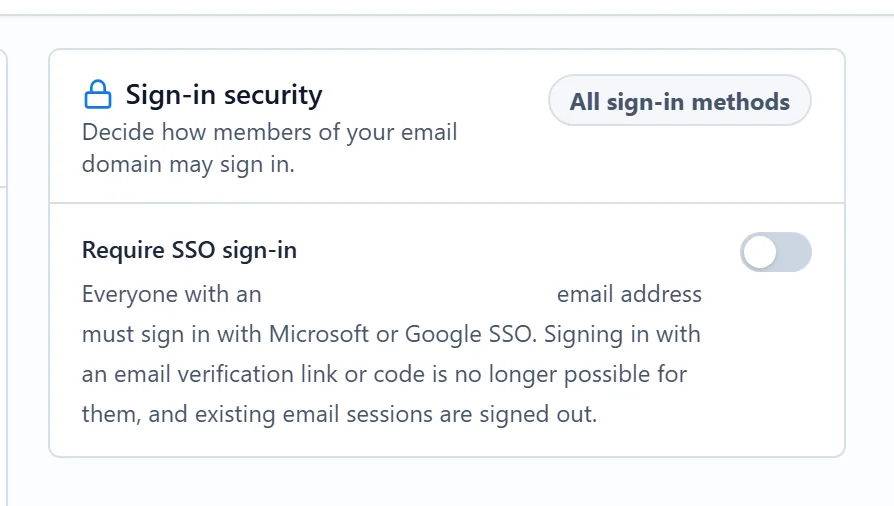
The label changes to SSO required. To turn the setting off, click the switch again. Turning it off needs no confirmation.
The setting covers the whole email domain, not only the members of your company. It only applies while the company has an active Pro subscription: if the subscription ends, the requirement lifts by itself.
What your colleagues see#
A colleague on your domain who tries Continue with e-mail is sent back to the sign-in page with the message Your organization requires SSO sign-in. It asks them to use the Microsoft or Google button, or to contact their MDB Builder admin.