This guide shows how to divide the work on a project in a company: who is on the project team, who manages each MDB, and who checks which chapters before they go to the customer. In a private workspace you work alone, so none of this applies there.
| Role | Set per | What they do |
|---|---|---|
| QC manager | Project | Runs the project: manages its team, assigns MDB managers and chapter checkers. |
| MDB manager | MDB | Builds and fills the MDB: uploads documents, marks chapters complete and releases them. |
| Chapter checker | Chapter | Checks the chapter before it can be released. |
For the full list of who may do what, see Roles and permissions.
1. Put together the project team#
Open the project from your dashboard. The Project team card shows the members with their role; QC managers have a crown. Click Manage team (or Assign team when the project has no team yet).
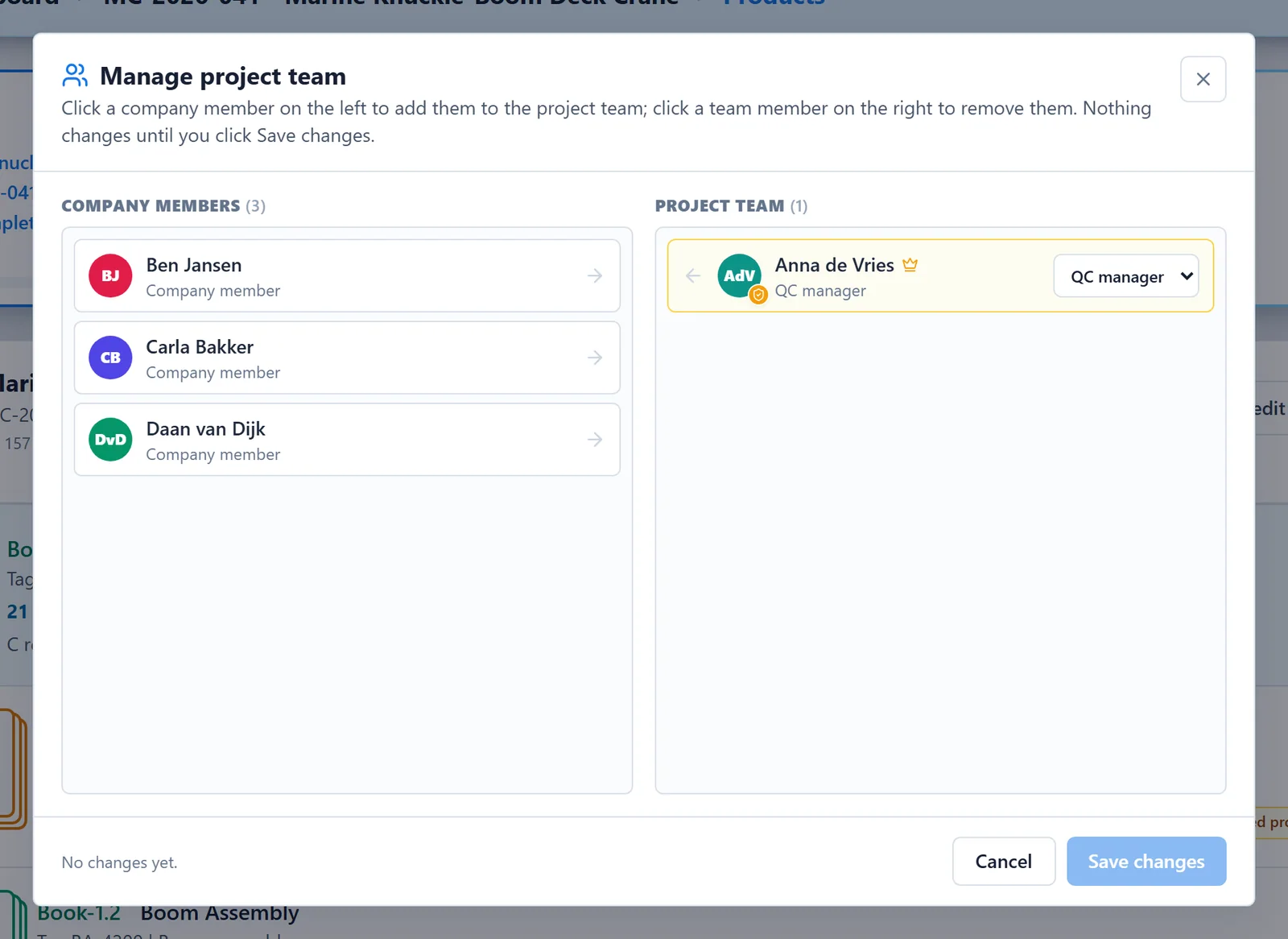
- Click a company member on the left to add them to the project team.
- Choose Member or QC manager in the dropdown next to each team member.
- Click a team member on the right to remove them.
Nothing changes until you click Save changes. A project always needs at least one QC manager. Who is QC manager can only be changed by admins and the current QC managers.
The project team matters for checks: only project team members can be chapter checkers.
2. Assign MDB managers#
Every MDB has its own MDB managers. Whoever creates a product automatically becomes the first MDB manager of its MDB.
Open the MDB and click MDB managers in the top bar. The button shows the initials of the current managers, or None assigned. Tick the colleagues who should manage this MDB and click Save managers.
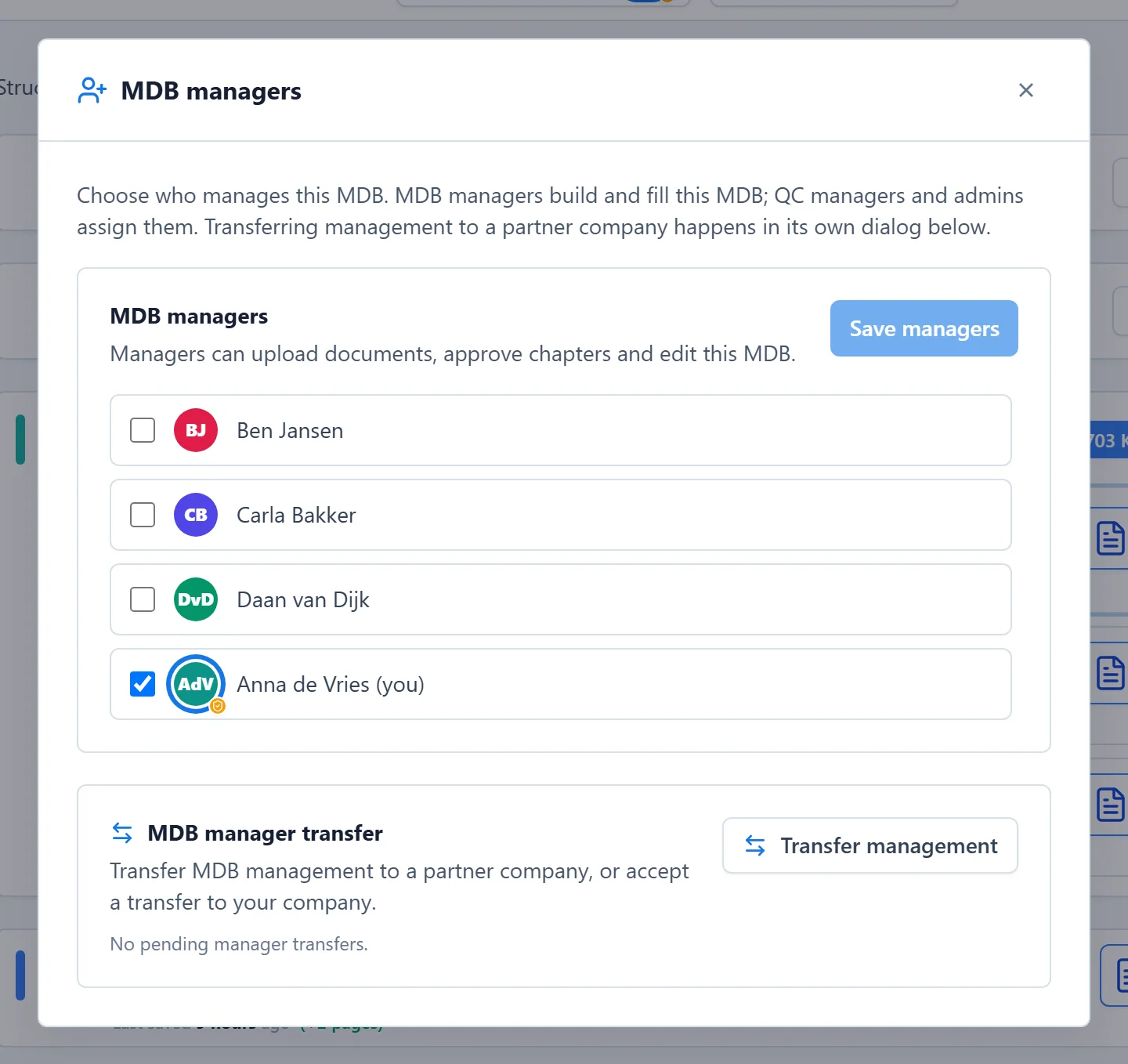
MDB managers are the ones who see Mark complete and the release buttons of this MDB. QC managers and admins assign them.
The same window has Transfer management, to hand the management of this MDB to a partner company, or to accept a transfer to your company.
3. Assign chapter checkers#
Checkers are set per chapter. For one chapter, click its row to open the details and click Chapter checks. Under Who must check this chapter?, tick the project team members and click Save checkers.
A chapter with checkers can only be released when every assigned checker has agreed to submit. A chapter without checkers can be released without a check. How checking works is in Complete, check and release a chapter.
Someone who becomes a checker in a project for the first time gets an e-mail. Assignments on further chapters of the same project do not send another one, so checkers should keep an eye on the project themselves.
4. Assign checkers to many chapters at once#
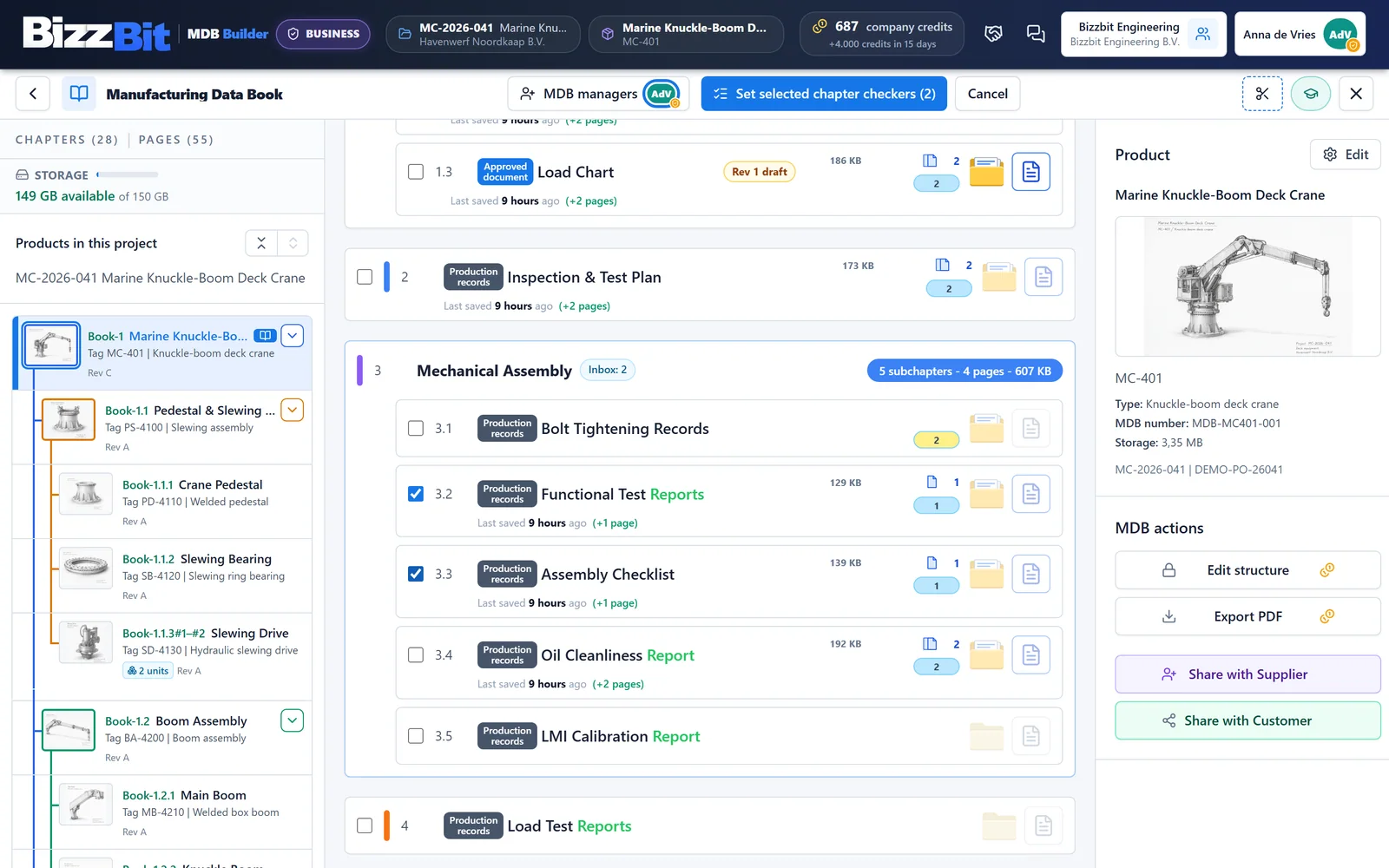
For a whole MDB, use the Chapter checkers button in the top bar:
- Click Chapter checkers, then Start selecting chapters.
- Tick the chapters in the list, or click anywhere on a chapter row. Other buttons in the chapter list are paused while you select.
- Click Set selected chapter checkers in the top bar. The button shows how many chapters you selected.
The window lists the project team with one checkbox per member:
- A tick makes the member a checker on every selected chapter.
- An empty box removes them from every selected chapter.
- A dash means the member is a checker on some of the selected chapters. That stays as it is unless you click it.
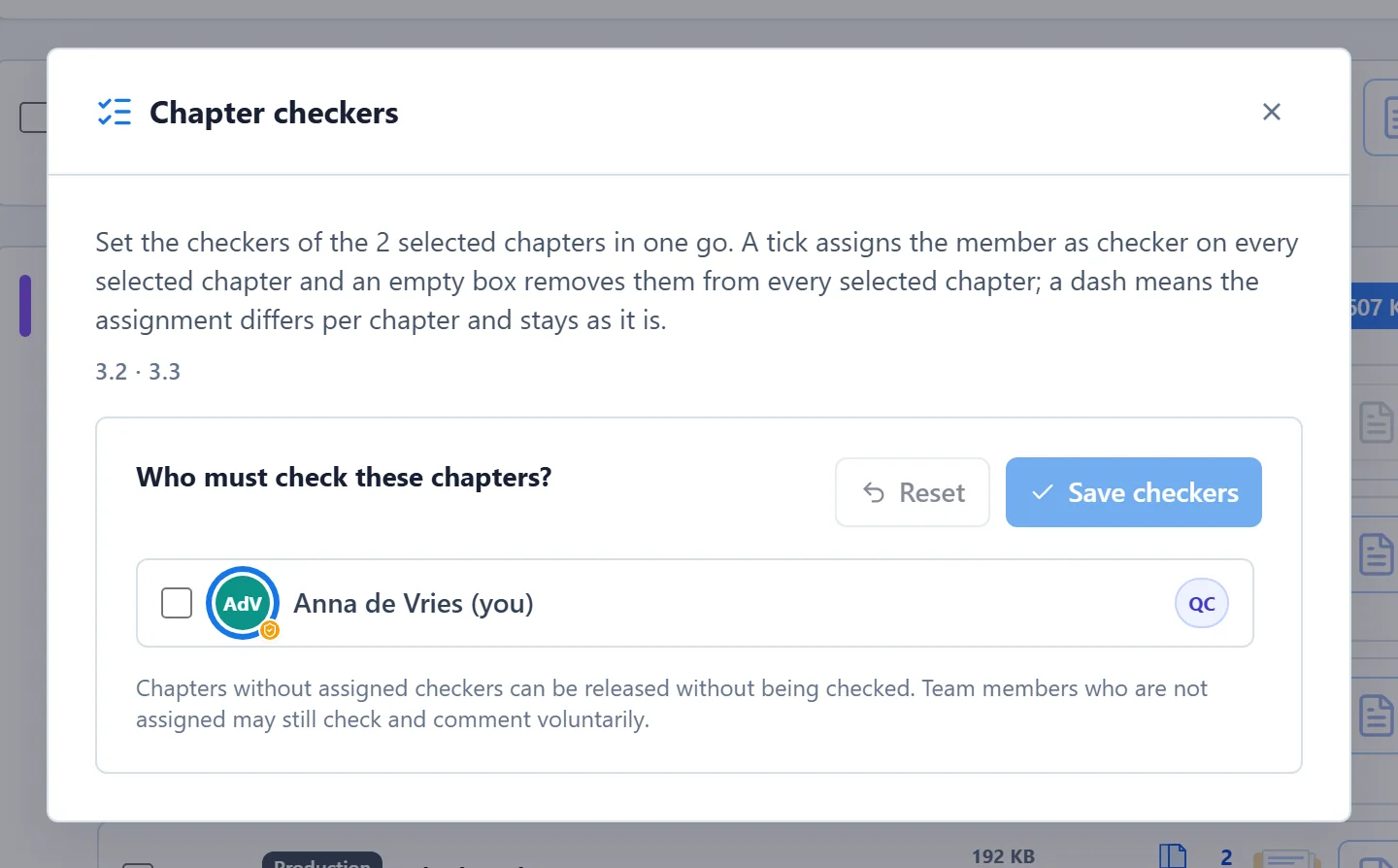
Click Save checkers, or Reset to go back to the current assignment. Click Cancel in the top bar to stop selecting.
Hover over the Chapter checkers button to see every checker of the MDB and how many of their chapters they still have to check.
5. Switch project roles on or off#
In a Pro company, project roles are off by default for every project. Everyone in the company then works on the project as in a free workspace; only admin-only actions stay with admins. The Project team card shows a Roles off pill.
To divide the work, an admin opens the project with the pencil button (Edit project) and turns on Project roles. QC managers then run the project and MDB managers fill the MDBs, as set in the company's permission settings.

- Only admins can switch project roles on or off.
- A project team above a certain size always uses roles. The Manage team window tells you when saving will switch them on, and the switch in Edit project can then no longer be turned off.
- While roles are on, the number of QC managers per project and MDB managers per MDB is limited. The windows show how many you have selected out of the maximum.