Everyone starts in a private workspace. That is enough to try MDB Builder and even to deliver an MDB on your own. As soon as colleagues need to work on the same projects, you create a company. This guide explains what a company is and walks you through the three steps of the Create company wizard.
What a company is#
A company is a shared workspace for the people of one organisation.
- Shared projects. Everyone in the company works in the same projects: each person uploads their own documents, and everyone can check what the others uploaded.
- One email domain. A company belongs to your email domain, for example
@example.com. Only colleagues with an address on that domain can become members. - Partners. Partnerships with customers and suppliers, and sharing MDBs with them, happen between companies.
- Credits and plans. A company has its own credit balance, and it is the company that you upgrade to the Pro plan. See Credits and plans.
Your private workspace stays next to your company. What you try out there stays yours; the company workspace is separate. You switch between the two with Switch workspace. See Find your way around.
Before you start: does your company already exist?#
Maybe a colleague already created your company. In that case you don't create a second one, you ask to join:
- The yellow banner at the top of the dashboard then says Your colleagues at @your-domain are already on MDB Builder and lists their company.
- Click Request to join. In a free company any current member can accept your request; in a Pro company an admin reviews it.
- Until someone accepts, you keep working in your private workspace.
A second company on the same email domain is only possible when every existing company of that domain is on the Pro plan. Otherwise, join the existing one. Being invited by a colleague also works: they only need your email address. See Invite your colleagues.
1. Open the wizard#
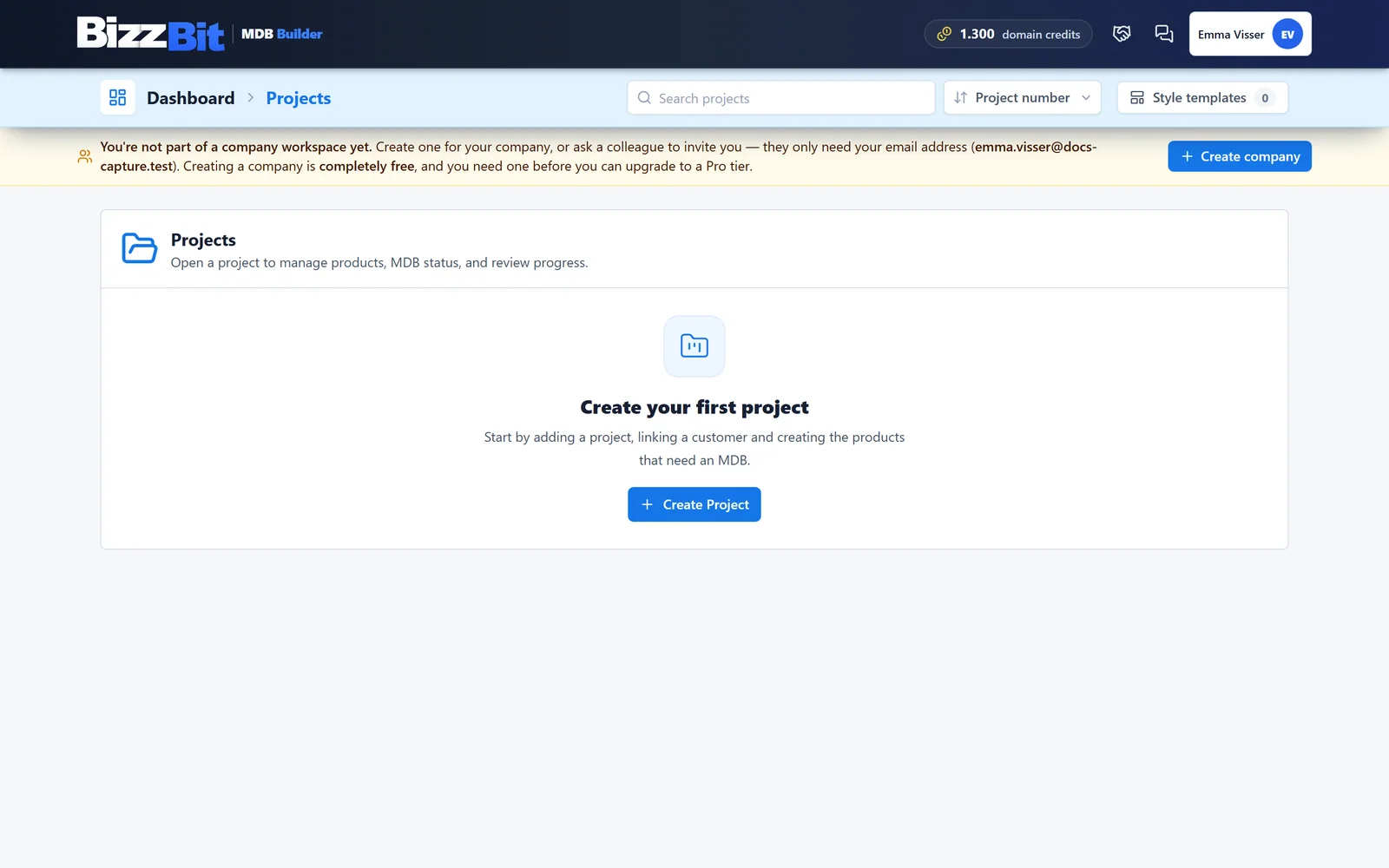
Click Create company in the yellow banner at the top of the dashboard. You also find Create company in the Switch workspace window.
The wizard shows at the top how many free credits the new company starts with. For your first company, the unused credits of your email domain's free balance move in on top of that.
2. Company: who you are#
The first step records the company's official details.
- Click Find your company to look your company up with Google. MDB Builder first tries your email domain and asks Is this your company? If that isn't the one, search by name and click Use company. The name, address and website are filled in for you, and the Location preview shows the company on the map.
- Not on Google, or listed wrongly? Click Can't find your company? Enter the details manually and fill in Your company name and, optionally, Your company address.
- Check the Country where your company is established. MDB Builder suggests one; when you pick your company with Google, the country comes from Google. The country is kept separate from the address, so billing, VAT and country checks all use the same answer.
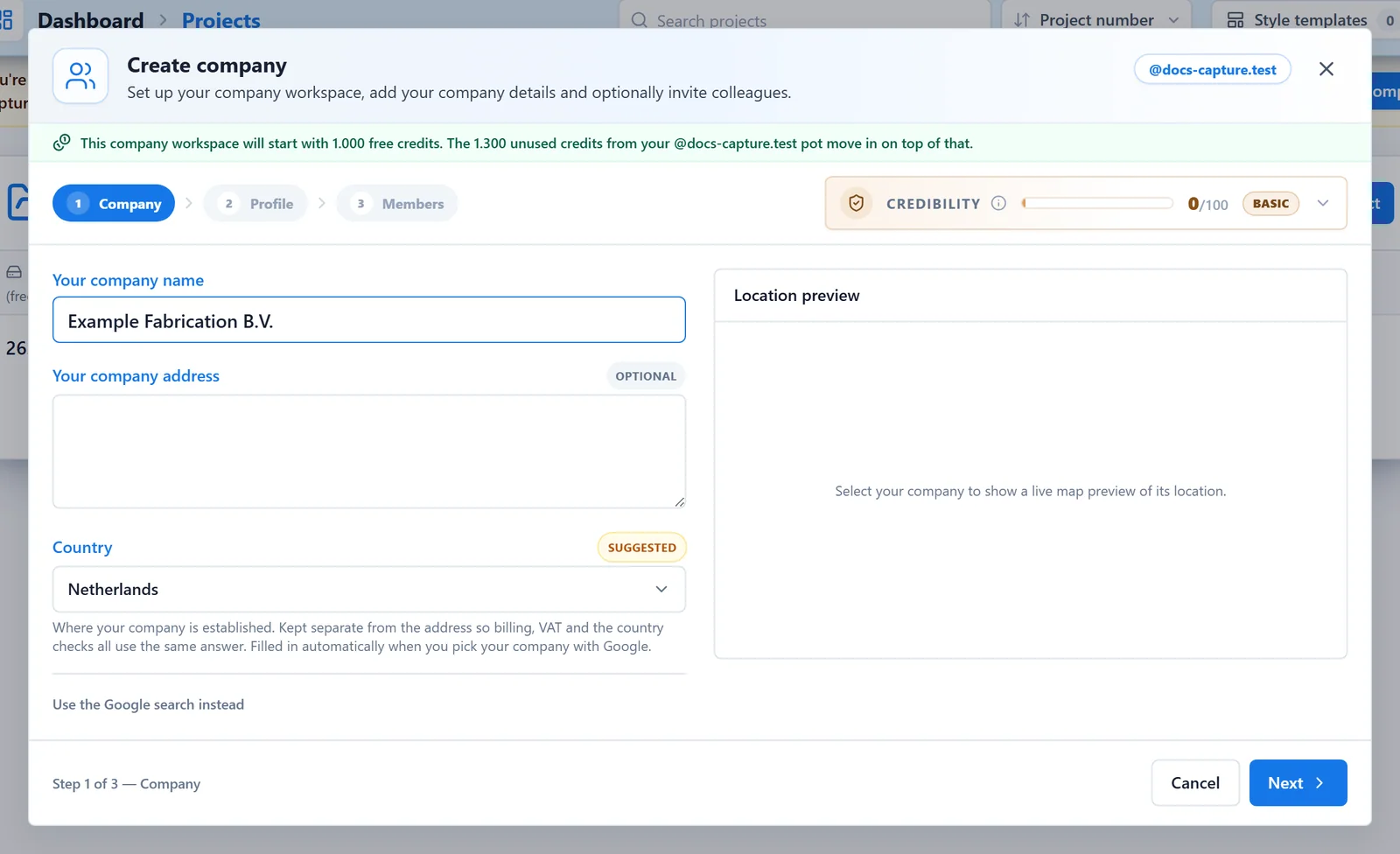
Click Next.
3. Profile: how others see you#
The second step is about how colleagues and partner companies see your company.
| Field | What it is for | |
|---|---|---|
| Company short name | Required | The name colleagues and partners see across the app. It must be unique on MDB Builder. |
| Company description | Optional | A few words about what your company does. |
| Company tags | Optional | Make your company easier to find in the marketplace. Click Choose tags. |
| Your company logo | Optional | Shown with your company and available for your MDB covers. |
List this company in the marketplace is on by default. Other companies can then find you by name and tags to send you a partnership invite. Only your company profile is shown, never your projects. You can change this later in the company settings.
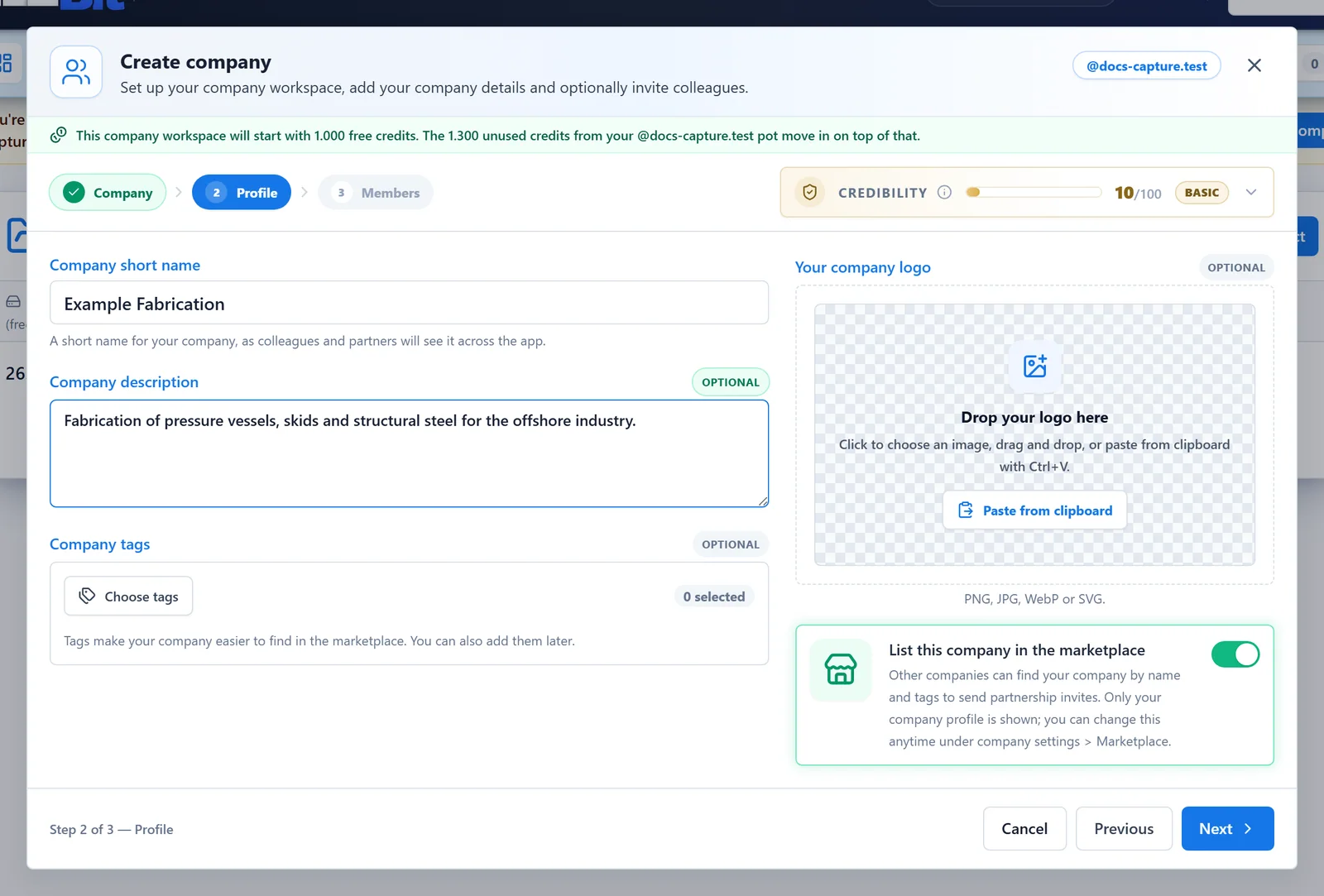
Click Next.
4. Members: invite your colleagues#
In the last step you can invite colleagues straight away. This is optional: you can also create the company on your own and invite people later.
- Paste one or more addresses in Email addresses. A list copied from Excel works too, as do commas and spaces. MDB Builder shows the addresses it recognised under Detected addresses.
- Every address must be on your company's email domain. An address on another domain has to be removed before you can continue; customers and suppliers join through a partnership instead. See Partners, customers and suppliers.
- A company without Pro has a limit on the number of members. If you invite more people than fit, MDB Builder tells you; create the company with fewer invites and upgrade to Pro to add more.
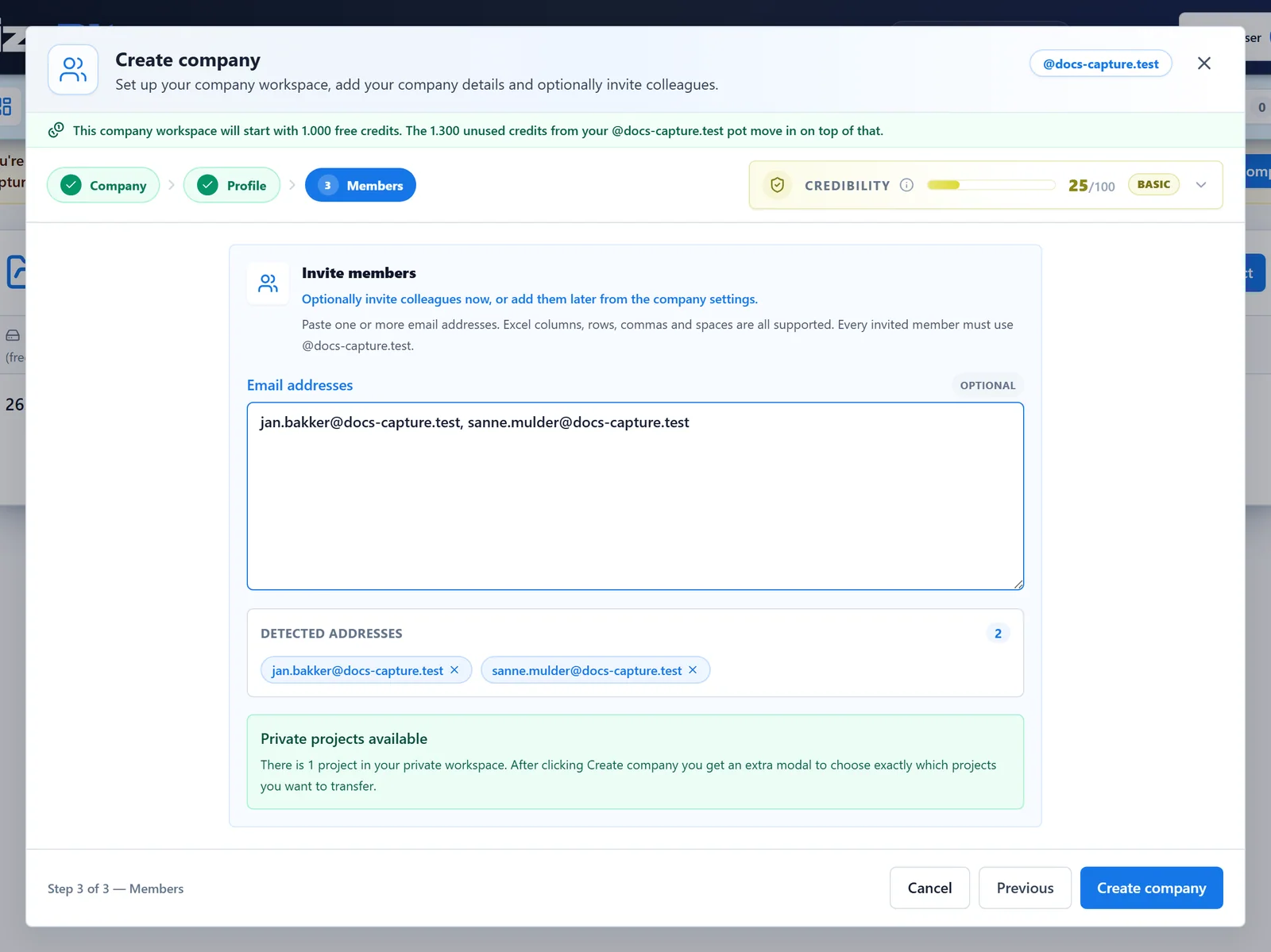
Click Create company.
5. Take your private projects along#
Is this your first company and do you already have projects in your private workspace? Then the window Choose projects to transfer opens.
- All private projects move along by default. Uncheck the ones you want to leave behind.
- The customers linked to the projects you take along move with them.
- A project may hold an MDB that a partner shared with you. If you leave that project behind, the shared MDB is detached and shows up under Shared with you in your new company.
Click Confirm and create company.
What happens next#
- You now work in the new company. The header shows it, and the yellow banner is gone.
- Invited colleagues receive an invitation by e-mail, and also see it in MDB Builder when they sign in with their work address.
- For your first company, your partnerships and shares from the private workspace move over as well.
Complete your company profile later from the company card in the header: add a badge, change the logo or description, or adjust the marketplace listing. See Manage members and departments.
If something goes wrong#
- This company name is already in use. Short names are unique on MDB Builder. Choose a different Company short name.
- A new company can only be created when every existing workspace of your domain has a Pro subscription. A company for your domain already exists: ask to join it instead.
- All company members must use the same email domain. Remove the addresses on another domain from the invite list.