Before a chapter goes to your customer, you want to know that all documents are in and that a colleague has looked at it. This guide follows one Production records chapter from the last upload to its release. It takes a few minutes per chapter.
The route has three steps, each done by a different person:
| Step | Who | What it means |
|---|---|---|
| Mark complete | An MDB manager of the MDB | All documents of the chapter are in. |
| Agree to submit | The chapter checkers | The chapter can go to the customer as it is. |
| Release | An MDB manager of the MDB | The chapter is frozen as a revision and the customer can see it. |
Approved document chapters skip the first two steps. Their approval already happened in your own document control, so there is nothing to complete or check in MDB Builder.
1. Mark the chapter complete#
Click a chapter row to open its details. When all documents of the chapter are in, click Mark complete and confirm with Mark complete in the window that opens.
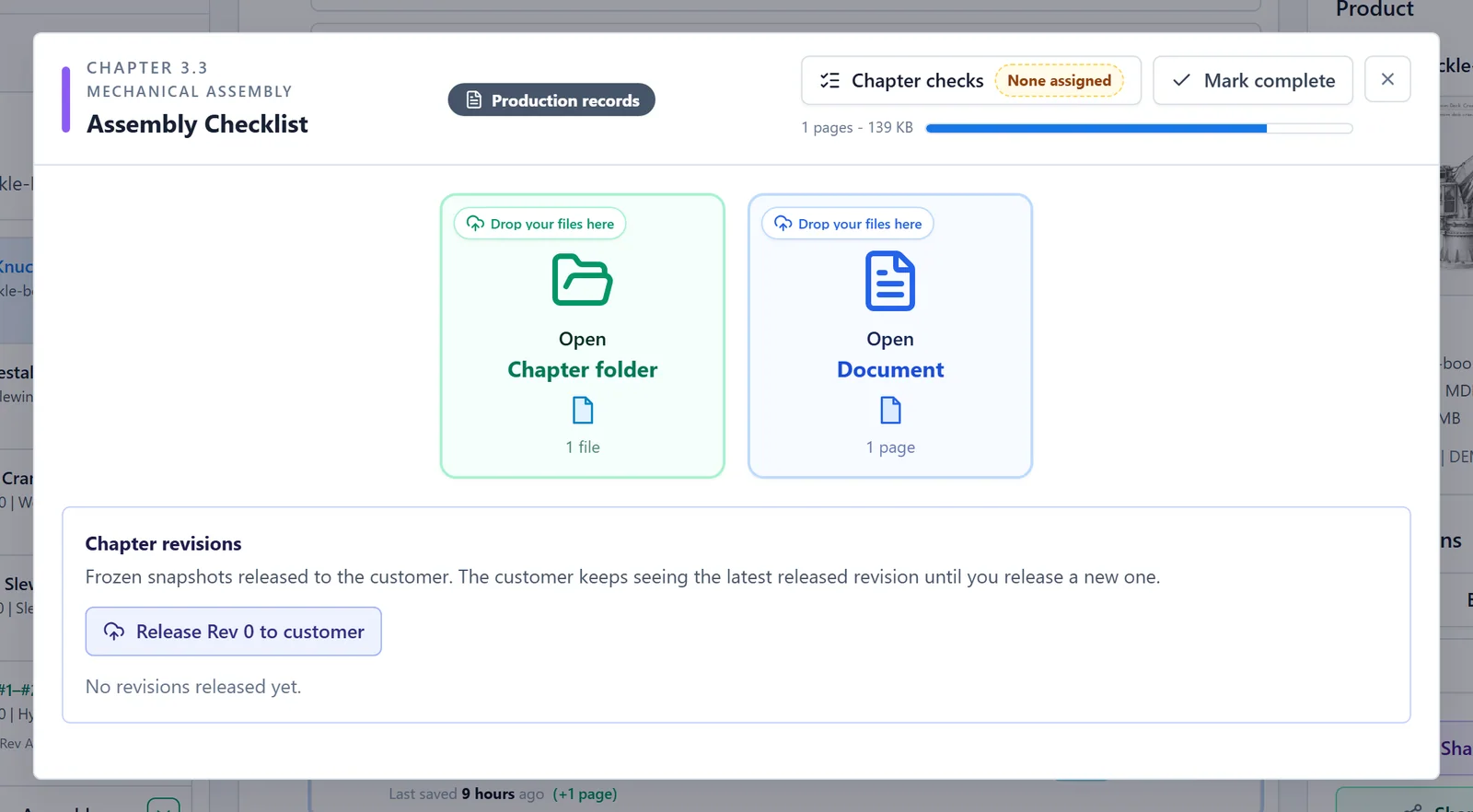
The chapter row now shows a green Complete pill. The same button is also in the top bar of the PDF tool, so you can mark the chapter complete while you are looking at it.
- Mark incomplete undoes it.
- Adding new documents sets the chapter back to not complete by itself.
- For a product with multiple units, a chapter that is not common is marked complete per unit. Switch the working unit to mark the next one.
Only the MDB managers of the MDB see the button. See MDB managers and chapter checkers for how to assign them.
2. Check the chapter#
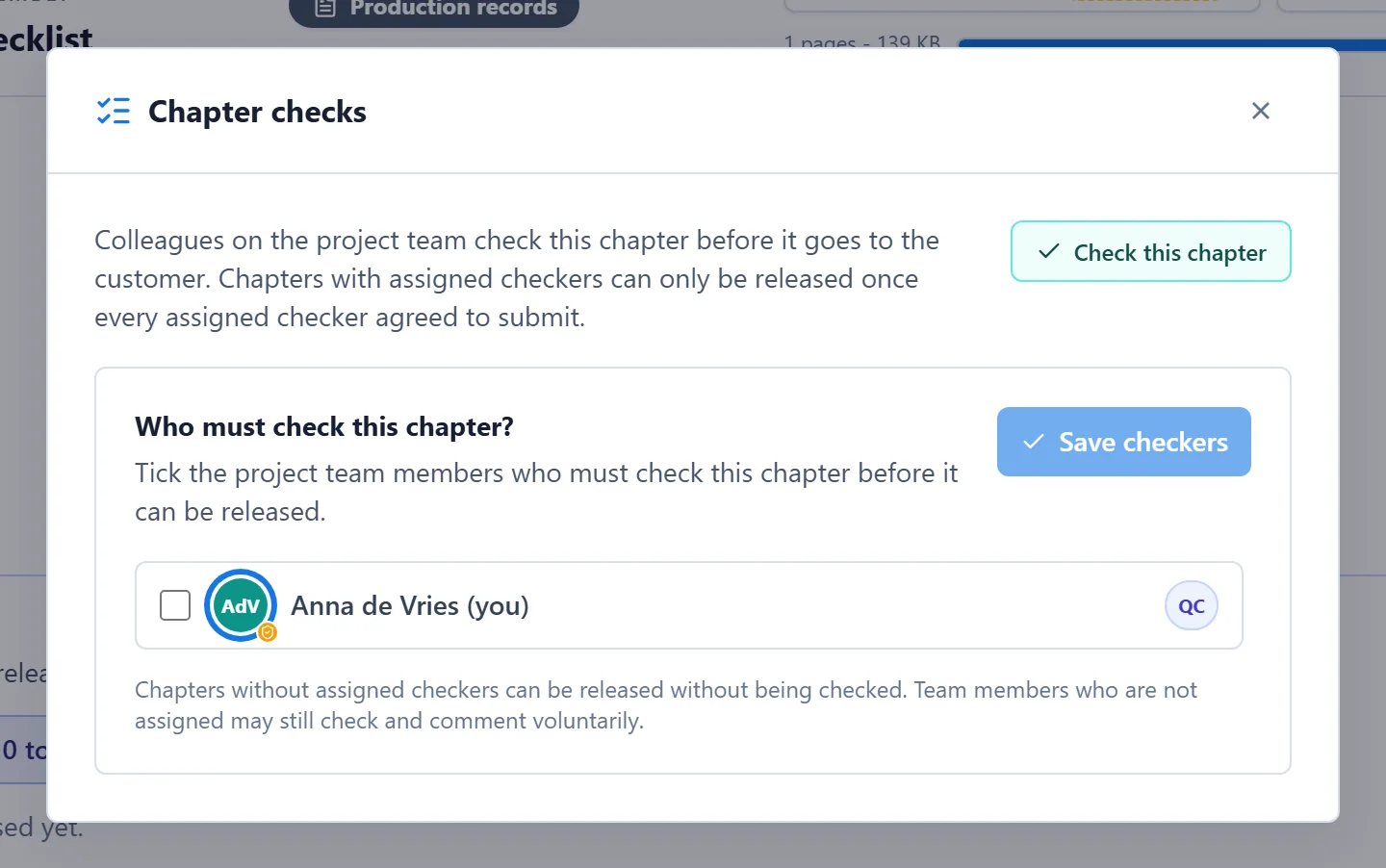
The chapter checkers are the colleagues who must check a chapter before it can be released. A QC manager or an admin assigns them per chapter; see Assign chapter checkers.
As a checker, open the chapter with the document icon on its row (View chapter), or click the document tile in the chapter details. The chapter opens in the PDF tool, read-only. You then have two choices:
- Agree to submit: the chapter can go to the customer. Add an optional Note for the team and confirm with Agree to submit. Your check is saved as Agreed to submit to customer.
- I have comments: this switches the PDF tool to comment mode, on the page you are reading. Place your comments on the pages and click Save changes. Your check is then saved as I have got comments.
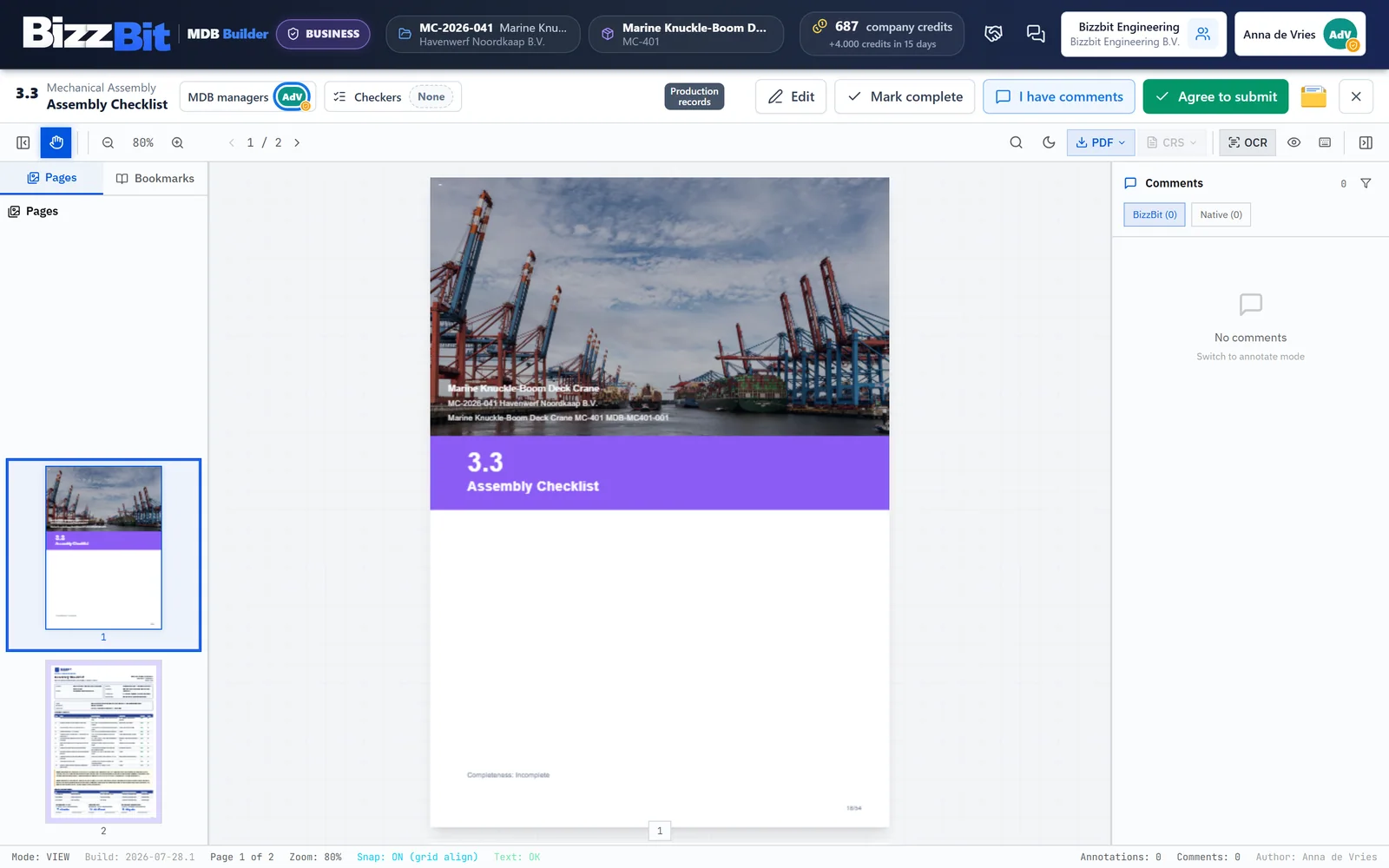
There is deliberately no reject between colleagues. You either agree, or you have comments for the MDB manager to work on.
Colleagues who are on the project team but not assigned can check a chapter too. Their check shows under Also checked by, but it never holds up a release. In a company without the Pro plan, every member can check.
3. Follow the checks#
Once a chapter has checkers, its row shows a Checks pill, for example Checks 1/2: one of the two assigned checkers agreed. Each checker has an initials badge with a coloured dot. Hover over the pill to see names and statuses; click Chapter checks in the chapter details for the full list with notes and dates.
| Status | Dot | Meaning |
|---|---|---|
| Not checked yet | Grey | The checker has not checked this chapter. |
| Agreed to submit to customer | Green | The checker agreed. |
| I have got comments | Orange | The checker placed comments. |
| Re-check needed | Amber | The chapter content changed after the check. |
A check is only valid for the content the checker saw. Any change to the chapter content after a check turns it into Re-check needed, and the checker has to check again.
4. Release the chapter#
A chapter with checkers can only be released once every assigned checker has a current Agreed to submit to customer. Until then the release button is disabled and the chapter details say who you are waiting for (Waiting for a check by …). A chapter without checkers can be released without a check.
To release one chapter, open its details as an MDB manager and scroll to Chapter revisions. Click Release Rev 0 to customer (the number follows the chapter's revision), check the summary and click Release rev 0.
- Tick Issue as preliminary to issue the revision for information or review instead of as final. The transmittal history on the divider sheet shows it.
- Once your MDB is shared with the customer, the top bar shows Release all with the number of chapters that have unreleased content. It releases them in one go. Untick a chapter to hold it back. Chapters that still wait for a check are not in the list.
Releasing costs no credits. When the MDB is shared with your customer, they see the new revision straight away. In a Pro company, admins decide who may release under Release revisions to the customer in the admin settings. How revisions are numbered, and what the customer sees in the meantime, is explained in Chapter revisions.
What's next#
- Chapter revisions: drafts, new revisions and the revision history.
- Share an MDB with your customer
- Customer review: what happens after the release.