This guide shows you where everything is. After a few minutes you know how to find a project, switch between your workspaces, change your own settings and ask the BizzBit team for help.
1. The header#
The dark bar at the top is the same on every page.
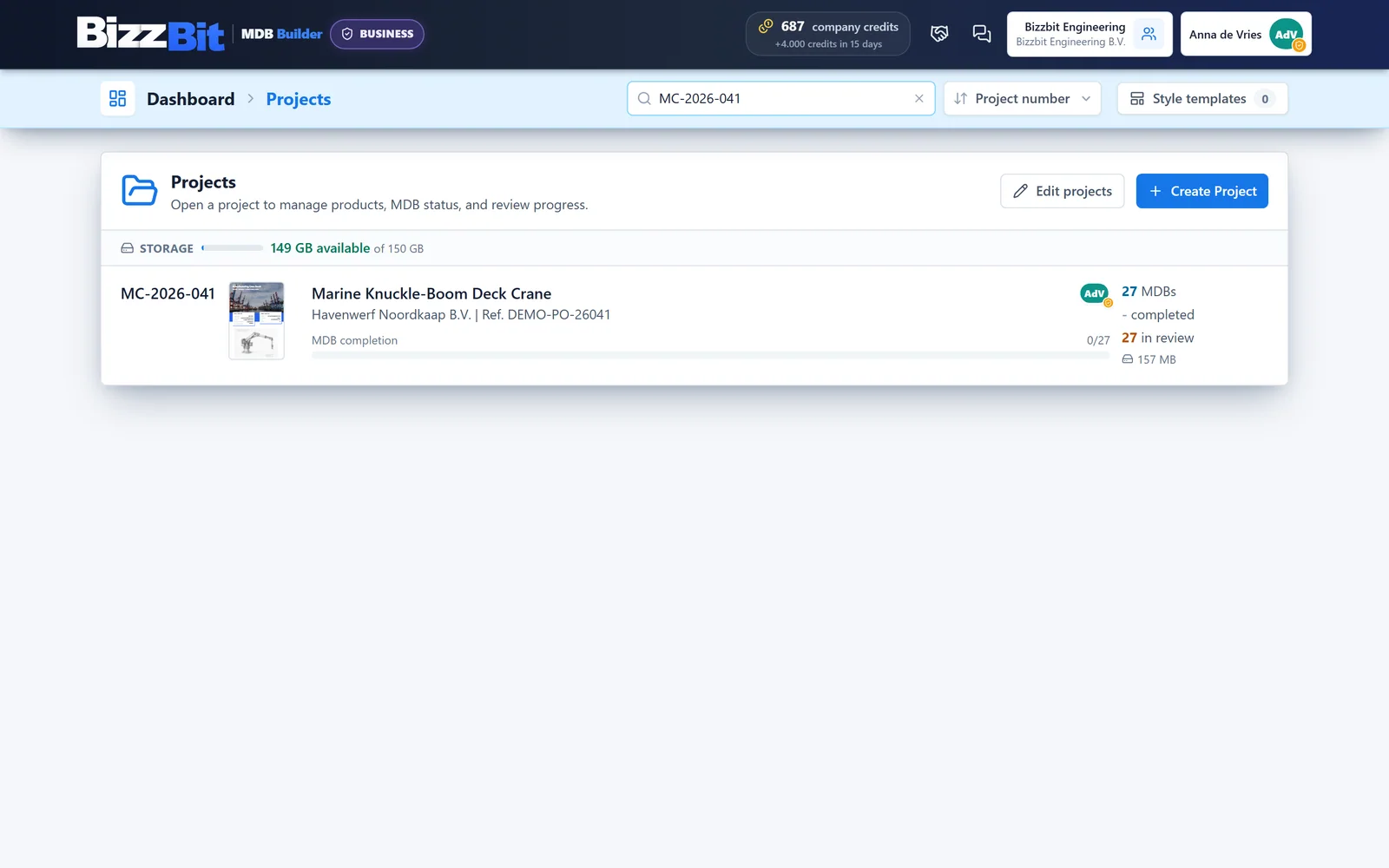
On the left:
- The BizzBit logo takes you back to the projects overview from anywhere in the app.
- A Pro badge appears next to it when your company has a Pro subscription.
In the middle, while you work in a project or an MDB, two small cards show the project and the product you are working on. Hover over a card to see details such as the project number, customer reference, tag number and MDB document number. Each value has a copy button.
On the right:
| Item | What it does |
|---|---|
| Credits | Your credit balance. Click it for details, top-ups and history. See Credits and plans. |
| Partnerships (handshake icon) | Your partner companies: customers and suppliers. A red number means invitations are waiting for you. |
| Company card | The name of your active company. Click it to open the company settings. A red number means colleagues asked to join. |
| Your user button | Your name and initials. Click it to open Personal settings. |
The company card only shows when you work in a company. In your private workspace it is not there.
Below the header you may see a banner. A yellow banner means you are not part of a company yet. A blue banner means your company has no Pro subscription yet, with a button Upgrade to a Pro tier.
2. Find a project#
The light blue top bar reads Dashboard › Projects. Below it is the list of all projects in your active workspace.
- Search projects: type part of a project number, project name, customer name or customer reference. Every word you type must match. Press Esc to clear the search.
- Sort: the dropdown next to the search box sorts by Project number, Project name, Customer or Last updated.
- Style templates: the saved MDB styles of your company.
Each project row shows the project number, a miniature of its cover, the name, the customer and reference, and the MDB completion bar. On the right you see how many MDBs the project has, how many are completed and how many are in review, plus the storage it uses. Click the cover miniature to open a preview of the book.
A company project with a red frame and the text No QC manager has nobody assigned to run it yet.
Above the list:
- Create Project starts a new project. See Create your first project.
- Edit projects shows the edit, style and delete buttons on every row. Click Done editing when you are finished.
When a partner company has shared an MDB with you, a Shared with you strip appears above the list.
3. Open a project#
Click a project row to open it. The top bar changes to Dashboard › project › Products, and three cards appear:
- Project: name, number and the number of completed MDBs.
- Customer: the customer and reference of the project.
- Project team: the colleagues working on the project and its QC managers.
Below the cards you find the products of the project, each with its own MDB. Use the arrow on the left of the top bar (Back to projects) or the cross on the right (Close project) to return to the list.
4. Switch workspace#
You can belong to more than one workspace: your private workspace, one or more companies, and departments inside a company. You always work in one of them, the active workspace. Projects, customers and the credit balance you see all belong to the active workspace.
To switch:
- Click the company card in the header.
- Click Switch workspace.
- Select the workspace you want to work in and confirm with Switch workspace.
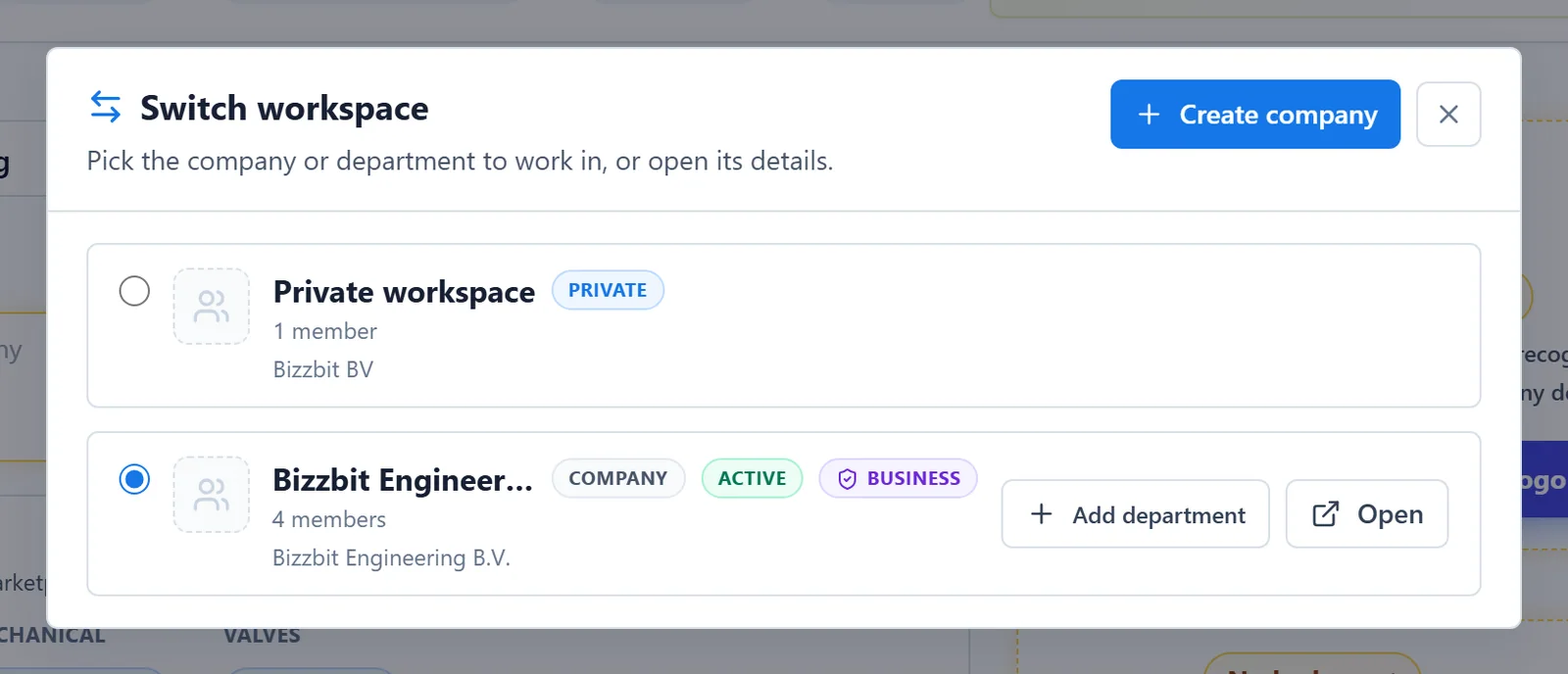
Open shows the details of another company without switching to it. You can only change things in the active workspace.
5. Personal settings#
Click your user button on the right of the header to open Personal settings.
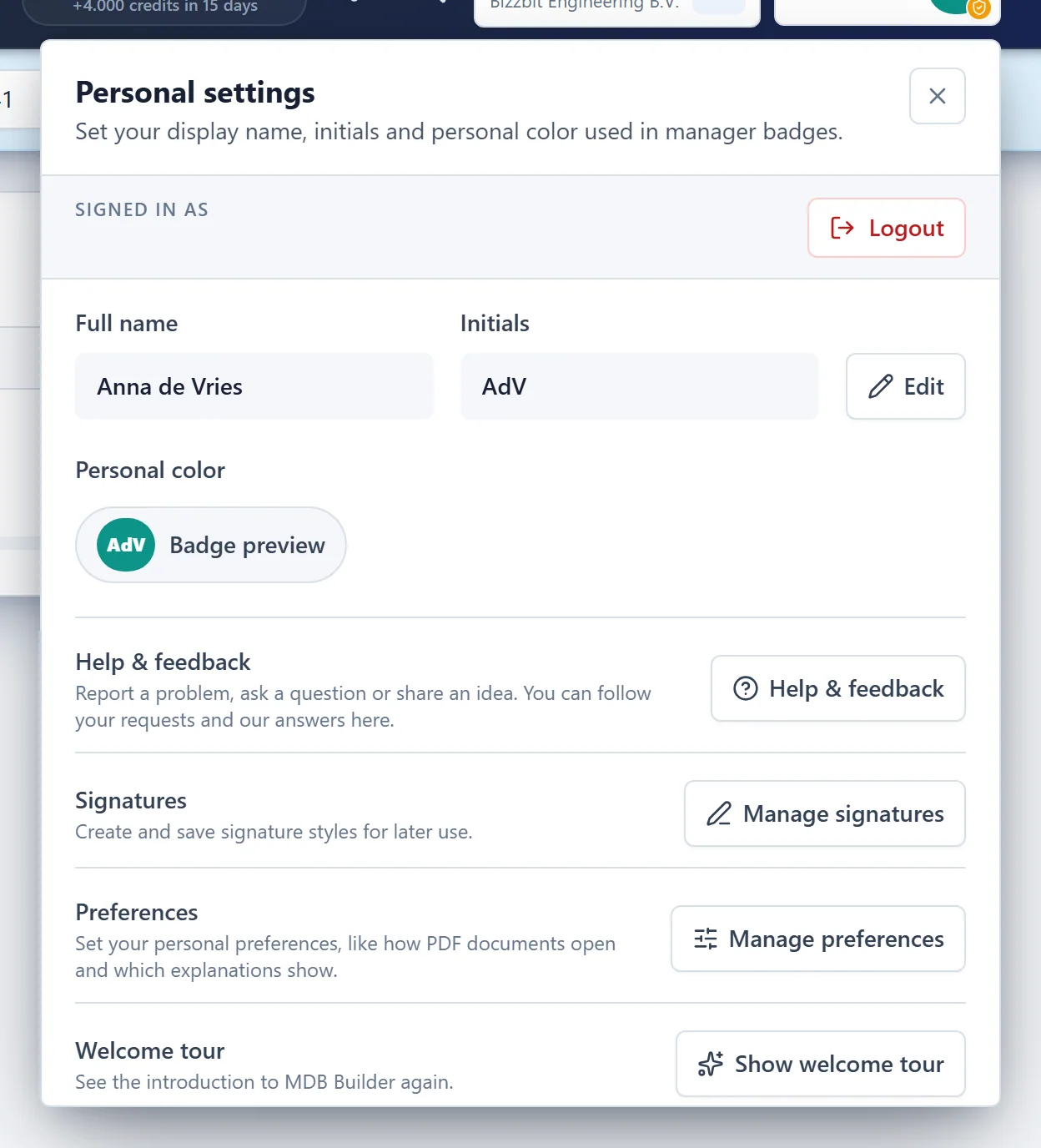
At the top you see which account you are Signed in as, with the Logout button.
Click Edit to change your Full name, Initials and Personal color. Your initials and color make up the badge that shows who manages or checks something. Generate suggests initials from your name. Your initials must be unique among the members of your companies. Click Save changes when you are done.
The rows below lead to:
| Row | Button | What it is for |
|---|---|---|
| Help & feedback | Help & feedback | Ask a question or report a problem. See step 6. |
| Signatures | Manage signatures | Create and save signature styles for later use. |
| Preferences | Manage preferences | How PDFs and the product tree open, and which explanations you see. See step 7. |
| Welcome tour | Show welcome tour | See the introduction to MDB Builder again. |
| Sessions | Sign out on all devices | Lost a device? End every session at once. |
Admins of a Pro company also see Show admin introduction and Change plan.
6. Help & feedback#
Help & feedback is where you contact the BizzBit team.
- Under What is it about?, choose Problem, Question, Billing or Feedback / idea.
- Add a Subject if you like, and write Your message.
- Add Screenshots if they help explain it.
- Click Send request (or Send feedback).
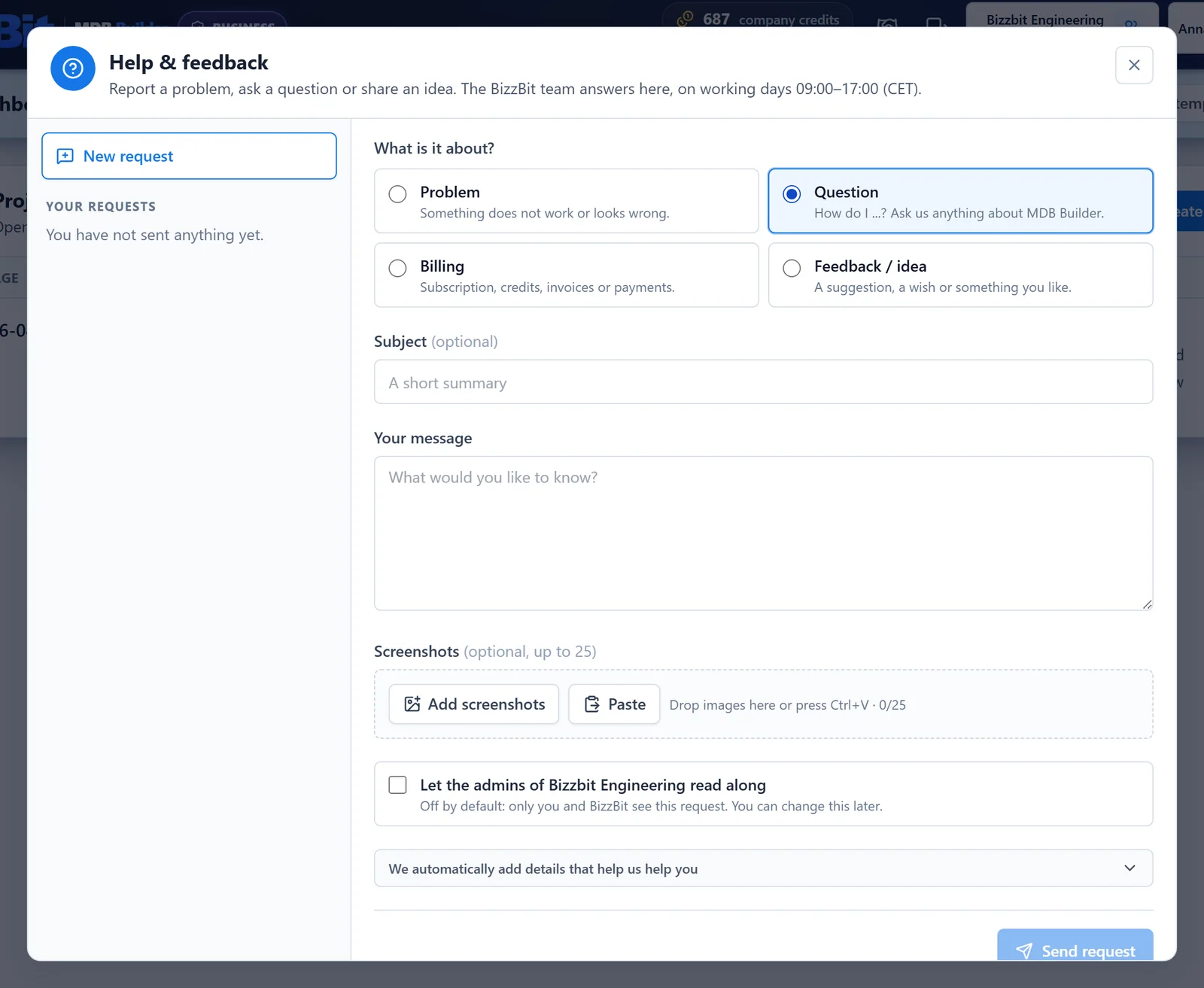
MDB Builder automatically adds details that help the team help you, such as the page you are on and recent errors. Click the line about these details to see the full list.
Your requests and the answers are listed under Your requests. The team answers on working days, 09:00–17:00 CET. A red dot on your user button means a new answer is waiting.
In a Pro company, a checkbox lets the admins of your company read along. It is off by default, so only you and BizzBit see the request.
7. Preferences#
Manage preferences opens your personal preferences. They only apply to your own account and are saved immediately.
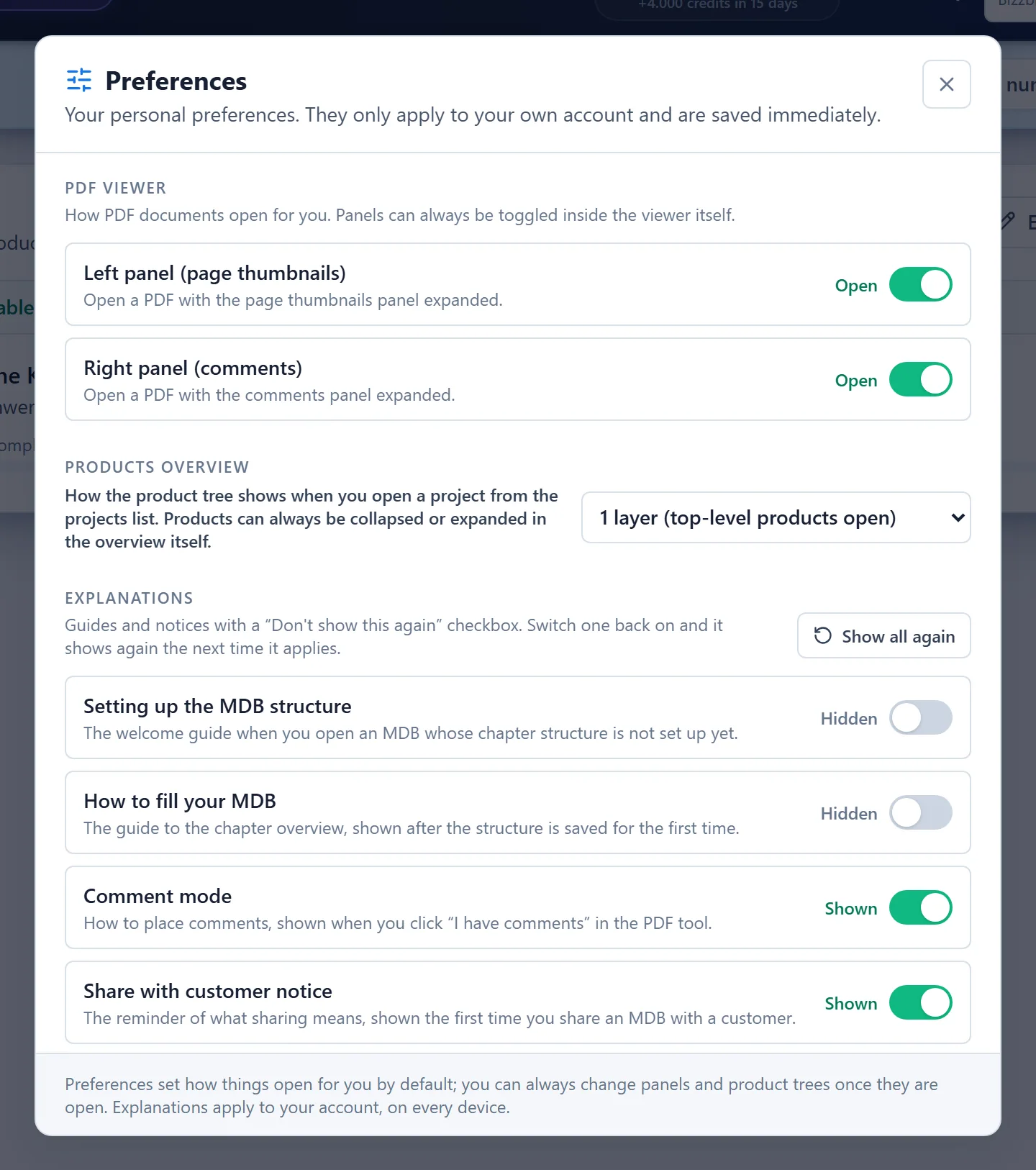
- PDF viewer: whether a PDF opens with the Left panel (page thumbnails) and the Right panel (comments) open or closed.
- Products overview: how many layers of the product tree are open when you open a project.
- Explanations: guides and notices you hid with "Don't show this again". Switch one back on, or click Show all again.
What's next#
- Invite your colleagues to your company.
- Read how roles and permissions divide the work.
- Learn how credits and plans work.