A bought-in part comes with its own paperwork: material certificates, test reports, NDT records. Instead of collecting those by email, you share the relevant chapters with the supplier. They upload their documents into your chapter folders, and your MDB manager places the pages in the chapters.
Before you start#
- You work in a company workspace.
- The supplier's company is on MDB Builder, and you have an accepted partnership in which they are your Supplier. See Partners, customers and suppliers.
1. Open Share with Supplier#
Open the MDB of the product, for example the MDB of a slewing bearing, and click Share with Supplier under MDB actions on the right.
The Invite supplier window has two steps: Supplier and Chapters. The first step shows two lists:
- Supplier partners: your suppliers that have no chapters of this MDB yet.
- Sharing chapters with: suppliers that already have chapters of this MDB.
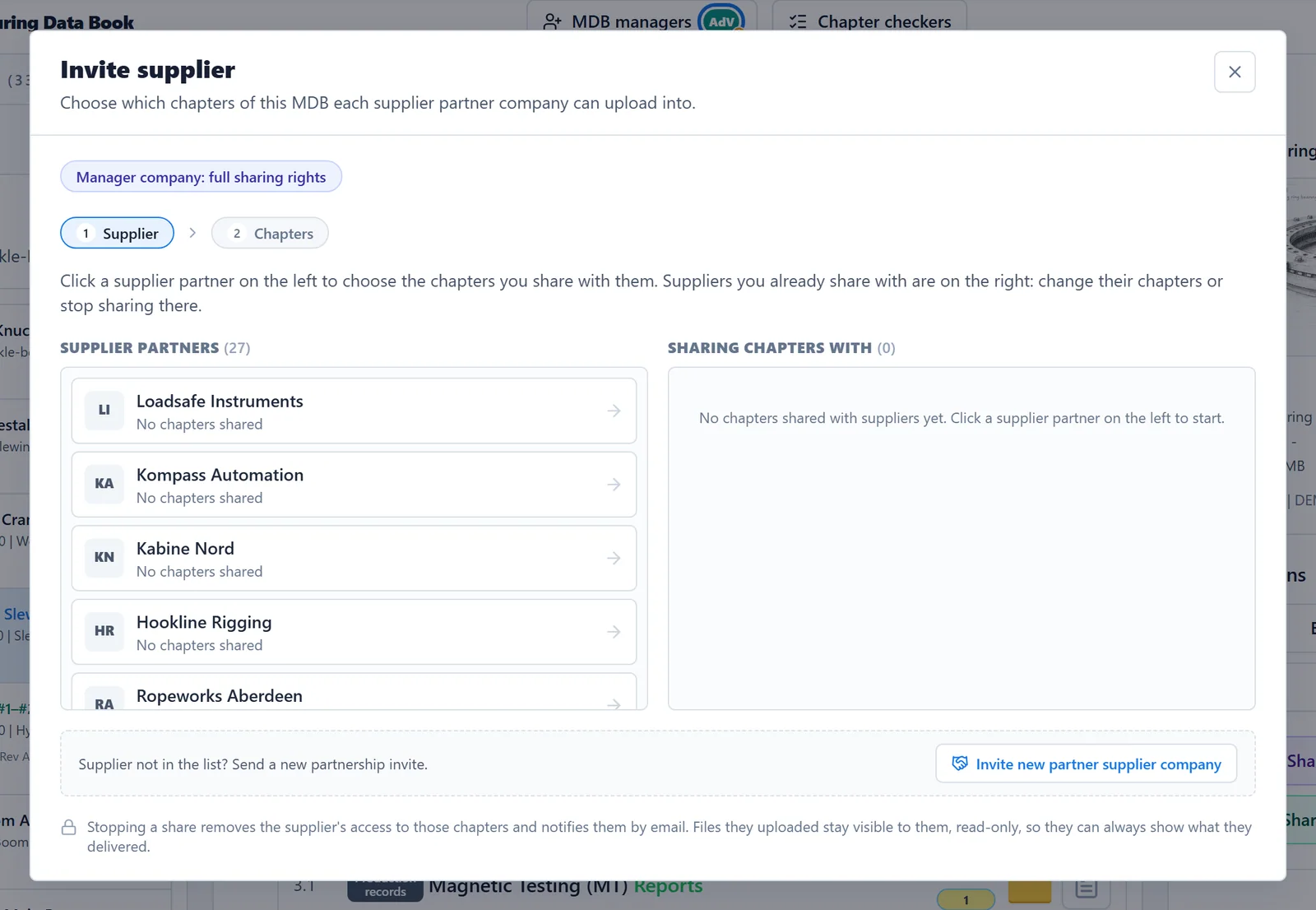
Supplier not in the list? Click Invite new partner supplier company to send a partnership invite first. The invite window opens with the Supplier role already selected.
2. Pick the chapters#
- Click the supplier on the left. The Chapters step opens.
- Under Select chapters for supplier, tick the chapters the supplier delivers documents for. Tick a main chapter to select or clear all its subchapters at once, or use Select all and Deselect all. The bar next to them shows how many chapters are selected.
- Click Share 3 chapters (the button shows the number you selected).
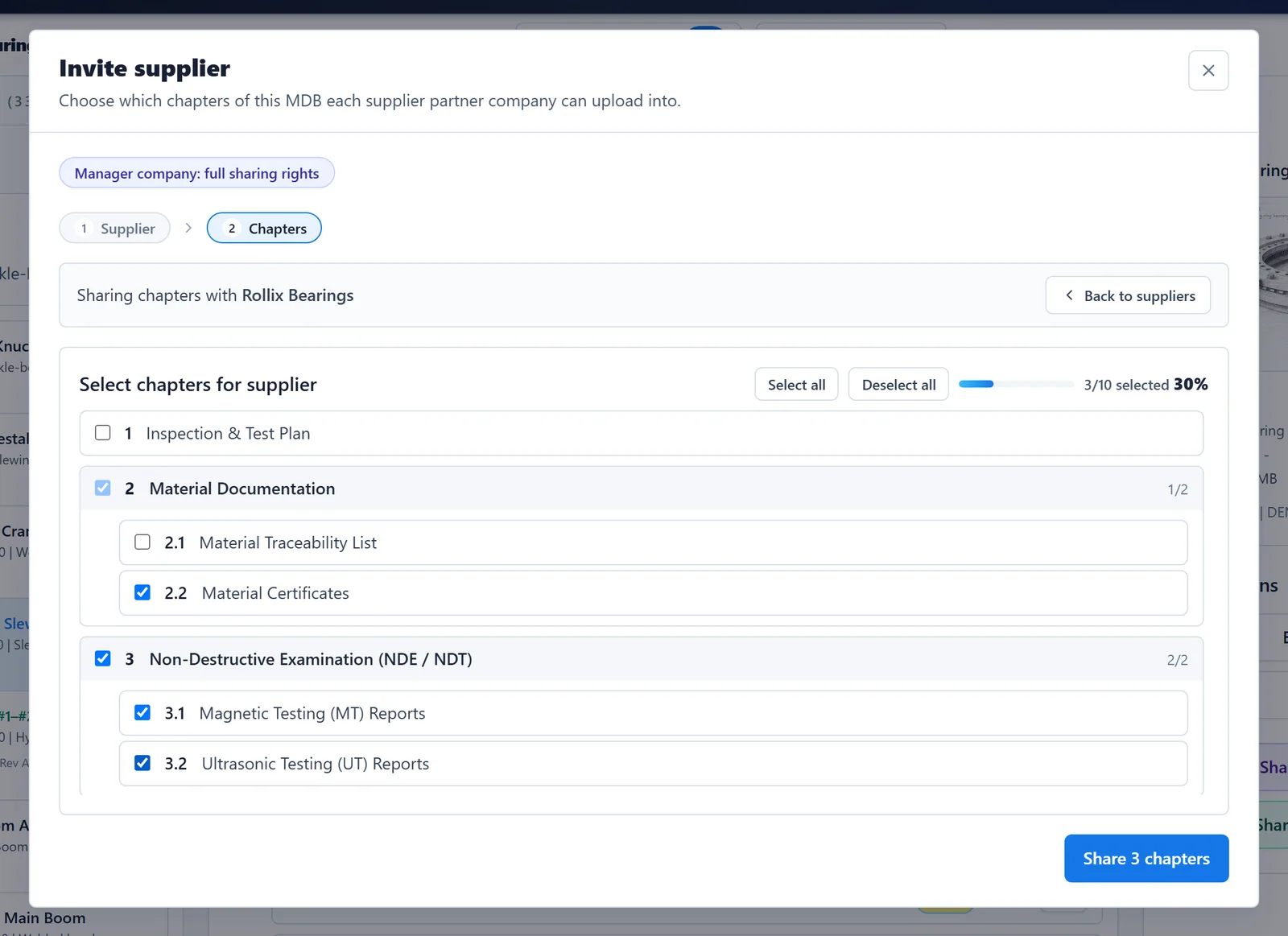
You share chapters at the lowest level of the structure: a main chapter with subchapters is shared through its subchapters. The index is never shared. After sharing, the window returns to the supplier lists, and the supplier moves to Sharing chapters with.
3. The supplier uploads#
The supplier finds your MDB on their dashboard under Shared with you, marked Supplier upload, and clicks Open MDB. They only see the chapters you shared. The rest of the MDB, including its index, stays closed to them.
They add their PDFs by dropping them on a chapter, or on the Chapter folder tile in the chapter details. Their files always land in the chapter folder, never directly in the chapter itself. A supplier can remove a file they uploaded, as long as none of its pages have been placed in the chapter yet.
4. Place the pages in the chapter#
On your side, the supplier's files appear in the chapter folder. A yellow count on the Chapter folder tile shows how many files still have pages to place. Your MDB manager then places the pages in the chapter, just like any other upload. See Add documents to chapters.
Change or stop sharing#
In the Sharing chapters with list:
- Click Chapters next to a supplier to add or remove chapters, then click Save chapter sharing. When you remove chapters, a note tells you how many will be removed from the share.
- Click the arrow on the left of a supplier to stop sharing altogether. Confirm with Stop sharing. Deselecting every chapter and saving does the same.
When you remove chapters or stop sharing:
- The supplier can no longer open those chapters or upload into them.
- The supplier gets an email about the change.
- Nothing is deleted. The files the supplier uploaded stay visible to them, read-only, so they can always show what they delivered.