Your Inspection & Test Plan (ITP) already says which documents and records the MDB must hold. Generate with AI reads the ITP and turns those deliverables into a proposed chapter structure. You review it next to the ITP itself and load it into the structure editor. Nothing is created until you save the structure.
1. Open Generate with AI#
Open the MDB of a product that has no chapters yet. A new MDB opens in structure editing mode with two cards: Start from a template and Generate with AI. Click Generate with AI.
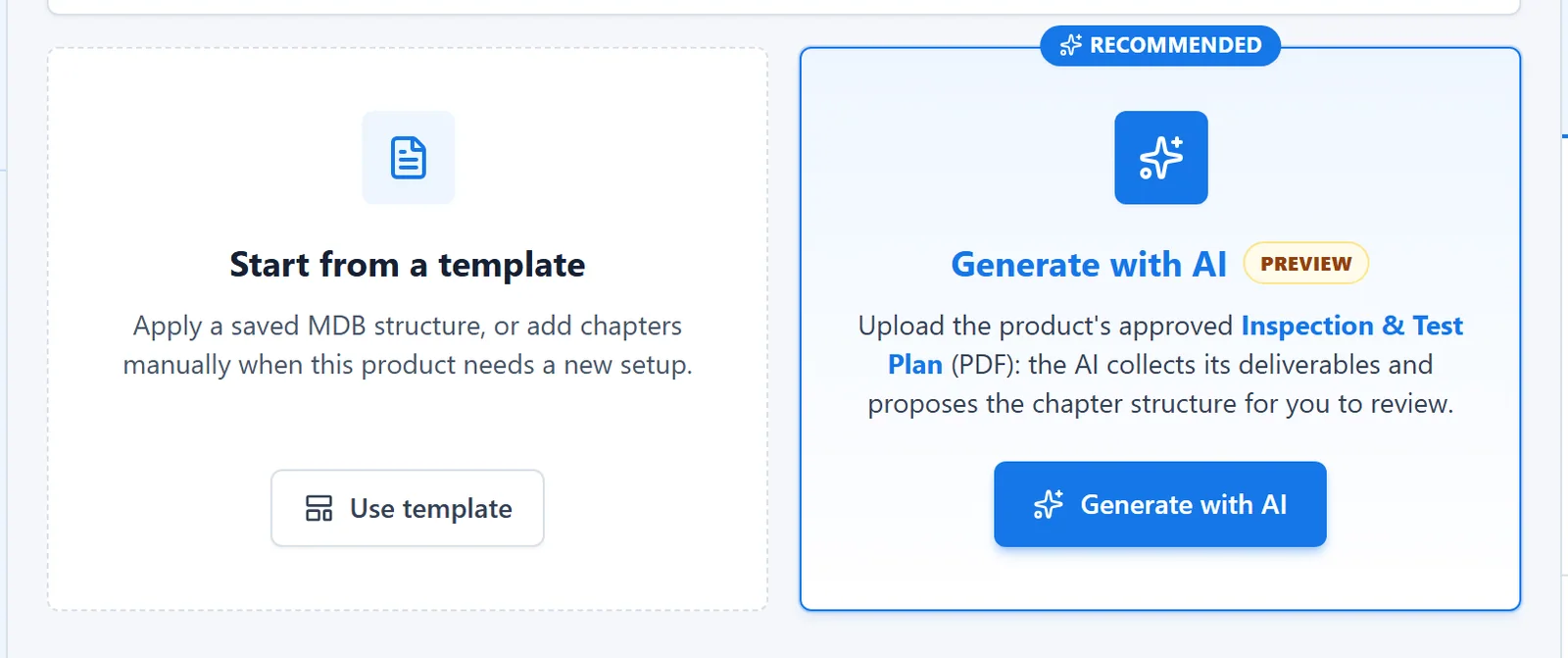
The card only appears while the MDB has no chapters of its own. Embedded products don't count. Does the MDB already have chapters? Then change them in the structure editor instead.
2. Upload the ITP#
Upload the product's ITP, preferably the approved revision, because the MDB follows it. Drop the file on the upload area, or click the area to choose a file.
| Format | What happens |
|---|---|
| Used as it is. | |
| Excel (.xlsx) | Laid out on pages in a simplified layout: the text and tables of the visible sheets. |
| Word (.docx) | Laid out on pages in a simplified layout: text and tables. |
Old .xls and .doc files can't be read. Save the ITP as .xlsx, .docx or PDF first. The upload area shows the largest file size and how many pages are analysed. A longer ITP is cut off: the wizard tells you that only the first pages will be analysed.
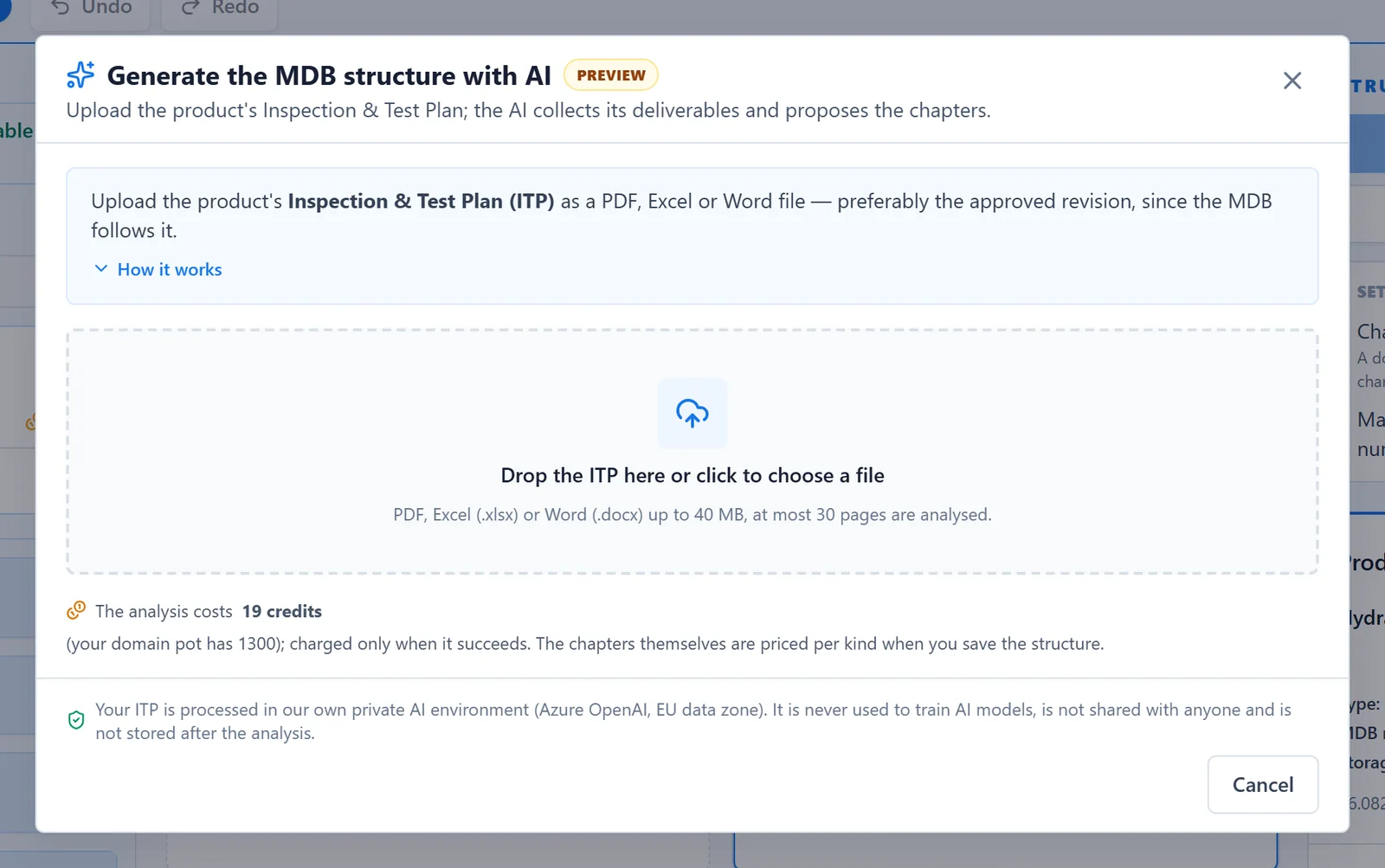
Click How it works for a short explanation of what the AI looks for.
3. Check the ITP and start the analysis#
MDB Builder prepares the pages in your browser and shows them on the right. Check that this is the right ITP. For an Excel or Word file, check that every ITP step is there. Logos, drawings and text boxes are left out. If something is missing, save the ITP as a PDF and click Choose another file.
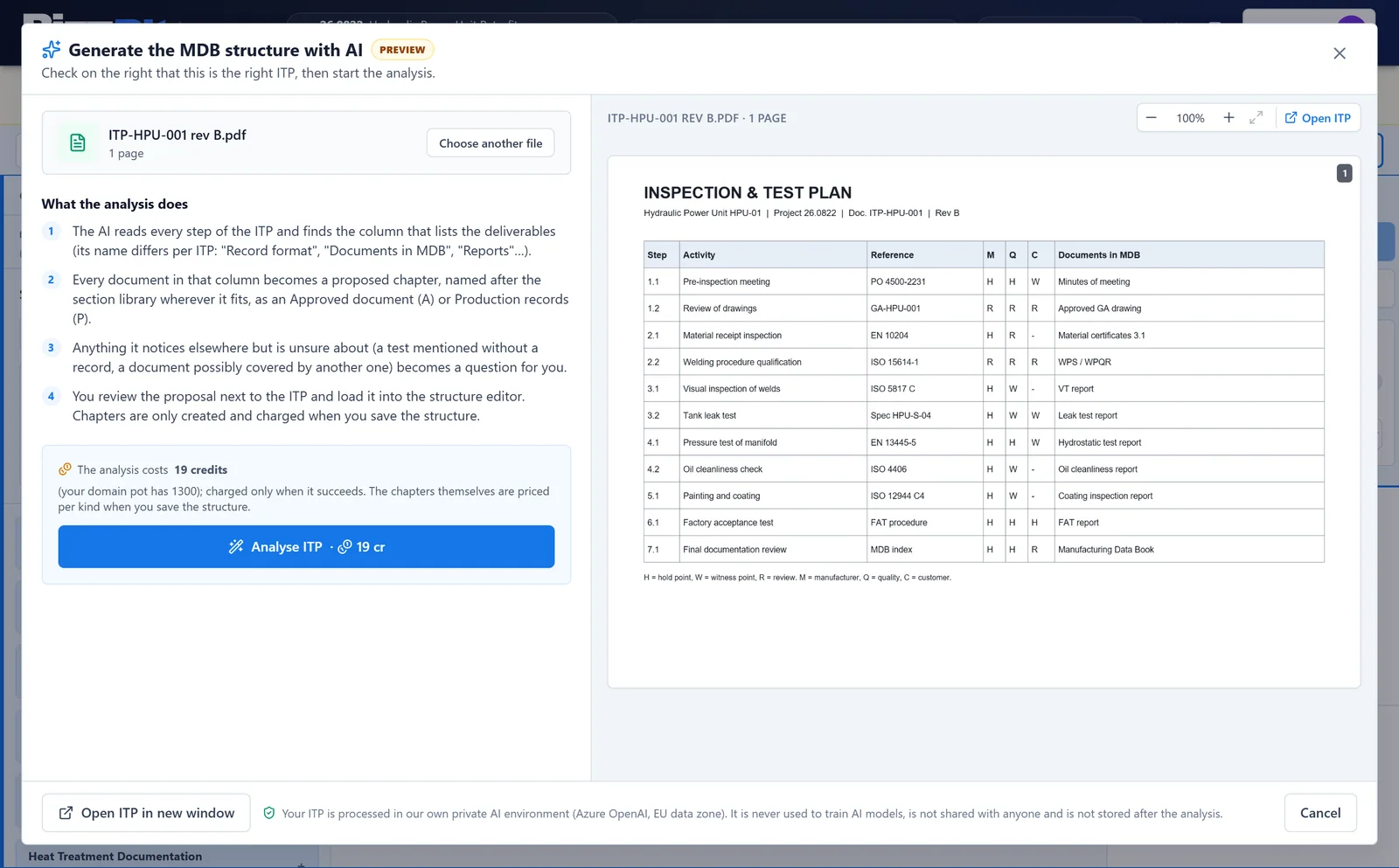
Click Analyse ITP. The button shows the cost in credits. The AI then:
- Reads every step and finds the column that lists the deliverables. Its name differs per ITP, for example "Record format", "Documents in MDB" or "Reports".
- Proposes a chapter for every document in that column. It uses the names of the Section Library where they fit, and sets each chapter to Approved document (A) or Production records (P).
- Turns anything it is unsure about into a question for you, such as a test that is mentioned without a record.
The analysis usually takes 20 to 90 seconds. If it fails, nothing is charged.
4. Review the proposal#
The result has two columns: the proposal on the left and the ITP pages on the right.
- Deliverables column found names the column the AI used. When the ITP has no such column, you see No deliverables column found on this ITP. That is a gap in the ITP worth fixing, because suppliers and inspectors can't see what belongs in the MDB.
- Questions from the AI lists what the ITP mentions without a clear deliverable. Tick a question to add that chapter. The AI's recommended answer is already selected, and the proposal updates straight away.
- Proposed MDB structure shows the main chapters and subchapters. A new label marks a chapter that is not in the Section Library. your choice marks a chapter you added by answering a question.
- Deliverables found in the ITP lists every document the AI collected, with its ITP step and page. required in remarks marks a record that was only mentioned in a remark.
Click a question, deliverable or chapter to see its row on the ITP. A line connects the two. Click Show on ITP for the same effect, and click again to hide it. Use Zoom in and Fit width above the pages to read the ITP. For a PDF, Open ITP in new window opens it in your browser's own viewer.
If the document doesn't look like an ITP, the wizard warns you. Check the proposal carefully, or click Upload another ITP.
5. Load it into the editor and save#
Click Load into editor. The proposal becomes draft chapters in the structure editor, exactly like a template. Rename, reorder, add or delete chapters as you like. Undo brings back the empty editor if you change your mind.
When the structure is right, click Save changes. Only then are the chapters created and charged. See Edit the chapter structure for the credit confirmation.
Limits and costs#
- Credits. The analysis has its own price, shown before you start and on the Analyse ITP button. It is charged only when the analysis succeeds. The chapters are priced separately, per chapter kind, when you save the structure.
- Not enough credits. The analysis can't start. Buy extra credits or ask an admin for a grant first. See Credits and plans.
- One at a time. You can run one analysis at a time. Wait for it to finish before you start the next.
- Repeated failures. After many failed analyses in a short period, you have to wait before you can try again. The message tells you how long.
- Permission. You need permission to edit the structure of the MDB. See Roles and permissions.
What's next#
- Edit the chapter structure: fine-tune the proposal before you save it.
- Templates and presets: save the result as a template for the next product.
- Add documents to chapters: fill the chapters once the structure is saved.