A company on the Pro plan gets designated admins, roles and permissions, more members, a monthly credit bundle and more storage. This guide walks through the upgrade and shows where you manage the subscription afterwards.
1. Start the upgrade#
Any member of a company without Pro can take out the subscription. Click Upgrade to a Pro tier. You find it in:
- the blue banner at the top of the dashboard;
- the yellow No Pro subscription bar in the company settings;
- the Billing tab of the company settings.
The Credits window also has a View plans button that opens the same wizard.
2. Choose a tier#
The wizard shows a card for every plan: Free (your current plan), the Pro tiers and Enterprise. Each card lists the number of members, admins, credits and included storage. Hover over the info icon on a line for an explanation.
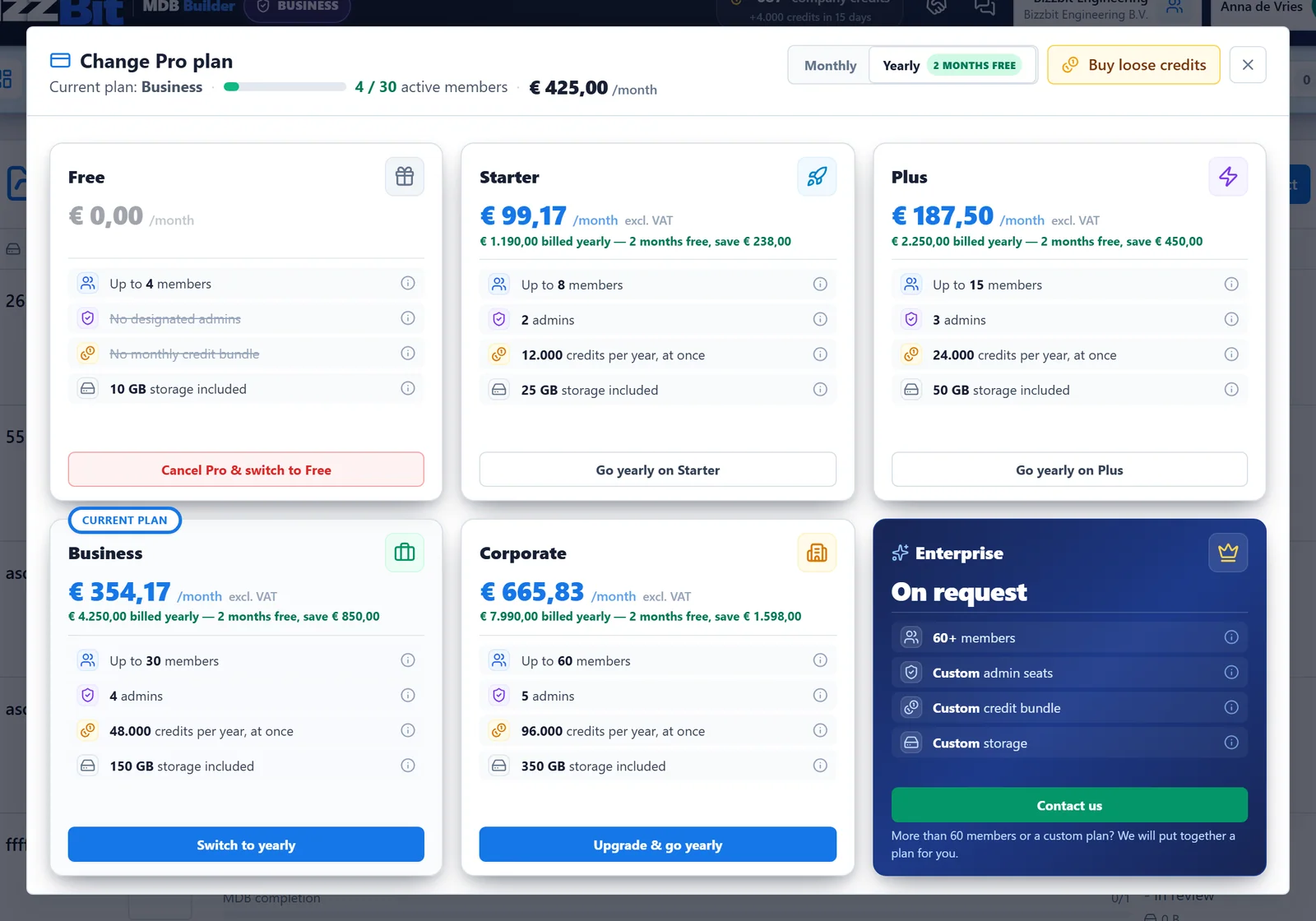
- Use the Monthly / Yearly switch at the top. Yearly is selected by default and gives you months free compared with monthly billing. With yearly billing, the whole year's credit pot is deposited at once.
- The tier that fits your current number of members is marked Recommended. A tier that is too small for your company can't be selected.
- Need more members or a custom plan? Click Contact us on the Enterprise card.
All prices are excluding VAT. Click Select … & choose admins on the tier you want.
3. Choose your admins#
Tick the members who will manage the company. You can pick yourself. At least one admin is required, and we recommend two, so there is always a backup. The tier sets the maximum number of admins.
To appoint someone who doesn't have an account yet, type their address under Invite an admin who has no account yet and click Invite. They get an invitation email and become admin the first time they sign in.
Click Continue to payment.
4. Pay#
On the Payment step:
- Check the country if MDB Builder asks Where is … established? The country sets the currency of your plan.
- Optionally enter a Billing email, such as your finance department. Invoices and payment mail go there. It must be on your company's email domain, but it doesn't need an MDB Builder account. Leave it empty to use your own address.
- Tick the sanctions declaration.
- Click Continue to payment.
The payment form opens in a window inside MDB Builder. It is run by Stripe: your card and bank details go straight to Stripe and are never stored by MDB Builder. In euros you pay by card or with iDEAL (renewals are then collected by SEPA direct debit). In US dollars you pay by credit or debit card. You enter your billing address and, if you have one, your VAT number in the payment form, which shows the VAT before you pay.
Pro is activated as soon as the first payment is confirmed, and MDB Builder shows a confirmation. You also receive a confirmation by email.
The Billing tab#
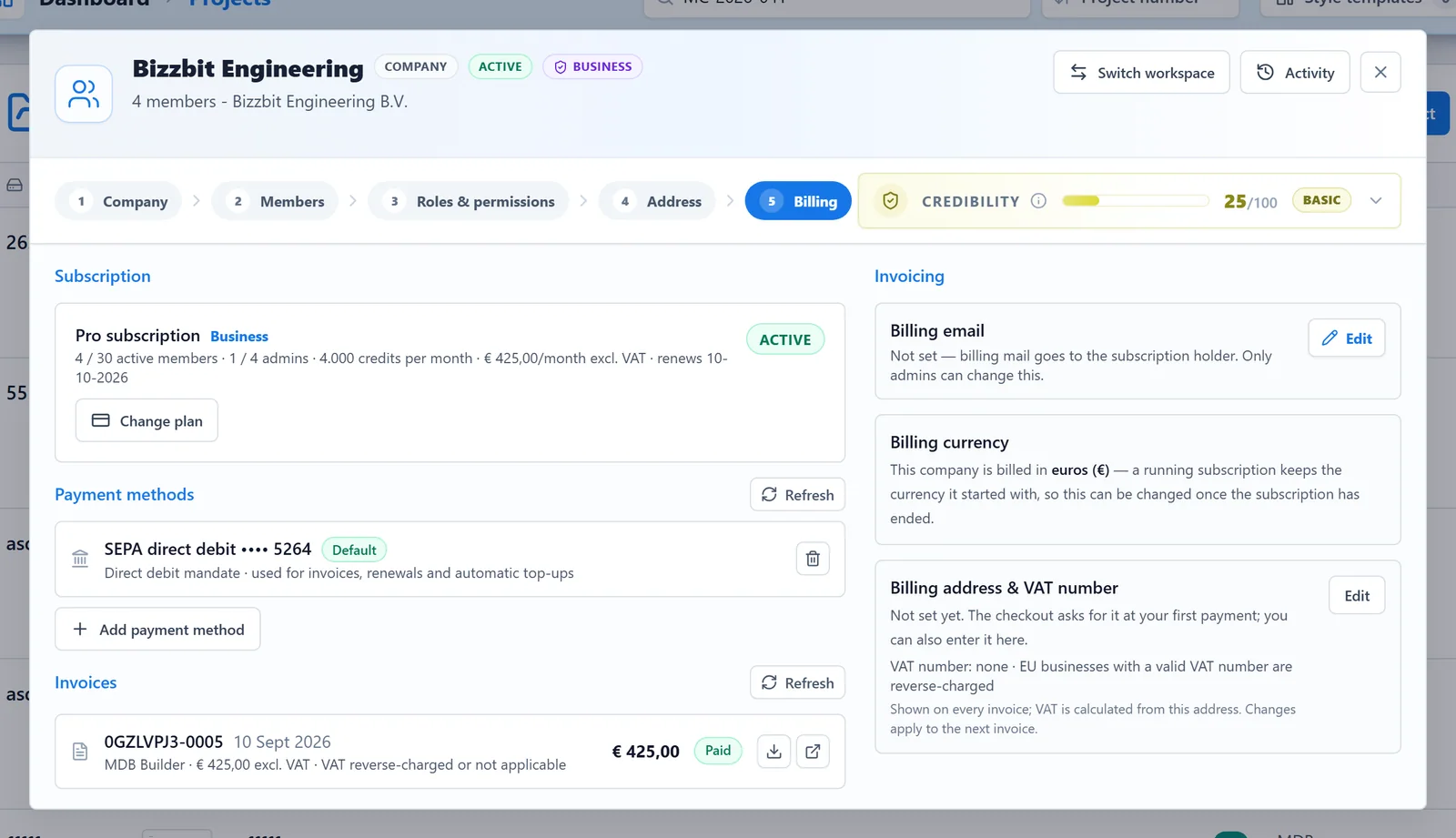
After the upgrade, the Billing tab of the company settings is the place for everything about paying. On the Pro plan only admins see the payment methods and invoices.
| Section | What you can do |
|---|---|
| Subscription | See your tier, active members, admins, monthly credits, price and renewal date. Change plan opens the plan cards. |
| Payment methods | Add payment method, choose Set as default or remove one. The default method pays invoices, renewals and automatic top-ups. |
| Invoices | Every subscription payment, renewal and credit purchase gets an invoice, with VAT shown separately. Download the PDF, or open an Open invoice to pay it. |
| Billing email | Where invoices and payment mail go. Click Edit to change it. |
| Billing currency | Euros or US dollars. A running subscription keeps the currency it started with. |
| Billing address & VAT number | Shown on every invoice. VAT is calculated from this address. Changes apply to the next invoice. |
VAT#
All prices in MDB Builder are excluding VAT. VAT is added at payment, based on your billing address. EU businesses with a valid VAT number are reverse-charged. The VAT number shows a label with the result of its check.
Change plan#
Admins click Change plan on the Billing tab. Admins of a Pro company also find a Change plan button under Personal settings, in the menu behind your name.
- Upgrade now: takes effect immediately. Your billing day stays the same; you pay the price difference for the rest of the current period, and you get the extra credits for those days on top.
- Schedule downgrade (or Choose members & schedule): takes effect at the end of the paid period. If the smaller tier allows fewer members or admins, you first choose who stays active and which admins become members. Until the change date nothing changes, and Cancel scheduled change undoes it.
- Switch to yearly: switch a monthly subscription to yearly billing. It starts a new paid year right away. Switching from yearly back to monthly is scheduled for the end of the paid year.
Cancel the subscription#
Open Change plan and click Cancel Pro & switch to Free on the Free card.
- The paid plan keeps running until the end of the current period. There are no further charges or credit bundles after that date.
- On that date Pro turns off: admins become regular members and roles & permissions no longer apply.
- The free member limit applies again. If you have more active members, you pick who stays active; the others become inactive and can be activated again later.
You can undo the cancellation until the end date: click Keep subscription in Change plan.