Some products are built more than once, exactly the same: four hydraulic cylinders, twelve pumps, 36 gondolas. You don't create them one by one. You create the product once, turn on Deliver in multiple units, and MDB Builder gives every unit its own unit number and its own MDB. Documents that apply to every unit, such as drawings and procedures, are uploaded once and shared.
1. Turn on units for the product#
You set the units in the product form: in step 1 of New product, or later with Edit product. To edit an existing product, open the project, click Add/edit products and click the pencil on the product's row.
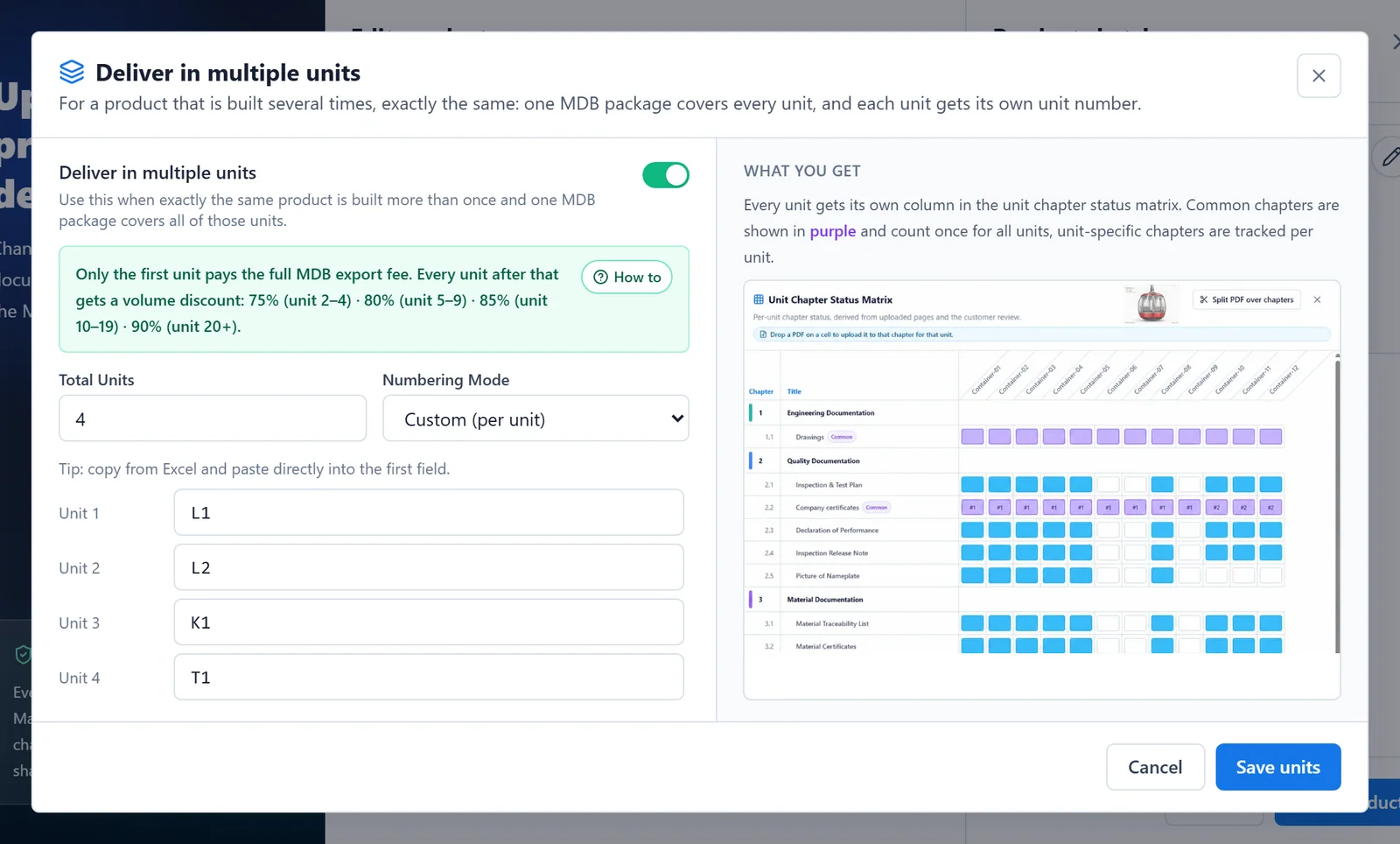
Click Deliver in multiple units in the form. A window opens:
- Turn on the switch Deliver in multiple units.
- Enter the Total Units.
- Choose a Numbering Mode.
- Optionally, enter a Unit Prefix (optional). When the product has a tag number, MDB Builder suggests the tag followed by a dash, for example SD-.
- Click Save units, and then save the product form.
| Numbering Mode | Units are numbered |
|---|---|
| Auto (1, 2, 3) | 1, 2, 3 |
| Auto (01, 02, 03) | 01, 02, 03 |
| Auto (001, 002, 003) | 001, 002, 003 |
| Auto (a, b, c) | a, b, c |
| Auto (A, B, C) | A, B, C |
| Custom (per unit) | Your own number for every unit |
The prefix goes in front of every automatic number: with prefix SD- and Auto (01, 02, 03), the units are SD-01 and SD-02. With Custom (per unit), you type a number for each unit instead, for example the serial numbers from your planning. Copy a column from Excel and paste it into the first field to fill all units at once. Save units stays disabled until every unit has a number.
On the project's product list, a product with units shows a blue badge such as 4 units. Hover over it to see the unit numbers.
Changing the units later#
You can change the number of units or their numbering at any time with Edit product.
- More or fewer units. New chapters are paid per unit, so a different number of units changes the price of the MDB. The units window shows the credits that will be charged or refunded before you save. Chapters that are already in use for a unit you remove keep their price.
- Other numbering. When only the numbers change and the count stays the same, every unit keeps its documents under its new number.
- Units off. Switching units off ends every common chapter of the MDB.
2. Decide which chapters are common#
Within a multi-unit product, every chapter is one of two types:
| Common chapter | Per-unit chapter | |
|---|---|---|
| Holds | One set of documents for all units | Separate documents for each unit |
| Typical content | Drawings, procedures, the PT procedure | Traceability lists, test and inspection reports |
| Upload | Once | Once per unit |
| Colour in the Unit Matrix | Purple | Blue per unit |
Set this in the structure editor. Click Edit structure. Every chapter without subchapters gets a Common switch. Turn it on for chapters that apply to every unit, then click Save changes. In the chapter list, common chapters carry a purple Common label.
- An Approved document chapter is always common, because it holds one approved document. When you choose that kind for a per-unit chapter, MDB Builder asks first and then makes the chapter common.
- Switching Common on or off for a chapter that already has documents converts its content. You confirm this once before the structure is saved.
See Edit the chapter structure for everything else in the structure editor.
Different versions of a common document#
Sometimes a common document is not the same for every unit, for example when two suppliers each deliver part of the units. A common chapter can then hold several document sets. Each unit uses one set.
Open the common chapter and click Manage on its Document set card. In the Common document sets window:
- Click New set to add a set, with a description and optionally the supplier who delivers it.
- Click Use for unit … on a set to assign it to the working unit.
- Each set card shows its pages and the units that use it.
3. Get the overview in the Unit Matrix#
When you open the MDB of a multi-unit product, it opens in the Unit Chapter Status Matrix. Every row is a chapter, every column is a unit, and every cell shows the status of that chapter for that unit.
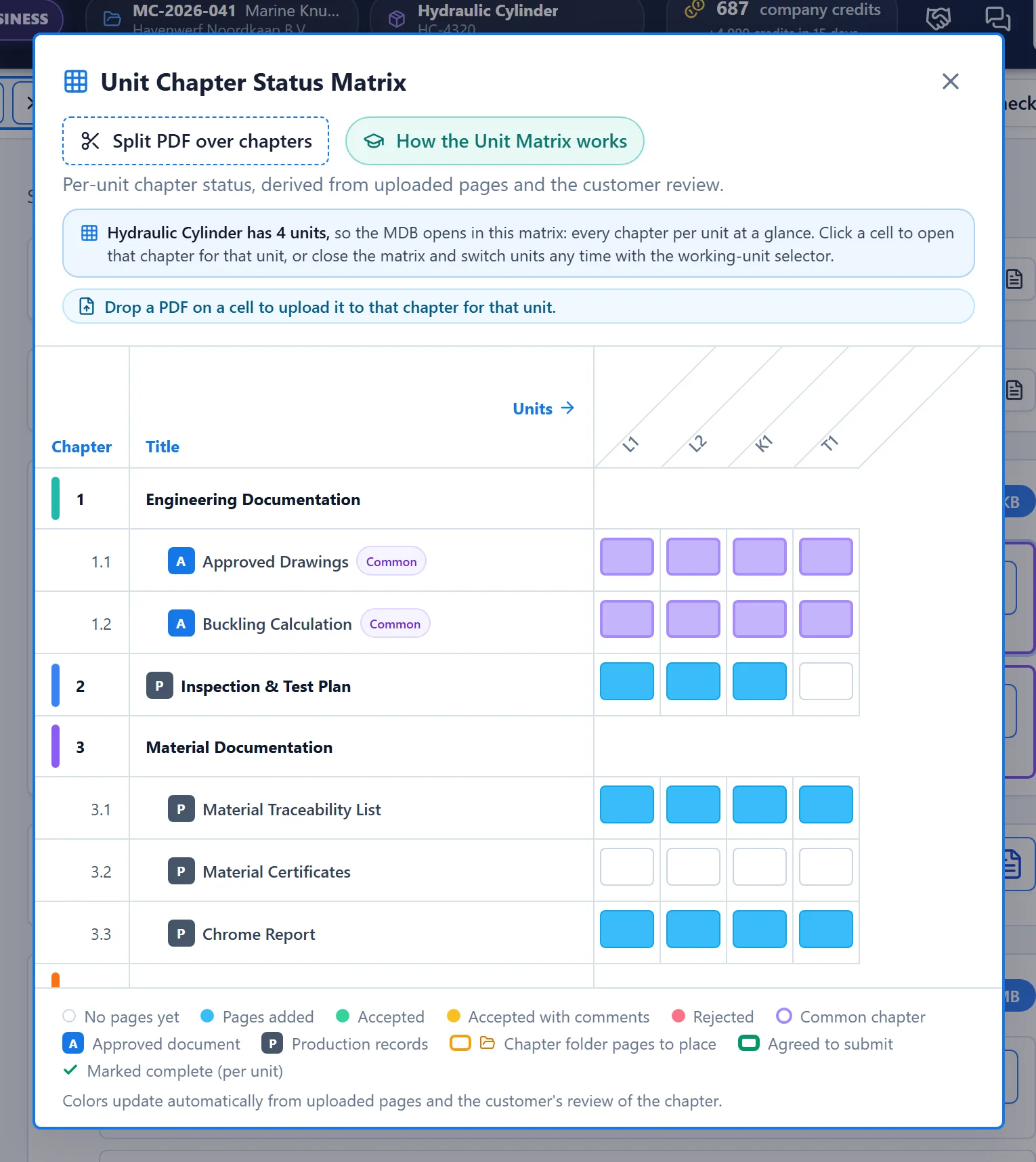
What you can do in the matrix:
- Click a cell to open that chapter for that unit.
- Click a unit number at the top of a column to close the matrix and show the chapter overview of that unit.
- Drop a PDF on a cell to upload it to that chapter for that unit.
- Use Split PDF over chapters to drag the pages of one big PDF onto the cells.
The colours follow automatically from the uploaded pages and the customer's review:
| Legend | Meaning |
|---|---|
| No pages yet | White cell |
| Pages added | Blue cell (purple for a common chapter) |
| Accepted, Accepted with comments, Rejected | The customer's verdict on the released chapter |
| Chapter folder pages to place | Orange border: files in the chapter folder still wait for this unit |
| Agreed to submit | Thick green border: the internal check is done |
| Marked complete (per unit) | Check mark in the cell |
Hover over a cell to see its documents and, for a common chapter, which units share them.
4. Work on one unit at a time#
Close the matrix to work in the chapter overview. The Working unit card at the top of the MDB shows the unit you are working on. Use the arrows or the list to switch units, and Unit Matrix to open the matrix again.
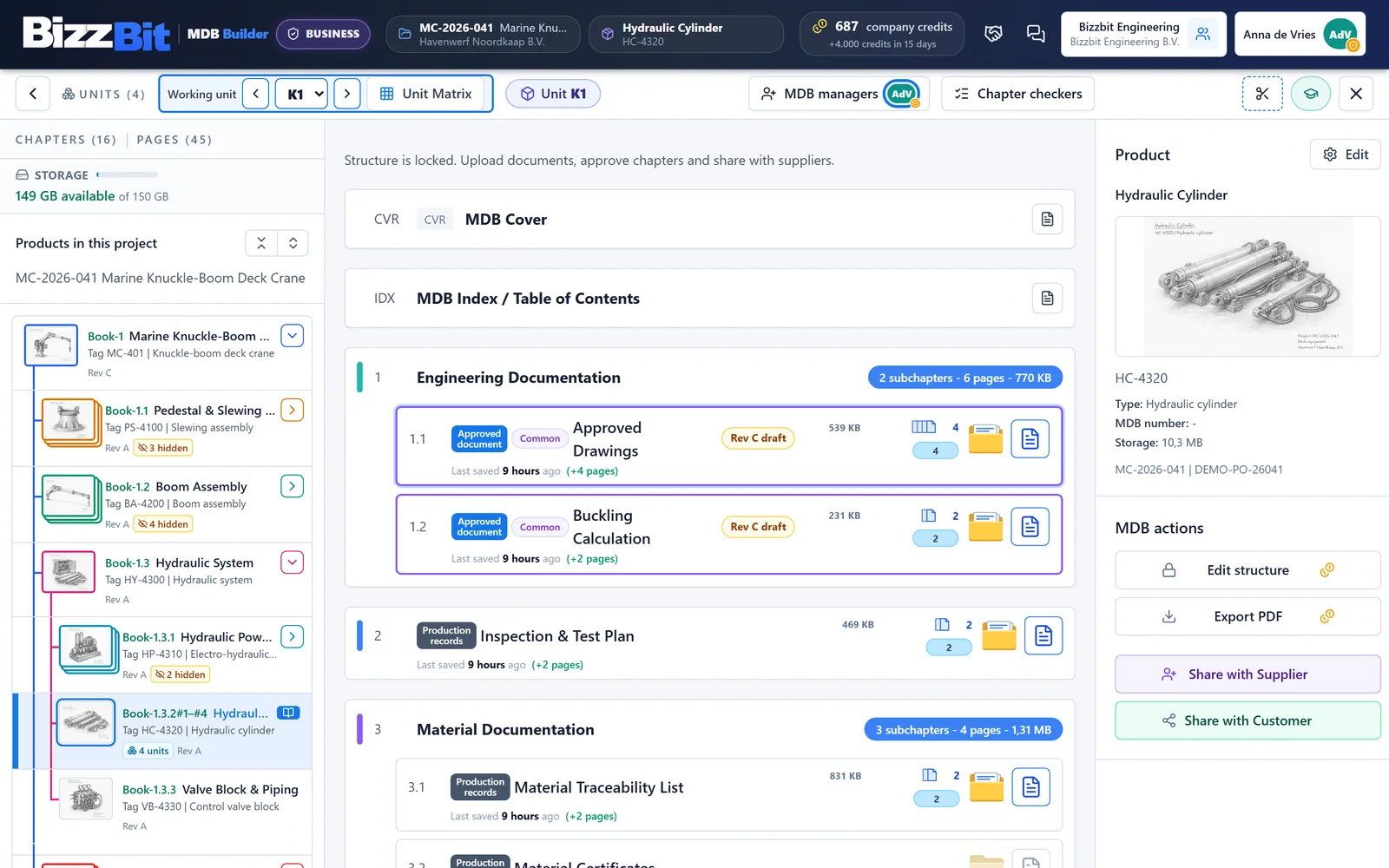
The working unit decides where your work lands:
- Uploads to a per-unit chapter go to the working unit. Uploads to a common chapter are shared by all units.
- Chapter folders of per-unit chapters are kept per unit.
- Mark complete applies per unit for a per-unit chapter, and to the whole chapter for a common chapter.
- Internal checks and releases always cover the whole chapter, for all units at once. The internal check opens once every unit of the chapter is marked complete.
See Add documents to chapters and Complete, check and release for these steps.
5. Export the units#
Every unit is its own book. An export contains the MDB of the working unit: its own documents, the common documents, and its unit number on the sheets, for example K1 of 4. Each unit also has its own book number, such as Book-1.2#3 for the third unit. The export window shows the cost for the selected unit, including the volume discount from the second unit onwards.