When the chapters are ready, you share the MDB with your customer. They open it in their own MDB Builder workspace, review it chapter by chapter and send their verdict back. This guide shows how to share, what the customer sees, and how to stop a share.
Before you start#
- You work in a company workspace. Sharing between companies is not possible from a private workspace.
- Your customer's company is on MDB Builder, and you have an accepted partnership in which they are your Customer. See Partners, customers and suppliers.
1. Open Share with Customer#
Open the MDB and click Share with Customer under MDB actions on the right.
The Share with customer window shows the Customer partnership to share with. A project has exactly one customer:
- Once the project has a customer partnership, the window shows it with the label Project customer. Every MDB of the project can only be shared with that customer.
- Does the project only have a customer name, without a partnership? A yellow notice says so. Select the partnership, or click Invite new partner customer company to send a partnership invite first. That opens the invite window with the Customer role already selected.
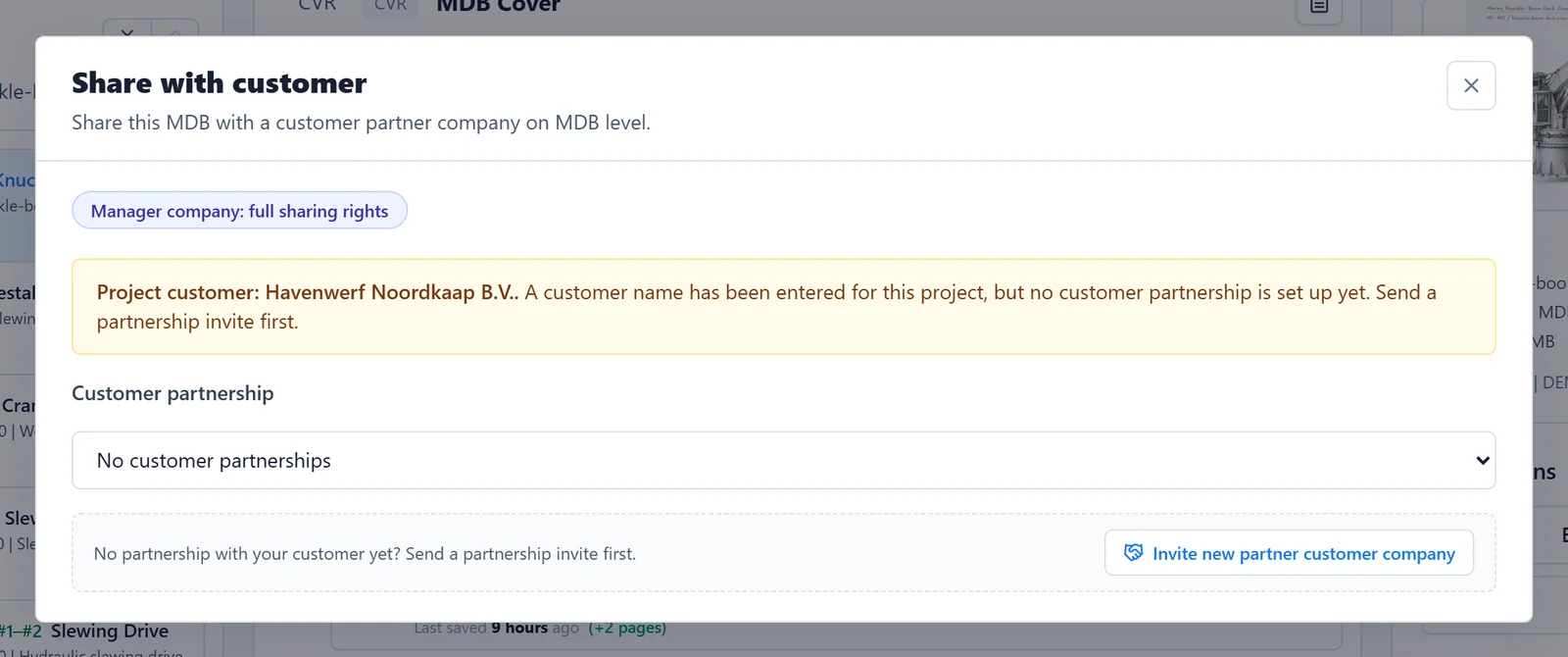
The first share also makes that partnership the project's customer. A name-only customer with the same name is taken over, so no customer gets lost.
2. Choose how to share#
Pick one of two ways:
- Share full MDB (the default): every chapter that was never released goes out at once as revision 0.
- Collaboration mode — release chapters one by one: turn on this switch and click Start collaboration mode. The customer sees the chapter structure straight away. You then release each chapter yourself, from the chapter details, with Release Rev 0 to customer.
Collaboration mode suits large MDBs that fill up over months: your customer can start reviewing the first chapters while you work on the rest. The customer sees Not yet released on chapters that are still to come, and a banner with how many chapters have been released.
To release everything after all, turn the switch off and click Share full MDB (release everything).
3. Confirm the first share#
The first time you share with a customer, MDB Builder asks you to confirm. Shared content can contain business-sensitive information: it stays confidential between both companies and is only visible to members of this partnership. Click Share MDB (or Start collaboration).
Tick Don't show this notice again if you don't want to see this confirmation for later customers.
After sharing, the partnership shows Fully shared or Collaboration mode.
What your customer sees#
- Released revisions only. Each release freezes the chapter as a revision. When you change a chapter afterwards, your customer keeps seeing the last released revision until you release the next one. See Revisions.
- No chapter folder. The chapter folder, with uploads and supplier files, stays internal.
- Their own review tools. Page checks, comments and a verdict per chapter. See Customer review.
Your customer finds the MDB on their dashboard under Shared with you, marked Customer review. From there they click Open MDB, or Place in project to link it into one of their own projects, for example as an embedded product of their own MDB.
Sharing and releasing revisions don't use credits.
Your customer passes the MDB on#
Your customer is often not the end user. They can pass your MDB on to one customer of their own, with Re-share with Customer:
- They pick Your customer partnership and click Re-share MDB.
- The MDB now travels down a Share chain, for example you → your customer → the end client. The window shows the full chain.
- Feedback flows back up the same chain, one step at a time. When the end client submits a verdict, it first lands with your customer. They choose Forward to pass the complete set (verdict, comments and page checks) up to you, or Withhold to keep it between themselves and their customer. Forwarding can't be undone.
An MDB can't be re-shared with a company that is already in its chain. Your customer ends their re-share with Revoke re-share.
Stop sharing#
- Revoke MDB share in the Share with customer window stops the share. Any re-shares further down the chain stop with it.
- Revoking the whole partnership stops everything you share with that company. See Manage your partnerships.
MDBs that were shared directly to an email address in the past appear under Shared via email, where you can Revoke them. As long as such a share is active, the project's MDBs can't also be shared through a partnership.
What's next#
- Customer review: how your customer reviews and how you respond.
- Revisions: release a new revision after changes.
- Collect documents from suppliers