Most of your products need a similar chapter structure. With a template you set it up once and reuse it. This guide shows how to start an MDB from a template or a preset, and how to save a structure as a template of your own.
Templates, presets and what they contain#
The Choose MDB template window has three tabs:
| Tab | What it lists | Who made it |
|---|---|---|
| General templates | Templates for every project of your workspace | Your team |
| Project templates | Templates that belong to one project. You can also pick them from other projects. | Your team |
| Presets | Ready-made structures, for example Basic MDB, Pressure vessel (PED / ASME) or Structural steel (EN 1090) | MDB Builder |
A template holds the chapter structure only: the main chapters and subchapters, with their titles, chapter kinds, colours and chapter codes. It never holds documents. A template that carries chapter codes switches the Chapter codes setting on when you load it.
1. Open the template picker#
Open the MDB of a product that has no chapters yet. It opens in structure editing mode. On the Start from a template card, click Use template.
Templates can only be loaded into an empty structure. Embedded products don't count as chapters here. For an MDB that already has chapters, use the structure editor.
2. Choose a template or preset#
Pick a tab. The window opens on General templates when your workspace has any, and on Presets when it has no templates yet.
- Type in Search templates... to filter by name or description.
- On Project templates, use the project list to show the templates of one project, or All projects. The project of this MDB comes first, marked (this project).
- Click the chapter count under a template, for example 8 chapters · 21 subchapters, to see its chapters before you use it.
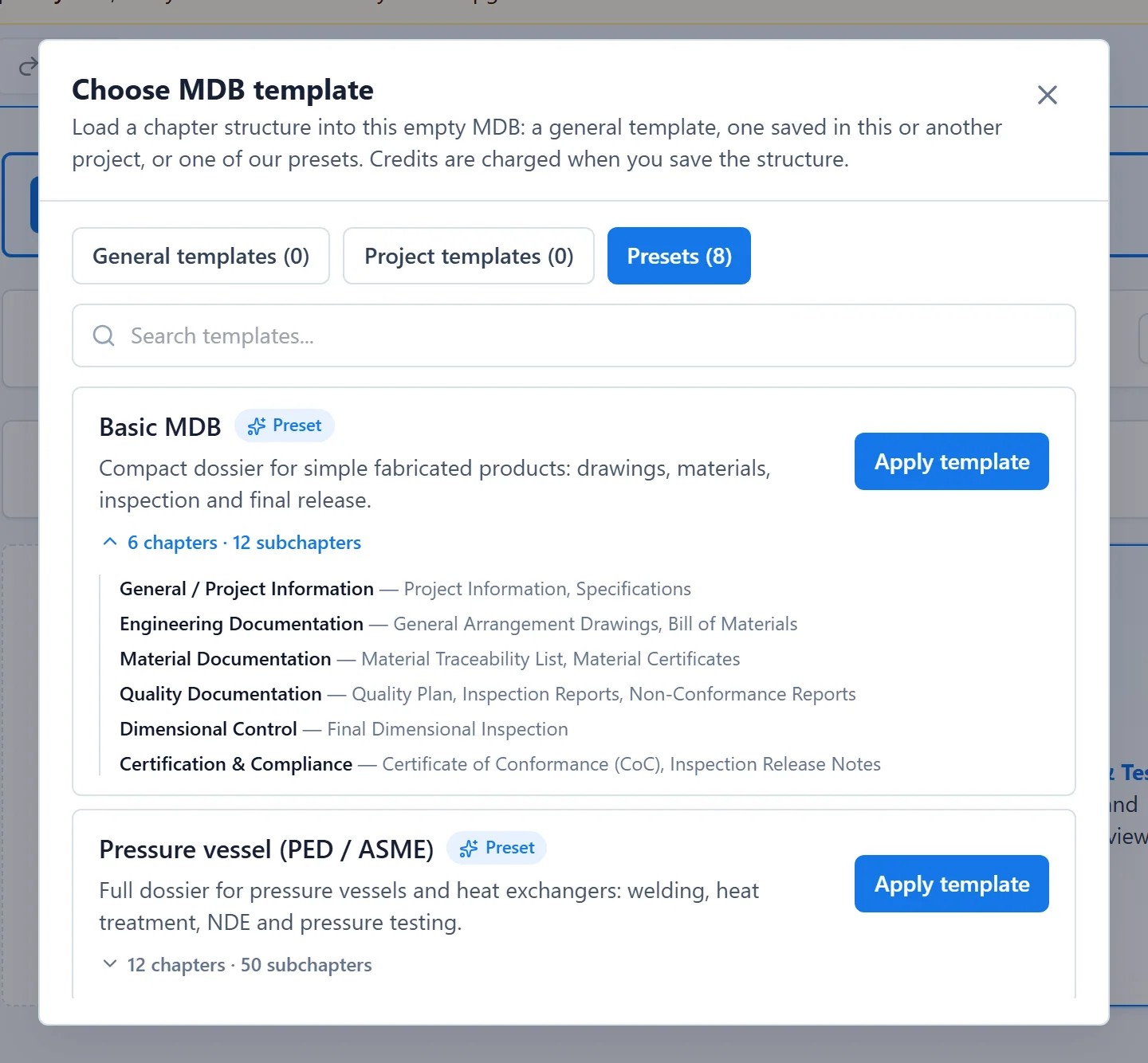
Click Apply template on the structure you want.
3. Adjust the draft and save#
The template is loaded as draft chapters. Nothing is created or charged yet. The message Template "…" loaded. Save changes to apply it to this MDB. confirms it, and the credits you will pay appear under Save changes.
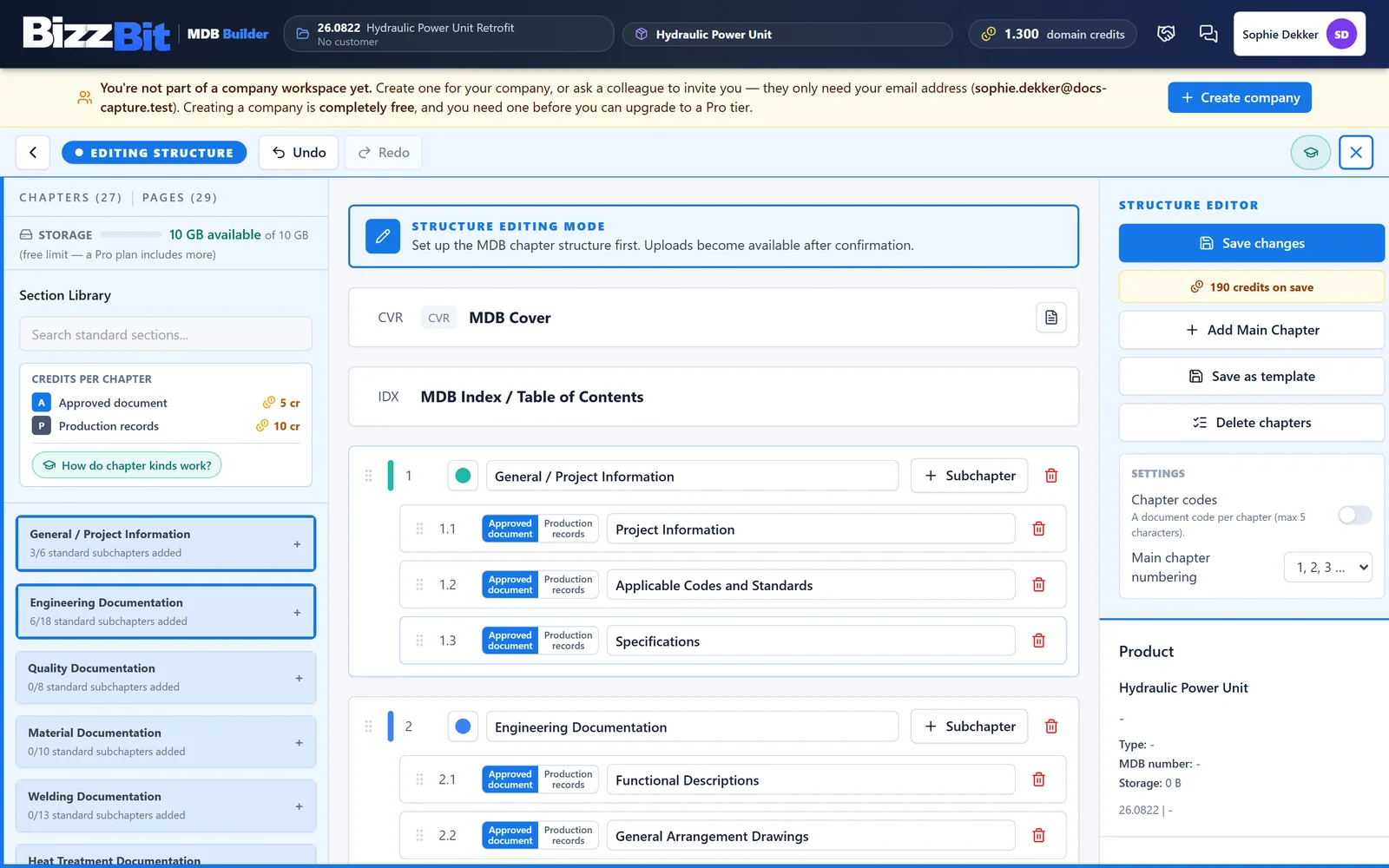
Change what this product needs: rename chapters, switch chapter kinds, delete what you don't need, or add chapters from the Section Library. See Edit the chapter structure for everything the editor can do.
Click Save changes and confirm the credits. Did you load the wrong template? Click Undo, or leave the editor without saving.
4. Save a structure as a template#
You can save any structure you have in the structure editor, also one that isn't saved to the MDB yet.
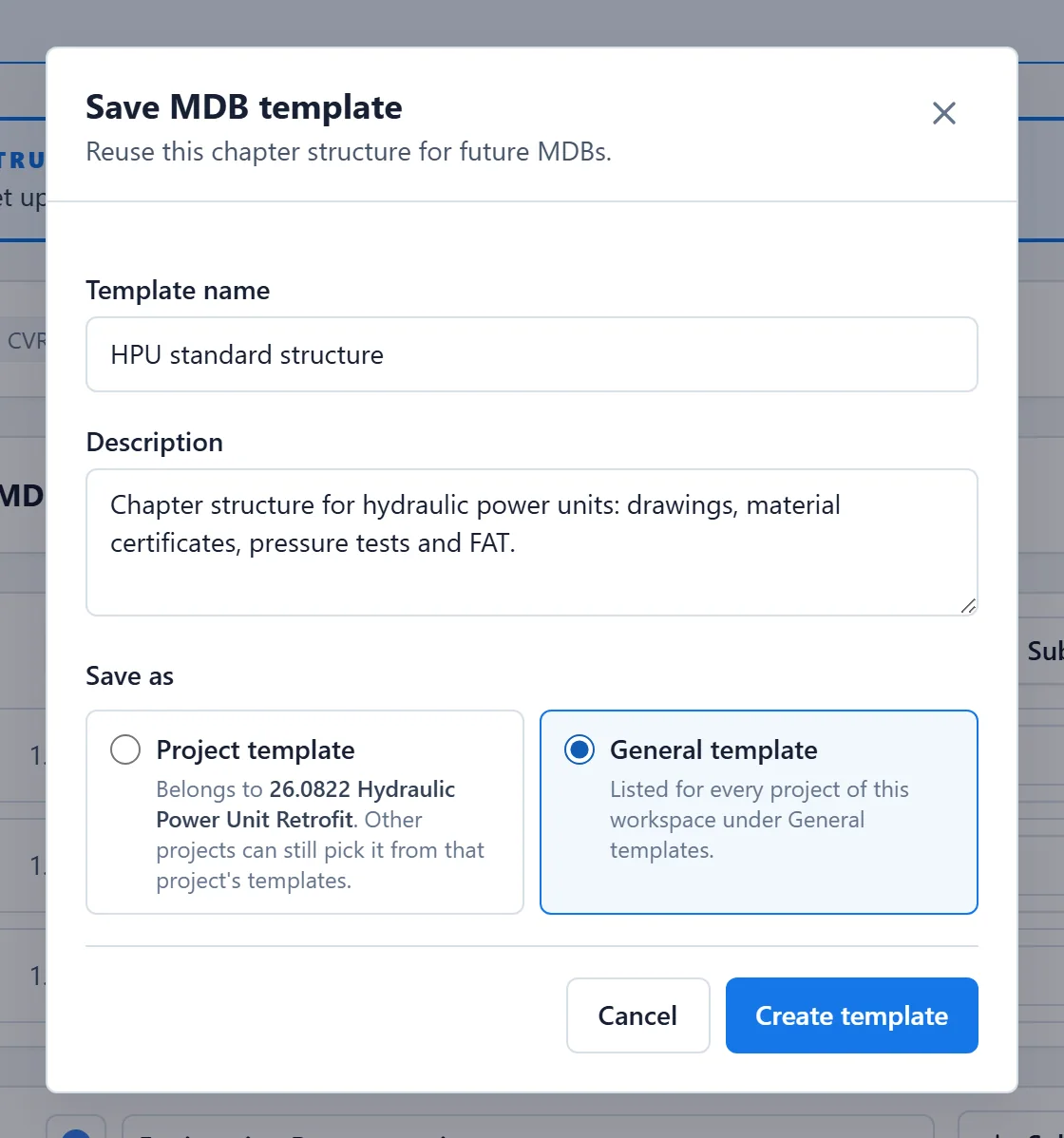
- In the structure editor, click Save as template in the panel on the right.
- Enter a Template name and, optionally, a Description.
- Under Save as, choose:
- Project template: belongs to this MDB's project. Other projects can still pick it from that project's templates.
- General template: listed for every project of this workspace under General templates.
- Click Create template.
The template captures exactly the structure on screen, including chapters you haven't saved yet. Names are unique: a project can't have two templates with the same name, and neither can the general templates of a workspace.
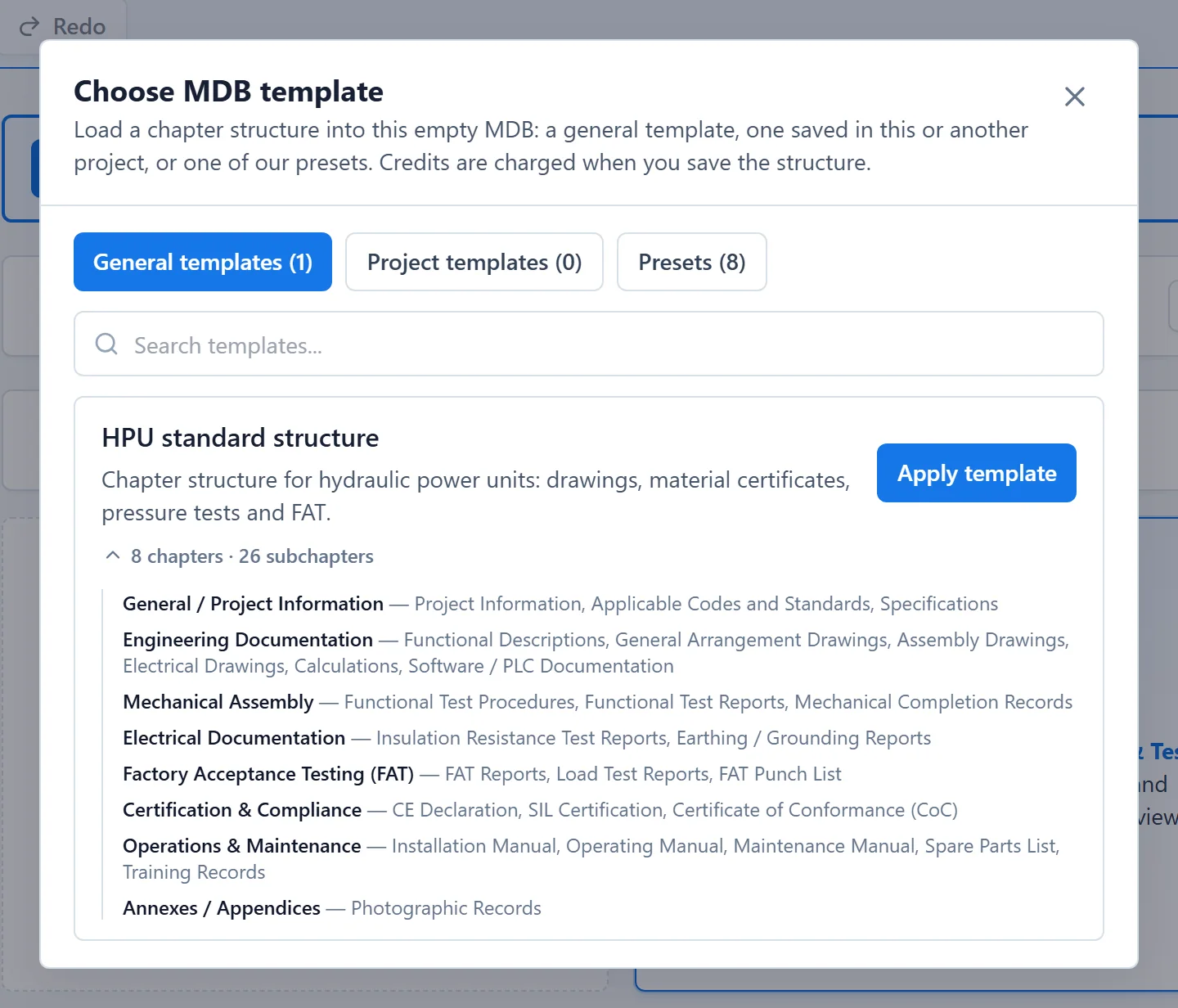
Next time, the template is waiting on its tab:
Related#
- Generate a structure with AI: no template yet? Let the AI propose one from the ITP.
- Edit the chapter structure
- Credits and plans